
Logitech Harmony 950 Case Replacement

Shiba Kandel and 6 other contributors
Last updated on May 16, 2024
Views: 5.6K
View statistics:
- Past 24 Hours:
- 1
- Past 7 Days:
- 29
- Past 30 Days:
- 120
- All Time:
- 5,595
Comments: 4
4 guide comments.
Go to guide commentsCompleted: 3 4
3 people have marked this guide "completed." Will you be next?
4 people have marked this guide "completed." Including you — great job!
Favorites: 0 1
No one has favorited (and subscribed to) this guide. Will you be the first?
1 person has favorited (and subscribed to) this guide — and that's you!
Introduction
Go to step 1 ↓This guide will involve using basic tools to replace the case of the Logitech Harmony 950.
What you need
Tools


-
-
-
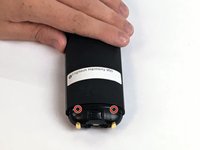
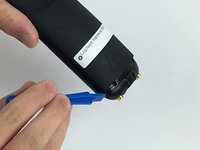
Use the Opening Tool to open the port cover at the bottom of the remote control.
-
Bend the cover back to gain easy access to the screws.
 Ask FixBot
-
-
-
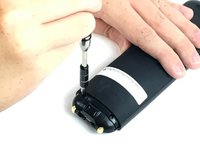
Use the Phillips #0 Screwdriver to remove the (2) two 6mm screws.
-
Pull the bottom cover off of the remote control.
-
-
-
Use the Phillips #1 Screwdriver to remove the (2) two 6mm screws.
-
There should be a gap on each side to fit the Opening Tool. Use the Opening Tool to open the back cover (Soft Touch cover) using the gap.
-
-
-
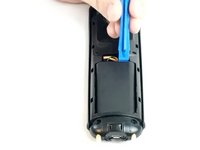
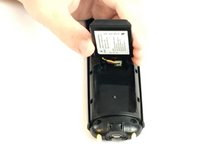
Use the Opening Tool to lift the battery out of the case.
-
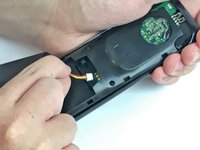
Gently pull the cable out of the socket to unplug the battery.
-
-
-
-
-
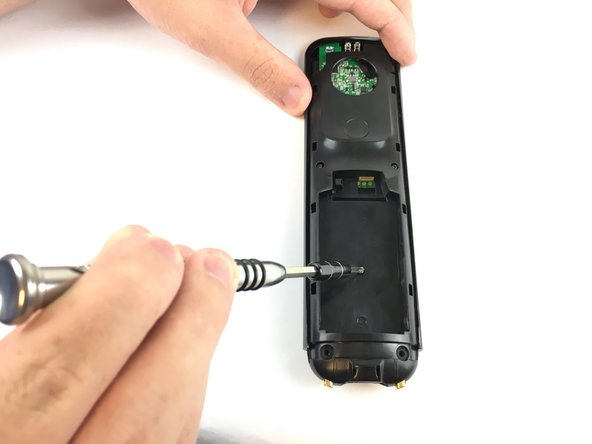
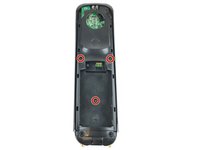
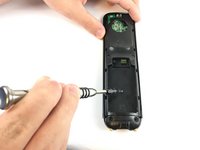
Use the Phillips #1 screwdriver to remove the (3) three 6mm screws.
-
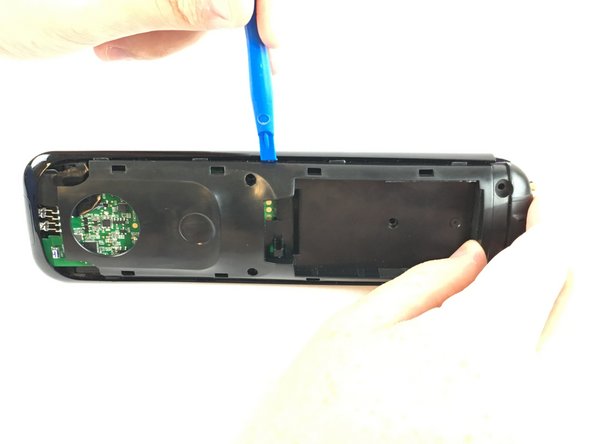
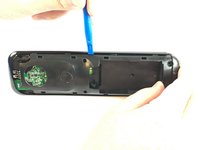
Push the opening tool into the gap along the side of the remote, then slide it across until you hear clicking sounds.
-
-
Tool used on this step:Tweezers$3.99
-
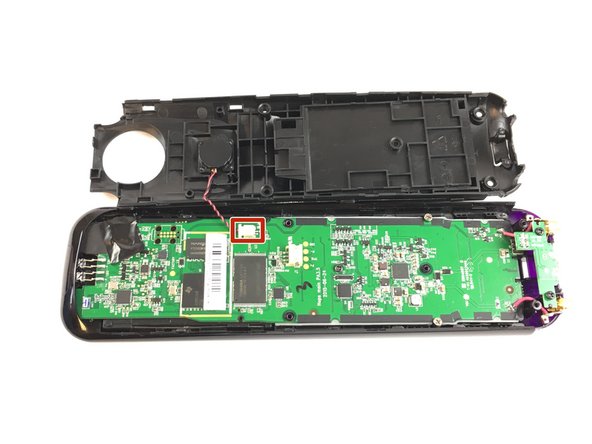
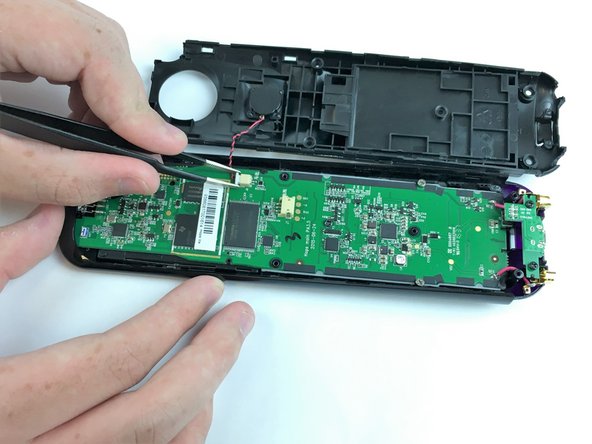
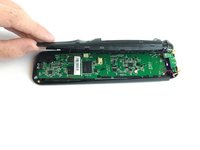
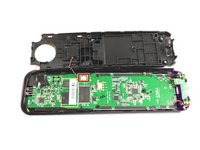
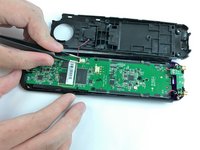
Use the angled Tweezers to carefully pull the white cable end off of the remote and disconnect it.
-
-
-
Use the Phillips #0 screwdriver to remove the (5) five 6mm screws. Keep in mind that once the screws are off, the circuit board will be completely separate from the case.
-
-
-
-
Remove the black tape to fully access the cable underneath.
-
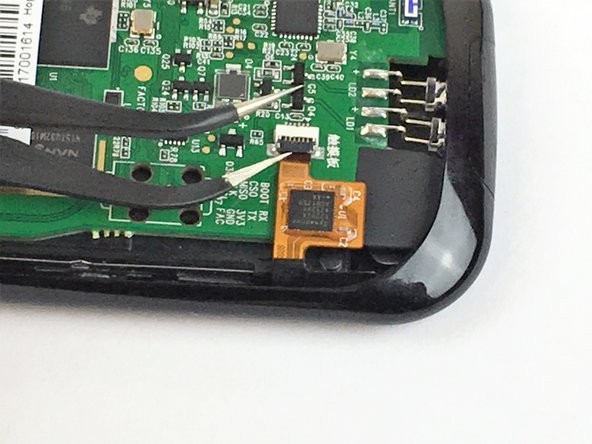
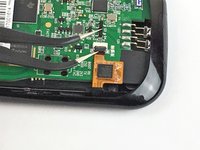
This cable has a locking mechanism. Use the Angled Tweezers to lift the black part (lock).
-
Slide the yellow cable to disconnect it from the circuit board.
-
-
-
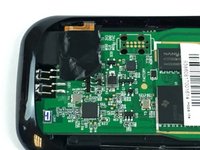
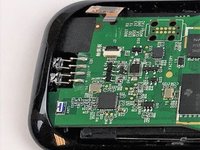
Pull the circuit board off of the case. Start from the bottom, and lift up to completely detach it from the cover.
-
-
-
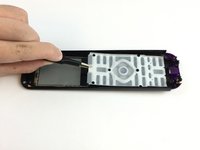
Use the Blunt Tweezers to carefully remove the keypad from the cover of the remote.
-
-









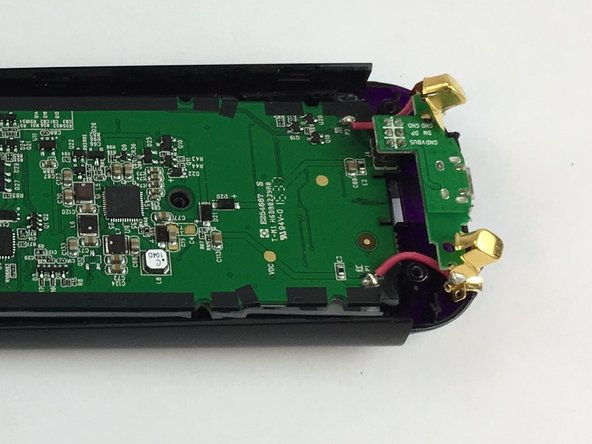
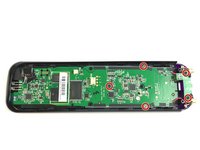
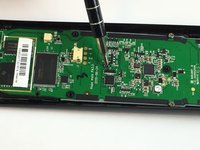
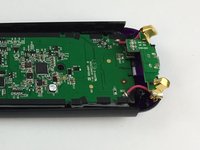



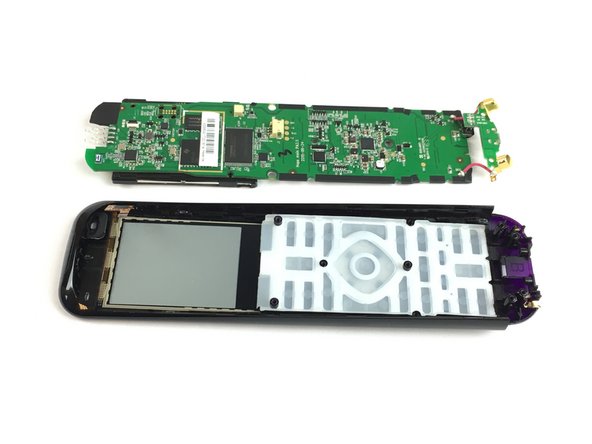


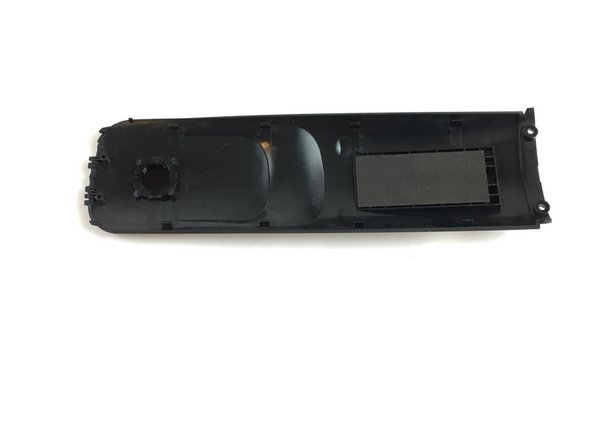
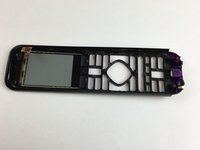
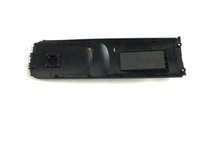
To reassemble your device, follow these instructions in reverse order.
Cancel: I did not complete this guide.
3 other people completed this guide.

Team

USF Tampa, Team S2-G2, Passmore Fall 2017 Member of USF Tampa, Team S2-G2, Passmore Fall 2017
USFT-PASSMORE-F17S2G2
4 Members
48 Guides authored
4 Guide Comments
where can this casing be purchased?
Parts are required obviously!!
Is the usb bottom cap part of the replacement case? If not can u get one?
