
Lenovo IdeaPad U530 Touch Hard Drive Replacement

Jack Dunn and 2 other contributors
Last updated on Nov 18, 2022
Views: 1.2K
View statistics:
- Past 24 Hours:
- 2
- Past 7 Days:
- 12
- Past 30 Days:
- 74
- All Time:
- 1,224
Comments: 0
No one has left comments on this guide. Will you be first?
Go to guide commentsCompleted: 0 1
No one has marked this guide "completed." Will you be the first?
1 person has marked this guide "completed." It's you — great job!
Favorites: 0 1
No one has favorited (and subscribed to) this guide. Will you be the first?
1 person has favorited (and subscribed to) this guide — and that's you!
Introduction
Go to step 1 ↓This is a step-by-step guide on how to replace the hard drive inside Lenovo IdeaPad U530 Touch laptop.
Symptoms related to hard drive failure are as follows:
- blue screens,
- loud scratching or clicking noises,
-and a “file not found” error when opening a file.
Make sure to wear gloves when operating inside the device.
What you need
Fix Kit
This kit contains all the parts and tools needed to complete this guide.

Parts


Tools


-
-
-
Remove the back panel by removing all screws. Use a PH000 screwdriver head.
-
Make sure to also remove the hinge screws.
 Ask FixBot
-
-
-
Locate and assess the battery. Pictured in the upper right area of the computer.
-
-
-
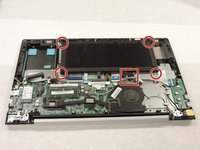
Locate and remove all screws attaching the battery to the hull of the computer. It is recommended that you use a JIS #1 screwdriver head for this task.
-
Be careful to keep track of all removed screws.
-
-
-
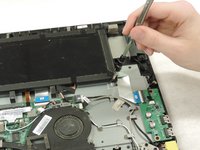
Detach the connection from the battery to the motherboard. This is the only connection that needs to be disconnected for the battery.
-
To remove the connection, please pull firmly, as it well secured.
-
-
-
-
-
-
Remove two 3 mm screws connecting the hard drive to the computer base using a JIS #1 screwdriver.
-
Detach the connection from the hard drive to the motherboard.
-
Remove the hard drive from the laptop.
-
-




To reassemble your device, follow these instructions in reverse order.

Team

The Citadel Military College of South Carolina, Team 2-9, Eggleston Fall 2021 Member of The Citadel Military College of South Carolina, Team 2-9, Eggleston Fall 2021
CMCSC-EGGLESTON-F21S2G9
3 Members
36 Guides authored
