Introduction
This will serve as a guide to replace the RAM (Random Access Memory) in a Lenovo V14 ADA MODEL NUMBER: 82C6S03E00, either for repair or upgrade purposes. RAM acts as the short term storage in a system, only containing data for applications that are currently in use. It enables the system to run much faster that it would if it always had to read application data from a drive.
When upgrading or replacing RAM in a system, it is important to know the generation of RAM your system will accept. In this system, the RAM used is PC4, or DDR4. Using a different generation of RAM will make the laptop not function. When purchasing a new RAM module for this replacement, ensure that it is a DDR4 SODIMM RAM module; a larger DIMM module meant for a PC will not work.
Faulty RAM can cause
- Failure to boot.
- Frequent Blue Screens, with these codes given as the reason.
- MEMORY_MANAGEMENT (0x0000001A)
- PAGE_FAULT_IN_NONPAGED_AREA (0x00000050)
- IRQL_NOT_LESS_OR_EQUAL (0x0000000A)
- SYSTEM_SERVICE_EXCEPTION (0x0000003B)
- Random Crashes and Freezes.
- Stuttering in RAM heavy applications, like gaming.
- RAM missing from task manager.
This link leads to troubleshooting tips for your system’s RAM.
What you need
-
-
-
Turn off the laptop.
-
Disconnect the charging cable from the laptop.
-
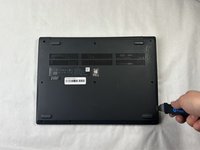
Flip the laptop upside down.
 Ask FixBot
-
-
-
-
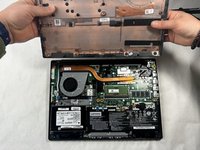
Place the Jimmy in the small crack between the back panel and the keyboard and push down.
-
Repeat this until the panel pops off.
-
-
-
-
-
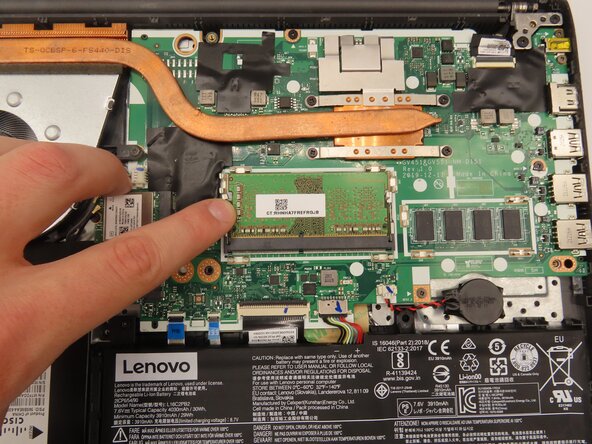
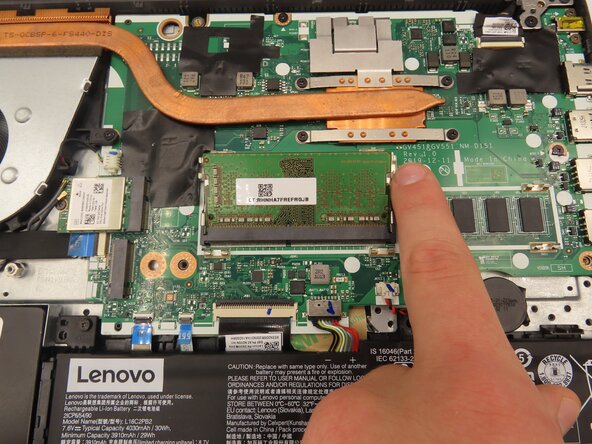
Push the retaining arms away from the RAM module.
-
Remove the module after it pops up at an angle.
-
-



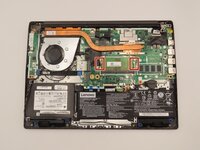
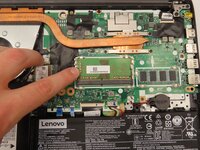
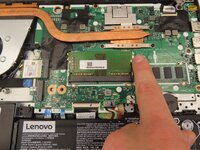
To reassemble your device, follow these instructions in reverse order.

Team

University of Kentucky, Team 1-1, Frey Spring 2025 Member of University of Kentucky, Team 1-1, Frey Spring 2025
UKY-FREY-S25S1G1
4 Members
46 Guides authored
