Free Shipping on Domestic Orders $75+

Lenovo ThinkPad Yoga 260 Back Cover Replacement

Views: 3K

View statistics:

Past 24 Hours:
0
Past 7 Days:
13
Past 30 Days:
70
All Time:
2,968
Comments: 0

No one has left comments on this guide. Will you be first?

Go to guide comments
Completed: 3

3 people have marked this guide "completed." Will you be next?

Favorites: 0

No one has favorited (and subscribed to) this guide. Will you be the first?

Time Required: 3 - 4 minutes
Difficulty: Easy
Lenovo ThinkPad Yoga 260 Back Cover Replacement

Introduction

Go to step 1 ↓

The back cover protects all the internal hardware of the device. In order to replace any components, the back cover must be removed. This guide will highlight how to remove the back cover safely.

What you need

Tools

    1. Lenovo ThinkPad Yoga 260 Back Cover Replacement, Back Cover: step 1, image 1 of 1
      • Ensure the device is off and unplugged.

      • Remove the stylus from its port and set aside.

      Ask FixBot

      Add Comment

    2. Lenovo ThinkPad Yoga 260 Back Cover Replacement: step 2, image 1 of 2 Lenovo ThinkPad Yoga 260 Back Cover Replacement: step 2, image 2 of 2
      • Using a Phillips #1 screwdriver, gently unscrew the eight 1.3 mm Phillips #1 screws until you hear an audible click.

      • The screws will not separate from the bottom cover when loose.

      Ask FixBot

      Add Comment

    3. Lenovo ThinkPad Yoga 260 Back Cover Replacement: step 3, image 1 of 2 Lenovo ThinkPad Yoga 260 Back Cover Replacement: step 3, image 2 of 2
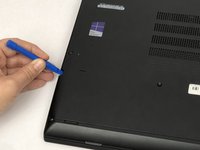
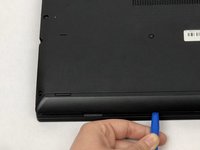
      • The bottom cover is attached via several plastic clips located around the edges of the bottom cover.

      • Using a plastic opening tool, gently pry the bottom cover from the laptop.

      • Work the plastic opening tool around the edges of the bottom cover undoing all of the plastic clips, as shown in the picture.

      Ask FixBot

      Add Comment

    4. Lenovo ThinkPad Yoga 260 Back Cover Replacement: step 4, image 1 of 2 Lenovo ThinkPad Yoga 260 Back Cover Replacement: step 4, image 2 of 2
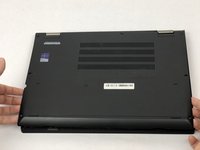
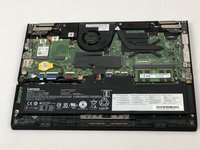
      • Place your fingers around the edges of the cover and remove it.

      Ask FixBot

      Add Comment

Conclusion

To reassemble your device, follow these instructions in reverse order

Cancel: I did not complete this guide.

3 other people completed this guide.

Daniel Fernandez

Member since: 02/14/18

1,008 Reputation

5 Guides authored

Team

USF Tampa, Team S2-G3, Eyestone Spring 2018 Member of USF Tampa, Team S2-G3, Eyestone Spring 2018

USFT-EYESTONE-S18S2G3

4 Members

60 Guides authored

0 Guide Comments

Add Comment

View Statistics:

Past 24 Hours: 0

Past 7 Days: 13

Past 30 Days: 70

All Time: 2,968