Lenovo ThinkPad X1 Yoga (3rd Gen) SSD Replacement

What you need

  1. Lenovo ThinkPad X1 Yoga (3rd Gen) SSD Replacement, SSD: step 1, image 1 of 1
    • Restart your laptop.

    • Press the "Enter" key repeatedly. This will bring you to the BIOS.

    • Your laptop should not be plugged in, or charging, for the next steps.

  2. Lenovo ThinkPad X1 Yoga (3rd Gen) SSD Replacement: step 2, image 1 of 2 Lenovo ThinkPad X1 Yoga (3rd Gen) SSD Replacement: step 2, image 2 of 2
    • Use the left and right arrow keys to navigate to the Config section of the BIOS.

    • From the Config section, use the up and down arrow keys to navigate to the Disable Built-in Battery option.

    • Hit the "Enter" key twice to proceed.

    • The battery will now be temporarily disabled, allowing you to safely complete the next steps. To power on your laptop, it must now be plugged in to a charger.

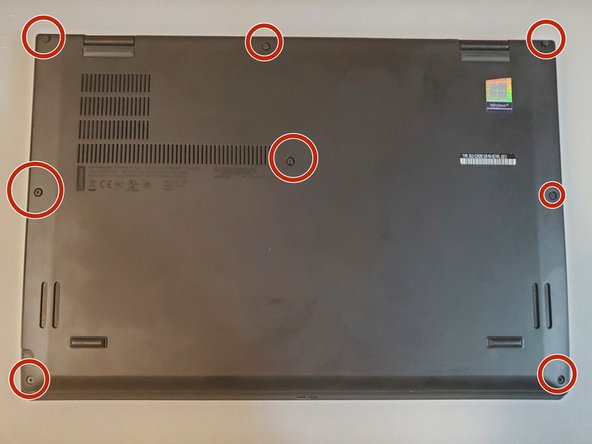
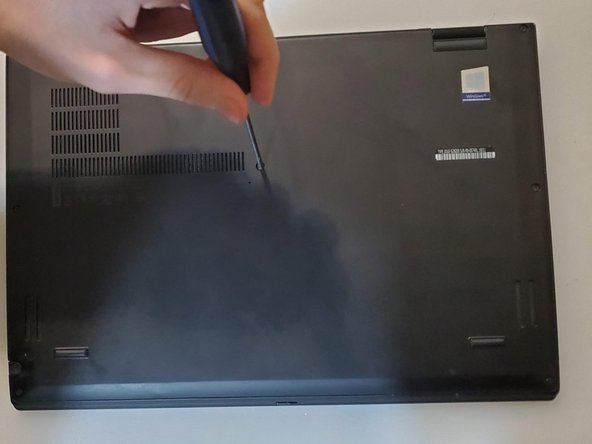
  3. Lenovo ThinkPad X1 Yoga (3rd Gen) SSD Replacement: step 3, image 1 of 3 Lenovo ThinkPad X1 Yoga (3rd Gen) SSD Replacement: step 3, image 2 of 3 Lenovo ThinkPad X1 Yoga (3rd Gen) SSD Replacement: step 3, image 3 of 3
    • Loosen the eight 2 mm-long captive Phillips #00 screws on the lower case.

    • These screws are self-contained in the lower case.

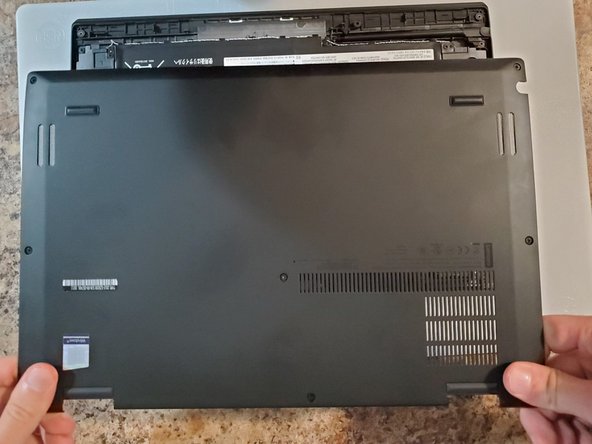
  4. Lenovo ThinkPad X1 Yoga (3rd Gen) SSD Replacement: step 4, image 1 of 3 Lenovo ThinkPad X1 Yoga (3rd Gen) SSD Replacement: step 4, image 2 of 3 Lenovo ThinkPad X1 Yoga (3rd Gen) SSD Replacement: step 4, image 3 of 3
    • Pry the backplate cover away from the laptop using your hands.

    • If you have access to a prying tool, you may use one.

    • Do not bend the backplate. With the screws loosened from the previous step, this panel can be removed with only a little effort.

    • Grasp the plastic shield with your hand and pull it away from the laptop.

    • This will reveal the M.2 slot, where your SSD is installed.

  5. Lenovo ThinkPad X1 Yoga (3rd Gen) SSD Replacement: step 5, image 1 of 3 Lenovo ThinkPad X1 Yoga (3rd Gen) SSD Replacement: step 5, image 2 of 3 Lenovo ThinkPad X1 Yoga (3rd Gen) SSD Replacement: step 5, image 3 of 3
    • Remove the 2.8 mm-long Phillips #00 screw that secures the SSD.

    • Do not lose this screw! It must be reused later.

    • Gently grasp the SSD from where the screw was located.

    • Pull the SSD to remove it from the M.2 slot. If the SSD does not immediately release, gently wiggle it while pulling.

    • Once you have removed the old hard drive, pull it out of the plastic heatshield.

    • This heatshield will be reused with your new hard drive.

  6. Lenovo ThinkPad X1 Yoga (3rd Gen) SSD Replacement: step 6, image 1 of 2 Lenovo ThinkPad X1 Yoga (3rd Gen) SSD Replacement: step 6, image 2 of 2
    • Push the new SSD into the plastic heatshield. It should fit snugly.

    • Insert the new SSD into the M.2 socket.

    • Screw in the 2.8 mm-long Phillips #00 screw to complete installation.

Conclusion

To reassemble your device, follow these instructions in reverse order. Once your laptop is assembled, plug in the laptop to turn it on.

2 other people completed this guide.

Nicholas Clauser

Member since: 09/19/23

203 Reputation

1 Guide authored

Team

0 Guide Comments

Add Comment

View Statistics:

Past 24 Hours: 0

Past 7 Days: 67

Past 30 Days: 252

All Time: 3,437