Lenovo ThinkPad T520 HDD/SSD Replacement

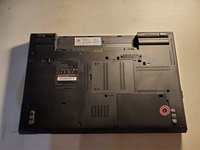
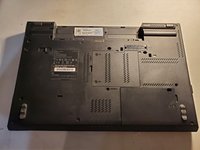
  1. Lenovo ThinkPad T520 HDD/SSD Replacement, Flip over laptop: step 1, image 1 of 2 Lenovo ThinkPad T520 HDD/SSD Replacement, Flip over laptop: step 1, image 2 of 2
    • Power down the laptop and unplug all cables.

    • Flip over laptop.

  2. Lenovo ThinkPad T520 HDD/SSD Replacement, Remove battery: step 2, image 1 of 2 Lenovo ThinkPad T520 HDD/SSD Replacement, Remove battery: step 2, image 2 of 2
    • Using your fingers, slide the lock to the unlocked position.

    • Then remove the battery from the slot.

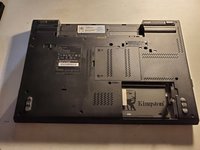
  3. Lenovo ThinkPad T520 HDD/SSD Replacement, Remove HDD/SSD plastic cover: step 3, image 1 of 3 Lenovo ThinkPad T520 HDD/SSD Replacement, Remove HDD/SSD plastic cover: step 3, image 2 of 3 Lenovo ThinkPad T520 HDD/SSD Replacement, Remove HDD/SSD plastic cover: step 3, image 3 of 3
    • Remove the single screw holding in the plastic cover.

    • Remove the plastic cover from the laptop.

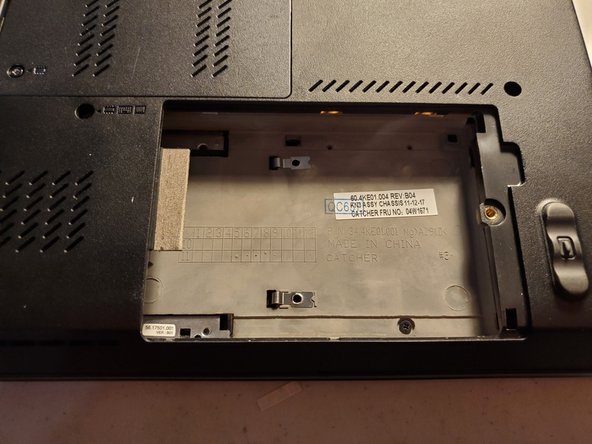
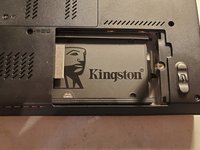
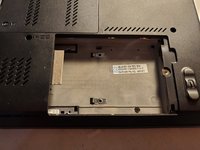
  4. Lenovo ThinkPad T520 HDD/SSD Replacement, Removing the HDD/SSD: step 4, image 1 of 2 Lenovo ThinkPad T520 HDD/SSD Replacement, Removing the HDD/SSD: step 4, image 2 of 2
    • Using your fingers pull on the black plastic tab.

    • Remove the HDD/SSD from the laptop.

Conclusion

To reassemble your device, follow these instructions in reverse order.

Jeremiah C.

Member since: 03/28/22

700 Reputation

6 Guides authored

0 Guide Comments

Add Comment

View Statistics:

Past 24 Hours: 0

Past 7 Days: 4

Past 30 Days: 13

All Time: 165