Shop the Holiday Gift Guide
Free Shipping on Domestic Orders $75+

Lenovo IdeaPad Flex 4-1470 Speaker Replacement

Views: 1.5K

View statistics:

Past 24 Hours:
2
Past 7 Days:
18
Past 30 Days:
80
All Time:
1,472
Comments: 2

2 comments on steps.

Completed: 1

1 person has marked this guide "completed." Will you be next?

Favorites: 0

No one has favorited (and subscribed to) this guide. Will you be the first?

Time Required: 15 - 20 minutes
Difficulty: Moderate
Lenovo IdeaPad Flex 4-1470 Speaker Replacement

Introduction

Go to step 1 ↓

This guide will demonstrate how to replace the speakers in your device. You may need to replace the device if you have a damaged or blown speaker. Signs of a damaged speaker are distortion at low volumes, and crackling sound.

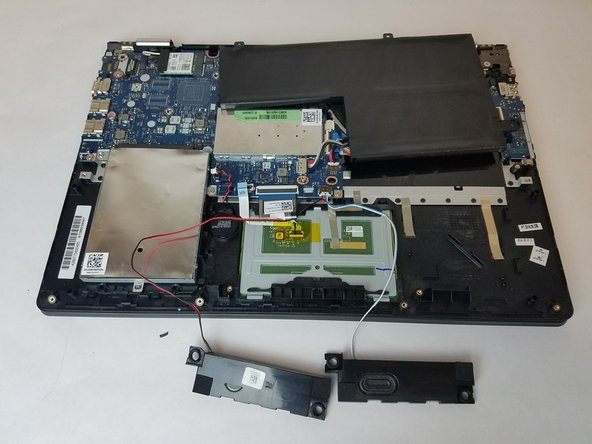
In this guide the repair is done with the laptop flipped so the left speaker is on the viewers right and vice versa. For the purpose of simplicity we will refer to the speakers based on their current position with respect to the viewer.

What you need

Tools

    1. Lenovo IdeaPad Flex 4-1470 Speaker Replacement, Lower Case: step 1, image 1 of 1
      • Ensure your computer is completely OFF before starting this guide.

      • Remove the eight 6 mm screws using a Phillips #0 screwdriver.

      • Remove the two 11 mm screws using a Phillips #0 screwdriver.

      Ask FixBot

      Add Comment

    2. Lenovo IdeaPad Flex 4-1470 Speaker Replacement: step 2, image 1 of 2 Lenovo IdeaPad Flex 4-1470 Speaker Replacement: step 2, image 2 of 2
      • Pry the back cover off by inserting the plastic opening tool at the hinges and wedging it between the Back cover and the body.

      • Follow along the back edge with the plastic opening tool, lifting the cover off as you go. It is normal to hear snapping/clicking sounds as the back cover is held on by clips.

      • Remove the cover.

      Ask FixBot

      Add Comment

    1. Lenovo IdeaPad Flex 4-1470 Speaker Replacement, Battery: step 3, image 1 of 2 Lenovo IdeaPad Flex 4-1470 Speaker Replacement, Battery: step 3, image 2 of 2
      • Disconnect the battery connector by using a plastic pry tool or your fingers to push the cable right towards the battery.

      • Do not pry or push on the socket itself or you risk damaging the motherboard.

      Ask FixBot

      Add Comment

    2. Lenovo IdeaPad Flex 4-1470 Speaker Replacement: step 4, image 1 of 1
      • Remove the three 4 mm Phillips #0 screws holding the battery in place.

      Ask FixBot

      Add Comment

    3. Lenovo IdeaPad Flex 4-1470 Speaker Replacement: step 5, image 1 of 1
      • Lift the battery up and out of the laptop.

      Ask FixBot

      Add Comment

    1. Lenovo IdeaPad Flex 4-1470 Speaker Replacement, Speaker: step 6, image 1 of 2 Lenovo IdeaPad Flex 4-1470 Speaker Replacement, Speaker: step 6, image 2 of 2
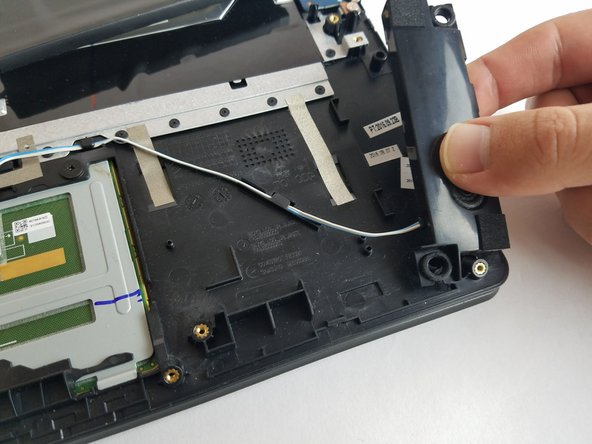
      • The speakers are not screwed or bolted in like any other components. They have two rubber grommets at each end which hold it in with friction.

      • Starting with the speaker on the right, use your fingers to lift both ends of the speaker off.

      • The grommets may fall off when removing the speaker. When reassembling make sure you place the grommets back into the notches on the speaker before trying to mount the speaker. The specific orientation and position doesn't matter

      Ask FixBot

      Add Comment

    2. Lenovo IdeaPad Flex 4-1470 Speaker Replacement: step 7, image 1 of 1
      • In addition to the grommets, the speaker wire running to the motherboard is clipped down.

      • Remove speaker wire from the clips.

      Ask FixBot

      Add Comment

    3. Lenovo IdeaPad Flex 4-1470 Speaker Replacement: step 8, image 1 of 2 Lenovo IdeaPad Flex 4-1470 Speaker Replacement: step 8, image 2 of 2
      • Repeat the previous steps for the other speaker.

      Ask FixBot

      Add Comment

    4. Lenovo IdeaPad Flex 4-1470 Speaker Replacement: step 9, image 1 of 1
      • Remove the wire shown using the plastic opening tool.

      Ask FixBot

      Add Comment

    5. Lenovo IdeaPad Flex 4-1470 Speaker Replacement: step 10, image 1 of 2 Lenovo IdeaPad Flex 4-1470 Speaker Replacement: step 10, image 2 of 2
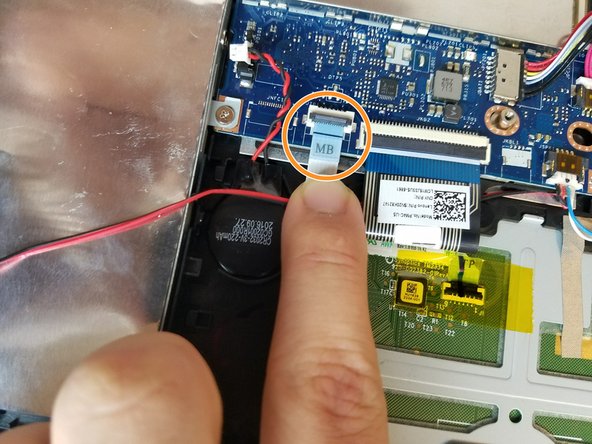
      • Use the Plastic Opening tool to flip open the ribbon cable clip shown.

      • Pull gently on the ribbon cable to disconnect it from the motherboard.

      Ask FixBot

      Add Comment

    6. Lenovo IdeaPad Flex 4-1470 Speaker Replacement: step 11, image 1 of 3 Lenovo IdeaPad Flex 4-1470 Speaker Replacement: step 11, image 2 of 3 Lenovo IdeaPad Flex 4-1470 Speaker Replacement: step 11, image 3 of 3
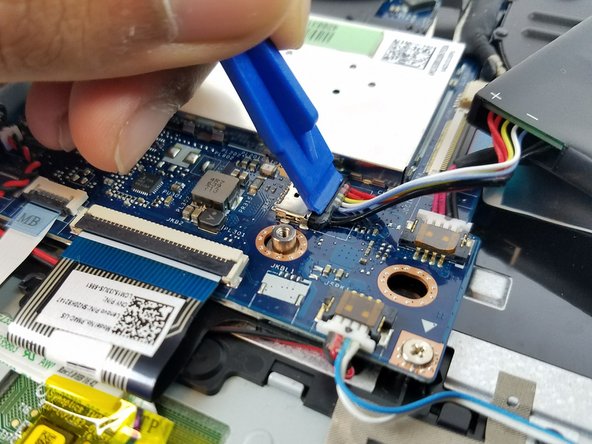
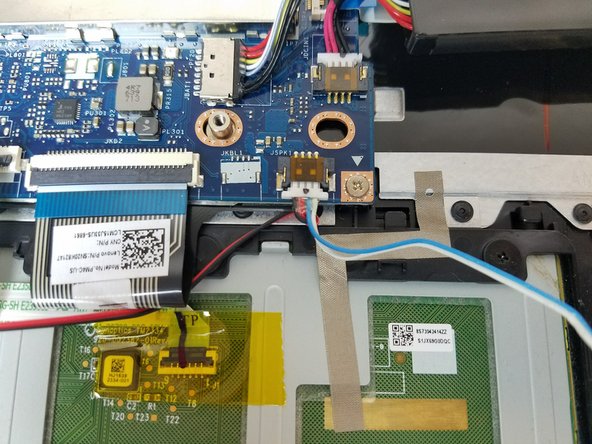
      • Now that both speaker wires are free, disconnect the speakers from motherboard using two plastic opening tools.

      • Keep in mind that the red and black wires lead to the left speaker and the blue and white wires lead to the right speakers.

      Ask FixBot

      Add Comment

Conclusion

To reassemble your device, follow these instructions in reverse order.

Cancel: I did not complete this guide.

One other person completed this guide.

Author

with

Robert Cartwright

Member since: 10/02/17

195 Reputation

1 Guide authored

Team

USF Tampa, Team S1-G6, Thompson Fall 2017 Member of USF Tampa, Team S1-G6, Thompson Fall 2017

USFT-THOMPSON-F17S1G6

3 Members

72 Guides authored

0 Guide Comments

Add Comment

View Statistics:

Past 24 Hours: 2

Past 7 Days: 18

Past 30 Days: 80

All Time: 1,472