Introduction
Is your laptop opening programs slowly or corrupting files constantly? If so, you can follow this guide to replace your laptop's solid state drive or SSD. Before beginning, ensure that the laptop is turned off completely and disconnected from its charger.
This repair guide is done specifically on the Lenovo IdeaPad 5, Model Number: 14ARE05. However, these steps may still be applicable for your laptop.
What you need
-
-
Place your laptop with the bottom facing up.
-
Remove the three 9.3 mm screws from the upper side of the laptop using a T5 Torx screwdriver.
-
Remove four 4.5 mm screws from the lower side of the laptop using a T5 Torx screwdriver.
-
-


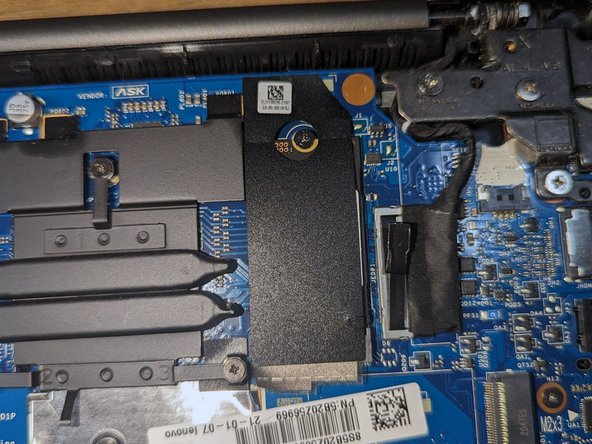
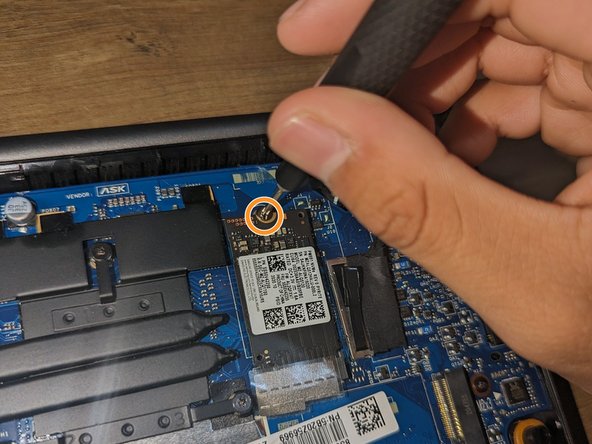


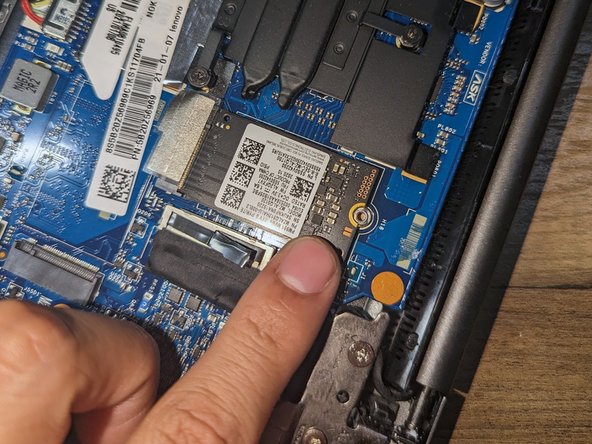
To reassemble your device, follow these instructions in reverse order.
To reassemble your device, follow these instructions in reverse order.


Team

California State University Bakersfield, Team 74-16, Chiang Fall 2023 Member of California State University Bakersfield, Team 74-16, Chiang Fall 2023
CSUB-CHIANG-F23S74G16
1 Member
1 Guide authored
