Introduction
If you need to remove and replace the keyboard for the Lenovo G780, follow the steps in this guide.
What you need
-
-
-
Turn off the computer.
-
Slide the battery-lock switch on the bottom of the laptop to the unlocked position.
 Ask FixBot
-
-
-
Hold the battery release switch in the unlocked position and remove the battery.
-
-
-
-
-
-
Remove the three 9mm keyboard screws with a #0 Phillips screwdriver.
-
-
-
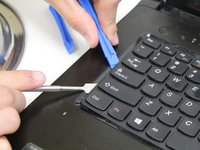
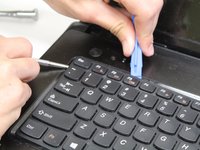
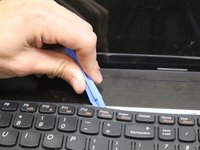
With a plastic opening tool, start on the left of the keyboard and gently pry the keyboard off the laptop.
-
Be careful removing the keyboard to prevent from tearing the delicate connector.
-
-
-
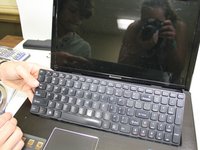
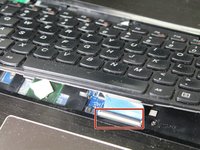
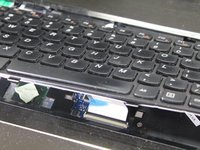
Slightly lift the keyboard from the laptop.
-
Push the grey lock upward to unlock the ZIF connector.
-
Carefully lift the keyboard connector from its socket.
-
-




To reassemble your device, follow these instructions in reverse order.

Team

Carson-Newman University, Team S1-G3, Sobiech Spring 2017 Member of Carson-Newman University, Team S1-G3, Sobiech Spring 2017
CNU-SOBIECH-S17S1G3
4 Members
58 Guides authored
