Free Shipping on Domestic Orders $75+

Left Speaker Driver Removal

Prerequisite Only
This is a prerequisite-only guide! This guide is part of another procedure and isn’t meant to be used alone.

What you need

    1. Left Speaker Driver Removal, Remove the left earpad: step 1, image 1 of 2 Left Speaker Driver Removal, Remove the left earpad: step 1, image 2 of 2
      • The earpads are secured with magnets.

      • Lift the left earpad (labeled L) straight up and remove it.

      Ask FixBot

      Add Comment

    1. Left Speaker Driver Removal, Remove the left ear cup: step 2, image 1 of 3 Left Speaker Driver Removal, Remove the left ear cup: step 2, image 2 of 3 Left Speaker Driver Removal, Remove the left ear cup: step 2, image 3 of 3
      • Removing the ear cup isn’t required, but can make the repair easier. You can leave the cup attached and remove it later if needed.

      • Insert a SIM eject tool, bit, or a small, straightened paperclip into the hole on the top edge of the right ear cup (labeled L).

      • Push down with your tool and pull the headband connector straight out of its socket.

      • The headband connector should slide out easily. If you're having trouble, reposition the tool and try again—you may need to angle the bit slightly.

      Ask FixBot

      Add Comment

    1. Left Speaker Driver Removal, Set the left ear cup down: step 3, image 1 of 1
      • Set the left ear cup down on a soft, clean cloth to prevent scratches and help stabilize the cup during your repair.

      Ask FixBot

      Add Comment

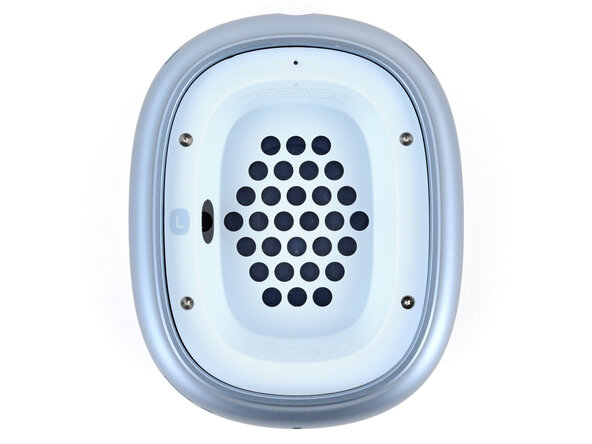
    2. Left Speaker Driver Removal, Turn the housing screws to the open position: step 4, image 1 of 2 Left Speaker Driver Removal, Turn the housing screws to the open position: step 4, image 2 of 2
      • Turn these screws slowly and gently, stopping when you feel resistance—about 1/4 turn. If turned too far, the locking mechanism will break.

      • Use a P5 pentalobe screwdriver to turn (not remove) the four speaker housing screws to the unlocked position:

      • Turn the top left and bottom right screws counterclockwise.

      • Turn the top right and bottom left screws clockwise.

      Ask FixBot

      Add Comment

    3. Left Speaker Driver Removal, Soften the speaker housing adhesive: step 5, image 1 of 3 Left Speaker Driver Removal, Soften the speaker housing adhesive: step 5, image 2 of 3 Left Speaker Driver Removal, Soften the speaker housing adhesive: step 5, image 3 of 3
      Tool used on this step:
      iOpener
      $14.95
      Buy
      • The perimeter of the speaker housing is secured to the cup with adhesive. This step shows a few methods to soften the adhesive so you can pry up the housing. If one isn't working, try a different method.

      • Option 1: Apply a few drops of high-concentration isopropyl alcohol (>90%) in the gap around the perimeter of the speaker housing. Wait one minute to allow the alcohol to soften the adhesive.

      • Option 2: Heat the speaker housing with an iOpener or hair dryer. Focus the heat around the perimeter, applying small amounts for short periods of time.

      • Don't heat the center of the speaker housing, or you'll damage the fragile mesh under the speaker cutouts and possibly the speaker.

      • For a detailed look at best practices for using a hair dryer, check out this guide.

      Ask FixBot

      Add Comment

    4. Left Speaker Driver Removal, Pry up the speaker housing: step 6, image 1 of 3 Left Speaker Driver Removal, Pry up the speaker housing: step 6, image 2 of 3 Left Speaker Driver Removal, Pry up the speaker housing: step 6, image 3 of 3
      Tool used on this step:
      iSesamo Opening Tool
      $10.99
      Buy
      • The gap between the speaker housing and ear cup is extremely small. You'll need a thin tool such as a metal opening pick, iSesamo, or iFlex to pry up the housing.

      • Don't grip the iFlex or similar metal tools by the edges—they're sharp and may cut you. Consider wearing gloves to protect yourself.

      • Insert the flat side of your opening tool into the gap between the right side of the speaker housing and the lip of the ear cup (opposite the L marking).

      • Pry up the speaker housing until you can grip it with your fingers, applying constant pressure to allow the adhesive to separate.

      • If the housing isn't coming up, repeat the previous step and try again. Don't try and force the housing out or you may damage it.

      Ask FixBot

      Add Comment

    5. Left Speaker Driver Removal: step 7, image 1 of 3 Left Speaker Driver Removal: step 7, image 2 of 3 Left Speaker Driver Removal: step 7, image 3 of 3
      • Don't try to fully remove the speaker housing yet—a delicate ribbon cable still connects it to the ear cup.

      • Lift the speaker housing out of the ear cup to fully separate the remaining adhesive.

      • Flip the housing over the side of the cup and prop it up so you can access the cable.

      Ask FixBot

      Add Comment

    6. Left Speaker Driver Removal, Remove the speaker housing cable cover: step 8, image 1 of 2 Left Speaker Driver Removal, Remove the speaker housing cable cover: step 8, image 2 of 2
      Tool used on this step:
      FixMat
      $36.95
      Buy
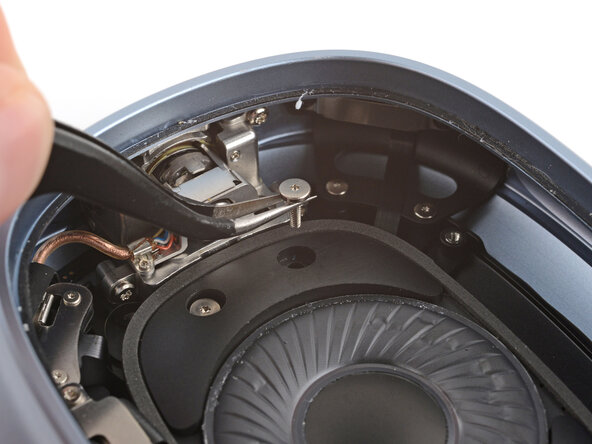
      • Don’t let any screws snap onto the speaker driver diaphragm or they'll damage it. The screws will be drawn towards the center by the speaker's magnet.

      • Remove the four screws securing the cable cover:

      • One 7.5 mm‑long Torx Plus 3IP screw

      • Three 1.7 mm‑long Torx Plus 1IP screws

      • Throughout this repair, keep track of each screw and make sure it goes back exactly where it came from.

      Ask FixBot

      Add Comment

    7. Left Speaker Driver Removal: step 9, image 1 of 3 Left Speaker Driver Removal: step 9, image 2 of 3 Left Speaker Driver Removal: step 9, image 3 of 3
      • Use tweezers to slightly lift the cover and slide it towards the center of the ear cup to remove it.

      Ask FixBot

      Add Comment

    8. Left Speaker Driver Removal, Disconnect the speaker housing: step 10, image 1 of 2 Left Speaker Driver Removal, Disconnect the speaker housing: step 10, image 2 of 2
      • Use a spudger to pry up and disconnect the speaker housing press connector.

      Ask FixBot

      Add Comment

    9. Left Speaker Driver Removal, Remove the speaker housing: step 11, image 1 of 1
      • Remove the speaker housing.

      Ask FixBot

      Add Comment

    1. Left Speaker Driver Removal, Remove the speaker driver screws: step 12, image 1 of 3 Left Speaker Driver Removal, Remove the speaker driver screws: step 12, image 2 of 3 Left Speaker Driver Removal, Remove the speaker driver screws: step 12, image 3 of 3
      • Grip the screws with tweezers while loosening and removing them. Don’t let the screws snap onto the diaphragm.

      • Use a Torx Plus 3IP screwdriver to remove three speaker driver screws:

      • Two 6.0 mm‑long screws

      • One 6.0 mm‑long screw that's slightly thicker than the other two

      • Remove the 5.1 mm‑long standoff screw using one of the two methods below:

      • Apply constant downward force to avoid damaging the screw.

      • Option 1: Stick a small flathead screwdriver into one of the four notches on top of the screw and use it to slowly turn the screw.

      • Option 2: Use a Torq-Set 6 screwdriver to remove the screw, applying constant downward force to avoid damaging the screw.

      Ask FixBot

      Add Comment

    2. Left Speaker Driver Removal, Remove the speaker driver: step 13, image 1 of 3 Left Speaker Driver Removal, Remove the speaker driver: step 13, image 2 of 3 Left Speaker Driver Removal, Remove the speaker driver: step 13, image 3 of 3
      • Lift the right edge of the speaker and remove it, being careful not to touch the diaphragm.

      • Set the speaker aside in a place where it won't attract small metal objects.

      Ask FixBot

      Add Comment

Finish Line

Cancel: I did not complete this guide.

Spencer Day

Member since: 09/14/22

205,788 Reputation

1,267 Guides authored

0 Guide Comments

Add Comment

View Statistics:

Past 24 Hours: 0

Past 7 Days: 2

Past 30 Days: 12

All Time: 73