
LeapFrog Scribble and Write Display Screen Replacement

Shang and 4 other contributors
Last updated on Jun 14, 2016
Views: 5.4K
View statistics:
- Past 24 Hours:
- 5
- Past 7 Days:
- 24
- Past 30 Days:
- 120
- All Time:
- 5,405
Comments: 0
No one has left comments on this guide. Will you be first?
Go to guide commentsCompleted: 3 4
3 people have marked this guide "completed." Will you be next?
4 people have marked this guide "completed." Including you — great job!
Favorites: 0 1
No one has favorited (and subscribed to) this guide. Will you be the first?
1 person has favorited (and subscribed to) this guide — and that's you!
Introduction
Go to step 1 ↓Your display screen may be unresponsive to the touch of your toy's stylus pen. Your toy may also display the wrong input. This could be happening because of a build up of debris. Your display screen will need to be cleaned or replaced.
What you need
Tools

-
-
-
Turn your toy over.
-
Use a Phillips screwdriver to remove the nine case screws from the back of the toy.
 Ask FixBot
-
-
-
-
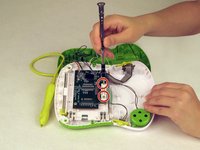
Use a Philips screwdriver to remove the two screws attached to the motherboard.
-
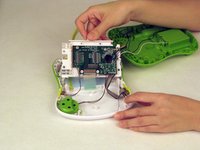
Remove the motherboard.
-
-
-
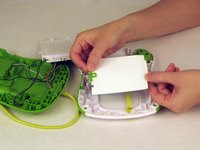
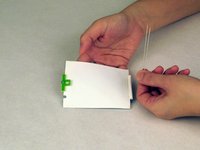
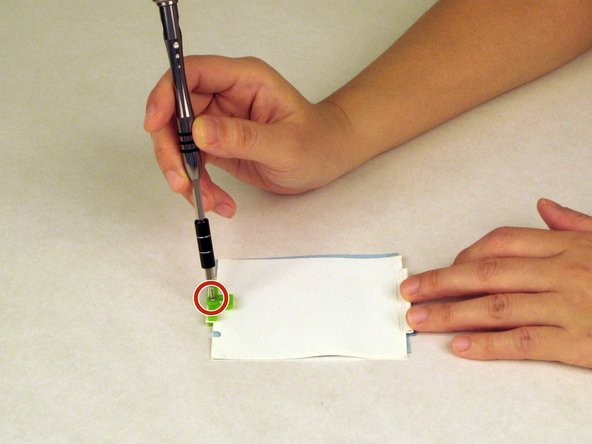
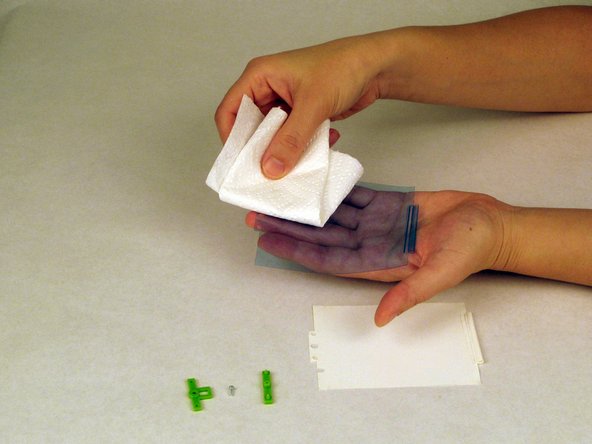
Use a Phillips screwdriver to remove the screw from the green clip that holds the two screen layers together.
-
-


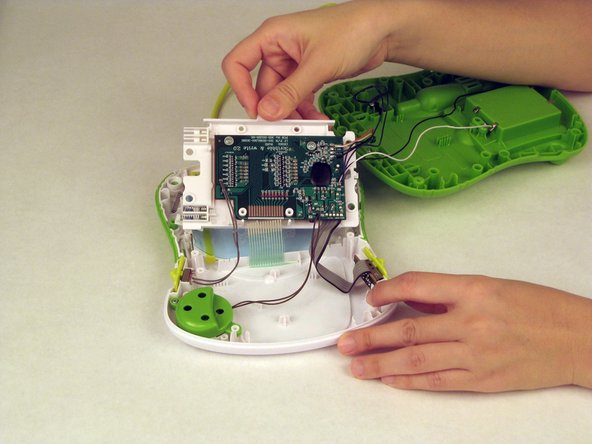

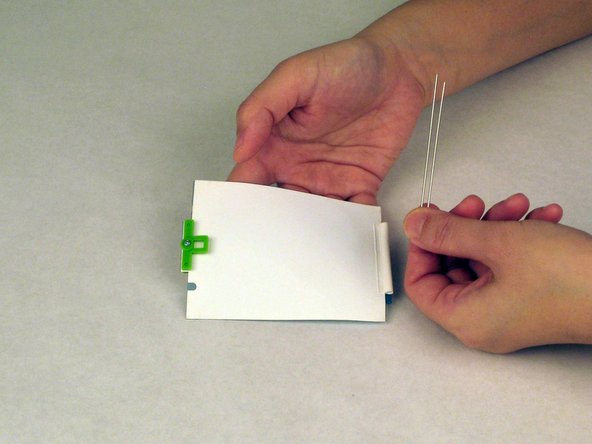

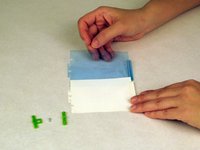
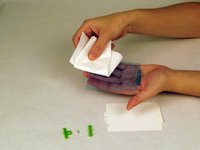
To reassemble your device, follow these instructions in reverse order.
Cancel: I did not complete this guide.
3 other people completed this guide.

Team

USF Tampa, Team 1-5, Nance Spring 2016 Member of USF Tampa, Team 1-5, Nance Spring 2016
USFT-NANCE-S16S1G5
3 Members
60 Guides authored
