
LG VX6000 Keyboard Replacement

Adam Altman and 11 other contributors
Last updated on Oct 7, 2024
Views: 3.2K
View statistics:
- Past 24 Hours:
- 1
- Past 7 Days:
- 4
- Past 30 Days:
- 27
- All Time:
- 3,177
Comments: 1
1 comment on steps.
Completed: 0 1
No one has marked this guide "completed." Will you be the first?
1 person has marked this guide "completed." It's you — great job!
Favorites: 0 1
No one has favorited (and subscribed to) this guide. Will you be the first?
1 person has favorited (and subscribed to) this guide — and that's you!
Action Shots
Be an action hero! This guide needs images that better demonstrate how to perform specific actions.
Missing Prerequisites
This guide is missing information on how to start the process. Make a prerequisite guide!
Introduction
Go to step 1 ↓This repair guide provides step-by-step instructions for safely removing the battery from the LG VX6000.
What you need

-
-
-
Locate the dark gray tab on the back of the phone.
-
Push the tab towards the top of the phone to release the battery.
 Ask FixBot
-
-
-
-
Tool used on this step:Tweezers$4.99
-
Carefully use tweezers to remove the two rubber cushions located at the top of the phone.
-
-
-
-
Use a Phillips #00 screwdriver to remove the six screws highlighted on the back of the phone.
-
-
-
-
-
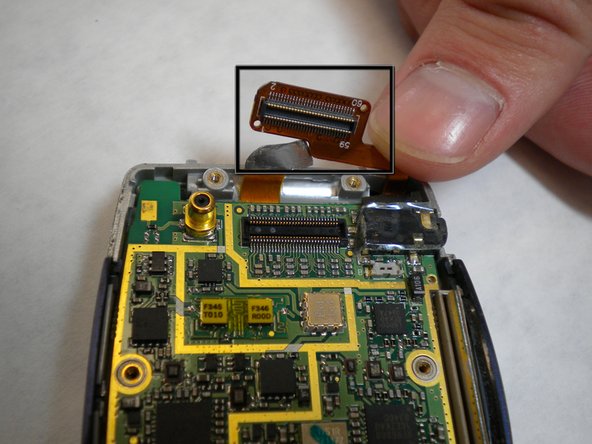
Locate the yellow connection towards the top of the phone. This is directly connected to the screen.
-
Carefully pry the connector away from the motherboard to remove it from the phone.
-
-
-
-
Peel the keypad off the casing.
-
Swap out the old keypad for a new one.
-
-




To reassemble your device, follow these instructions in reverse order.

Team

Cal Poly, Team 4-11, Forte Winter 2010 Member of Cal Poly, Team 4-11, Forte Winter 2010
CPSU-FORTE-W10S4G11
5 Members
60 Guides authored
