Free Shipping on Domestic Orders $75+

LG Optimus Exceed 2 Screen Replacement

Archived Guide
This guide is retained solely for historical purposes. Use the updated version of the guide to perform your repair.

What you need

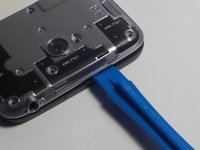
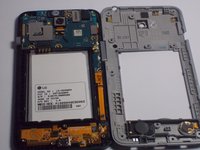
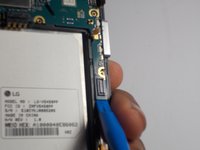
    1. LG Optimus Exceed 2 Screen Replacement, Battery: step 1, image 1 of 2 LG Optimus Exceed 2 Screen Replacement, Battery: step 1, image 2 of 2
      • Flip the device over and remove the back covering.

      Ask FixBot
      Add Comment

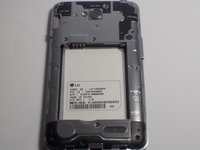
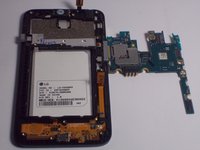
    2. LG Optimus Exceed 2 Screen Replacement: step 2, image 1 of 1
      • Push on the top of the battery downward and pull the battery off of the device.

      Ask FixBot
      Add Comment

    1. LG Optimus Exceed 2 Screen Replacement, Rear Camera: step 3, image 1 of 3 LG Optimus Exceed 2 Screen Replacement, Rear Camera: step 3, image 2 of 3 LG Optimus Exceed 2 Screen Replacement, Rear Camera: step 3, image 3 of 3
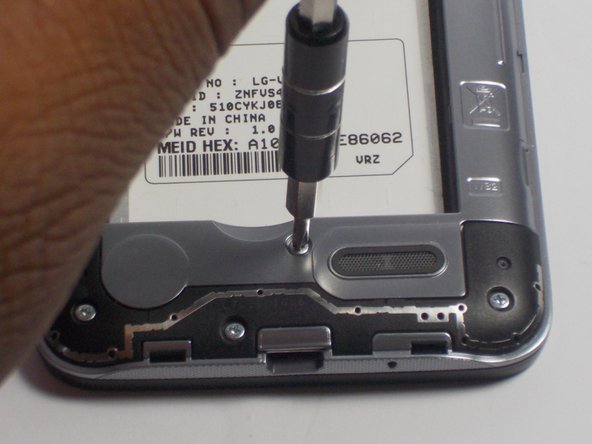
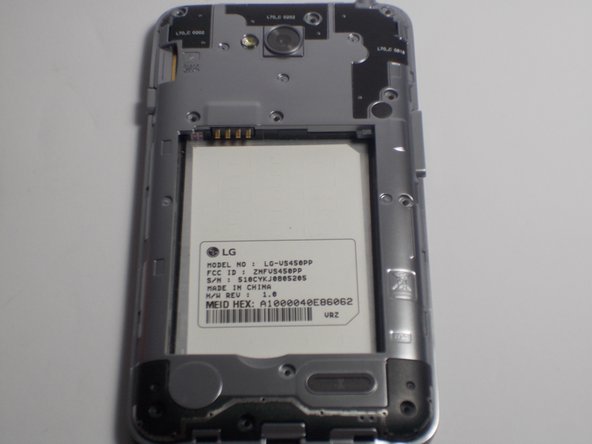
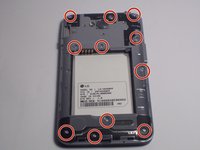
      • Remove the eleven 4mm screws using a Philips head screw driver.

      Ask FixBot

      Add Comment

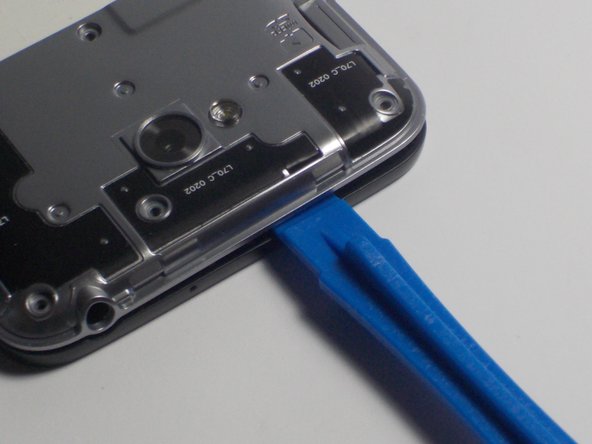
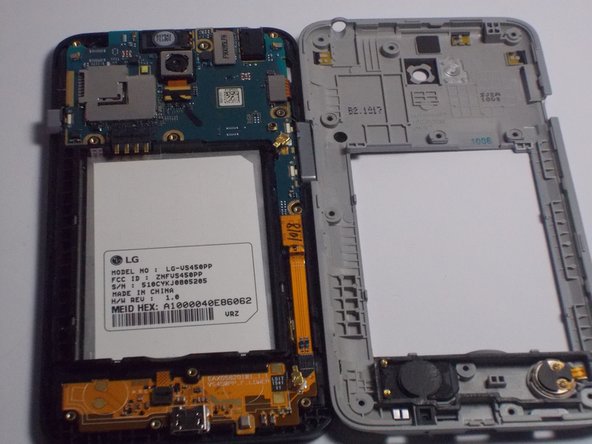
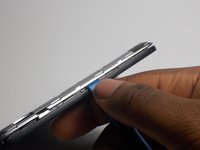
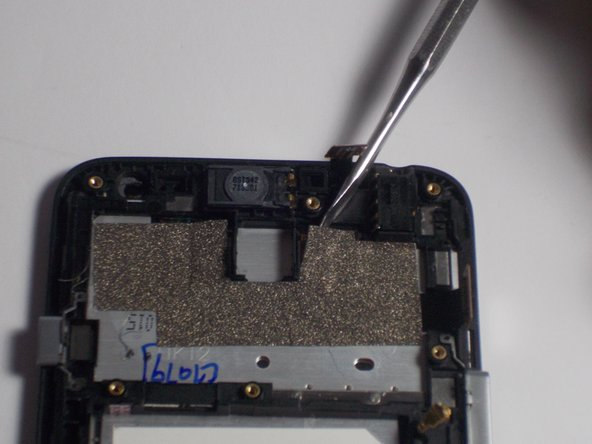
    2. LG Optimus Exceed 2 Screen Replacement: step 4, image 1 of 3 LG Optimus Exceed 2 Screen Replacement: step 4, image 2 of 3 LG Optimus Exceed 2 Screen Replacement: step 4, image 3 of 3
      • Insert the plastic opening tool into the side of the device and pry off silver covering. Push up against the back covering when the tool is inserted to detach from the phone.

      • Make sure to detach all sides of silver covering before lifting it off the phone.

      Ask FixBot
      Add Comment

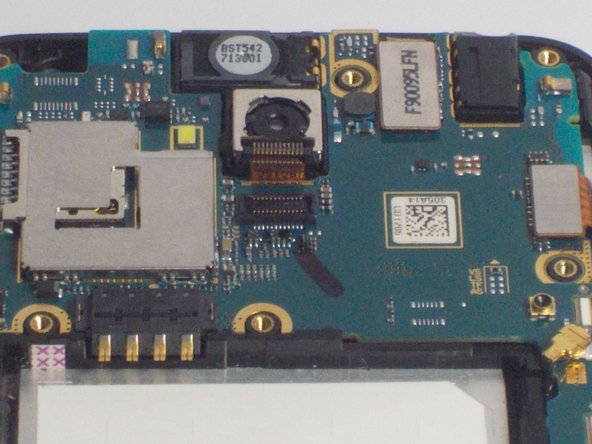
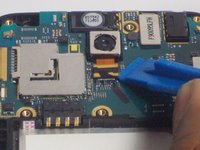
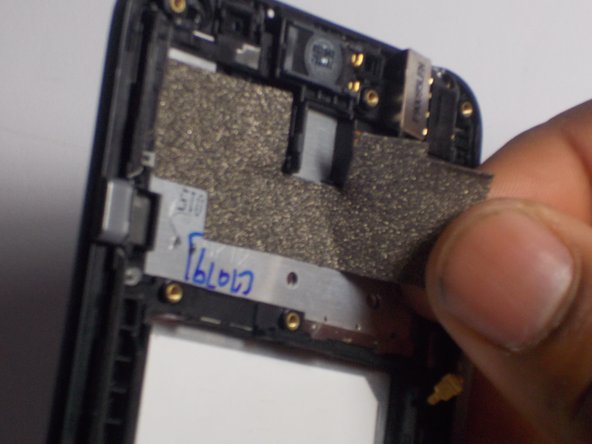
    3. LG Optimus Exceed 2 Screen Replacement: step 5, image 1 of 2 LG Optimus Exceed 2 Screen Replacement: step 5, image 2 of 2
      • Using the prying tool detach the connector on the device.

      • Insert the plastic opening tool underneath the connector and push tool down to lift the connector from the device.

      Ask FixBot
      Add Comment

    4. LG Optimus Exceed 2 Screen Replacement: step 6, image 1 of 2 LG Optimus Exceed 2 Screen Replacement: step 6, image 2 of 2
      Tool used on this step:
      Tweezers
      $4.99
      Buy
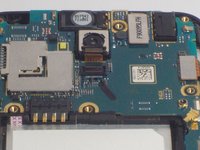
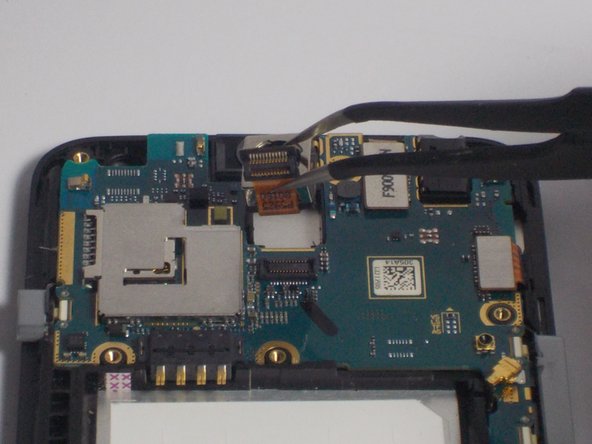
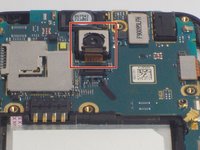
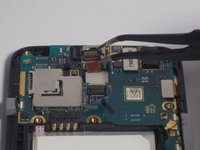
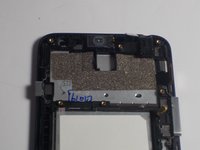
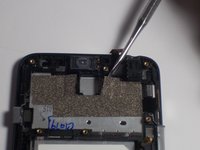
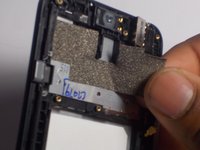
      • Using tweezers lift the camera off of the device.

      • To do so grasp the camera gently with the tweezers and pull the camera up out of the device.

      Ask FixBot
      Add Comment

    1. LG Optimus Exceed 2 Screen Replacement, Motherboard: step 7, image 1 of 2 LG Optimus Exceed 2 Screen Replacement, Motherboard: step 7, image 2 of 2
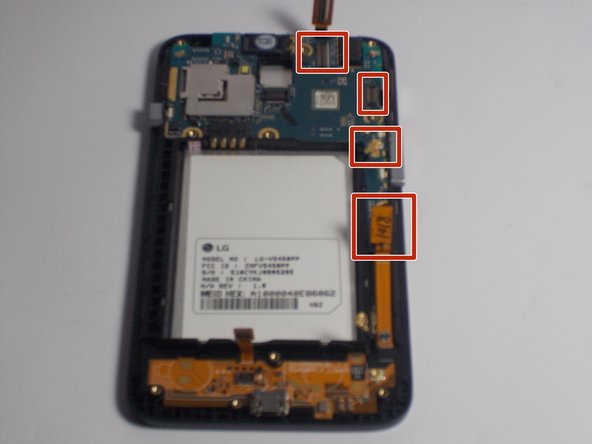
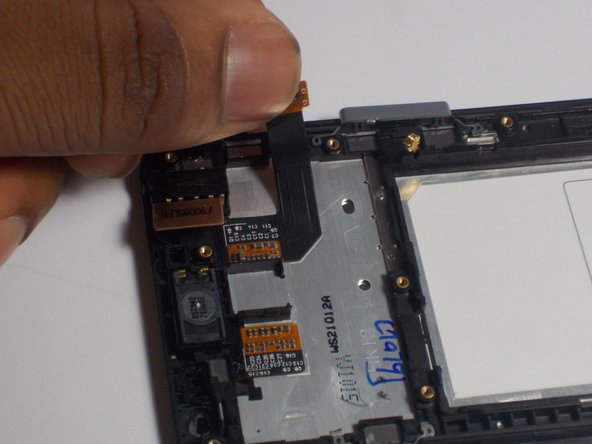
      • Disconnect the remaining ribbon plugs and connectors. (Only remove the highlighted cables for the removal of the logic board.)

      Ask FixBot
      Add Comment

    2. LG Optimus Exceed 2 Screen Replacement: step 8, image 1 of 2 LG Optimus Exceed 2 Screen Replacement: step 8, image 2 of 2
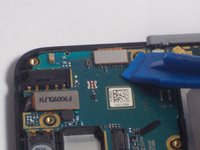
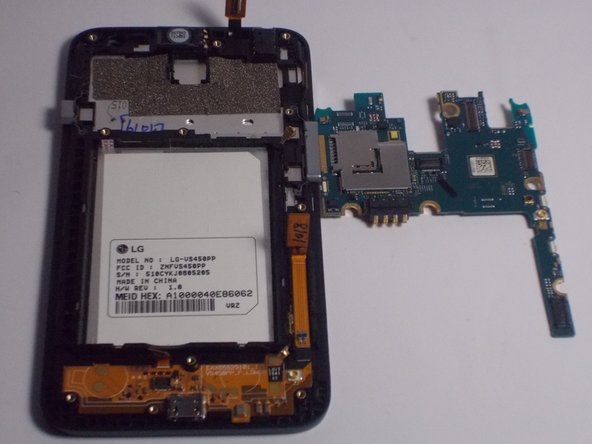
      • Push the blue lifting tool up underneath the logic board and pull it upwards removing it from the device.

      Ask FixBot
      Add Comment

    1. LG Optimus Exceed 2 Screen Replacement, Screen: step 9, image 1 of 3 LG Optimus Exceed 2 Screen Replacement, Screen: step 9, image 2 of 3 LG Optimus Exceed 2 Screen Replacement, Screen: step 9, image 3 of 3
      • Using a prying tool, carefully remove the silver/ black tape used to hide the screens connectors.

      Ask FixBot

      Add Comment

    2. LG Optimus Exceed 2 Screen Replacement: step 10, image 1 of 3 LG Optimus Exceed 2 Screen Replacement: step 10, image 2 of 3 LG Optimus Exceed 2 Screen Replacement: step 10, image 3 of 3
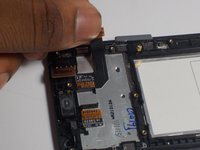
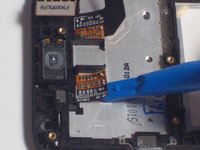
      • Using the blue lifting tool carefully remove the screens connectors.

      Ask FixBot
      Add Comment
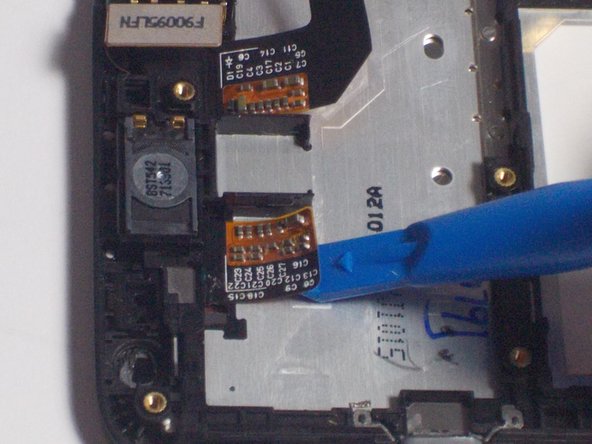
    3. LG Optimus Exceed 2 Screen Replacement: step 11, image 1 of 3 LG Optimus Exceed 2 Screen Replacement: step 11, image 2 of 3 LG Optimus Exceed 2 Screen Replacement: step 11, image 3 of 3
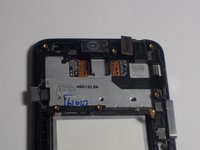
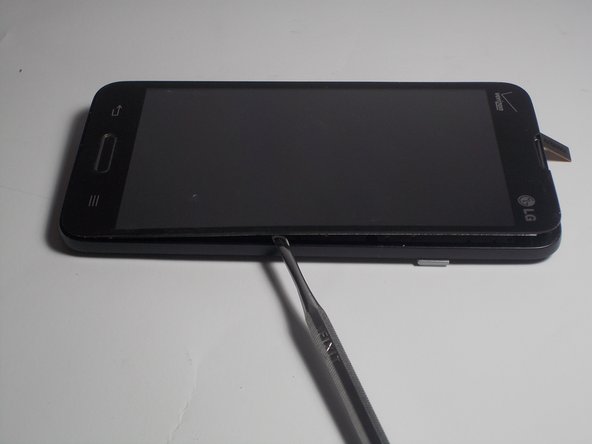
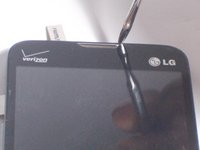
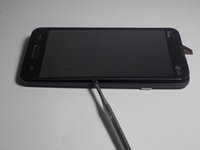
      • Flip the device so the screen faces you. Using a prying tool, at the corners on the screen begin to pry off the screen. (It will sound like tape being removed.) Avoid scratching the device with the prying tool.

      Ask FixBot

      Add Comment

    4. LG Optimus Exceed 2 Screen Replacement: step 12, image 1 of 1
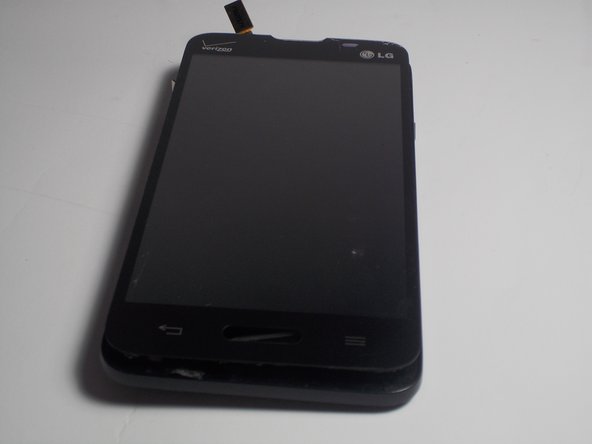
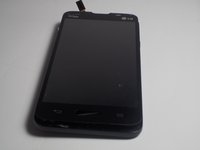
      • Pull the screen off of the body of the device. (Mind the circuits when removing the screen. The home button is likely to fall off. )

      Ask FixBot

      Add Comment

Conclusion

To reassemble your device, follow these instructions in reverse order.

Cancel: I did not complete this guide.

Carl Dorvilus

Member since: 03/10/16

708 Reputation

6 Guides authored

Team

0 Guide Comments

Add Comment

View Statistics:

Past 24 Hours: 0

Past 7 Days: 6

Past 30 Days: 15

All Time: 353