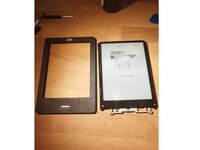
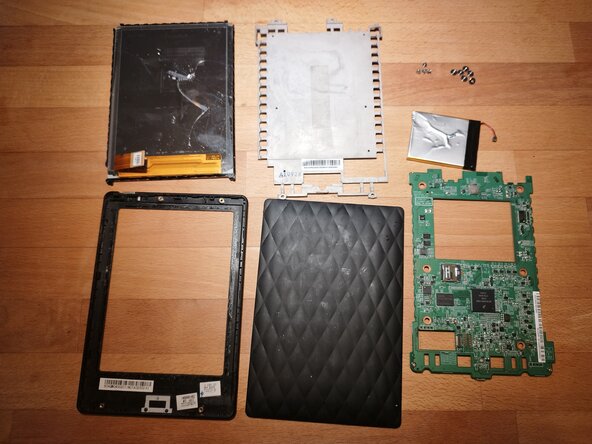
Kobo Touch (N905B) E-Reader Screen Replacement

What you need

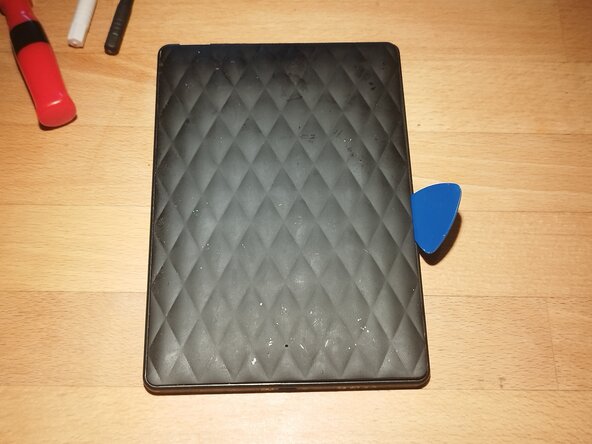
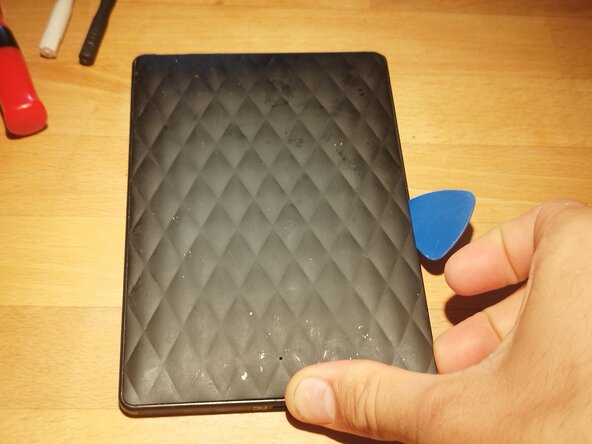
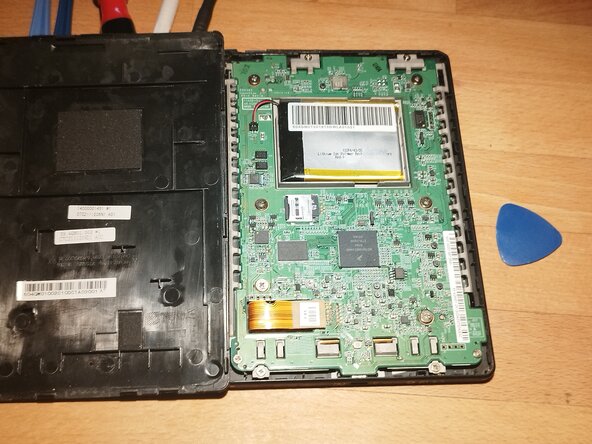
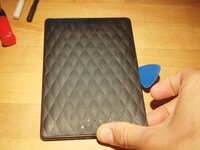
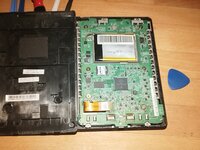
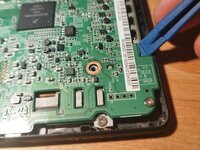
  1. Kobo Touch (N905B) E-Reader Screen Replacement, Pry open the Back cover: step 1, image 1 of 3 Kobo Touch (N905B) E-Reader Screen Replacement, Pry open the Back cover: step 1, image 2 of 3 Kobo Touch (N905B) E-Reader Screen Replacement, Pry open the Back cover: step 1, image 3 of 3
    • Back cover is removed easily with a plastic pick or other instrument.

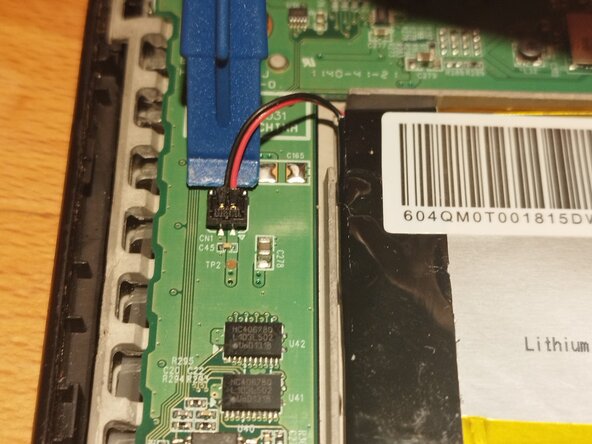
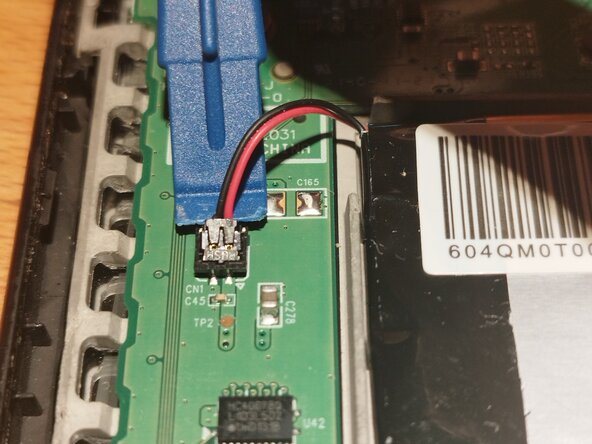
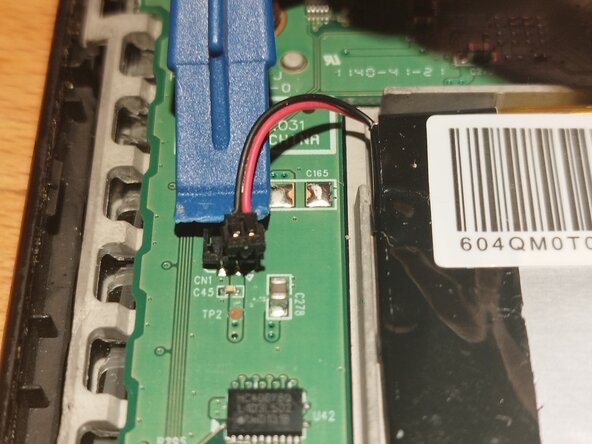
  2. Kobo Touch (N905B) E-Reader Screen Replacement, Remove Battery cable: step 2, image 1 of 3 Kobo Touch (N905B) E-Reader Screen Replacement, Remove Battery cable: step 2, image 2 of 3 Kobo Touch (N905B) E-Reader Screen Replacement, Remove Battery cable: step 2, image 3 of 3
    • Use little force to lift up the battery cable from above.

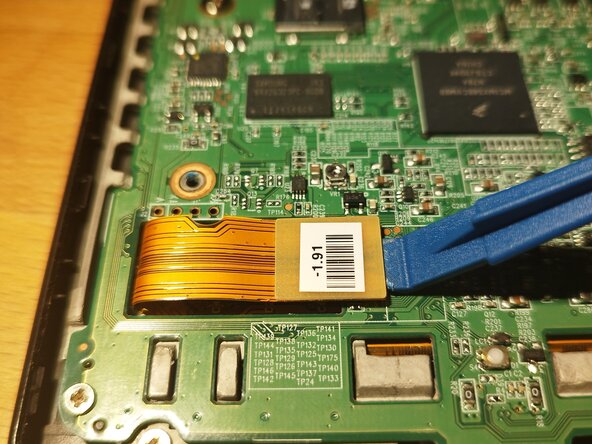
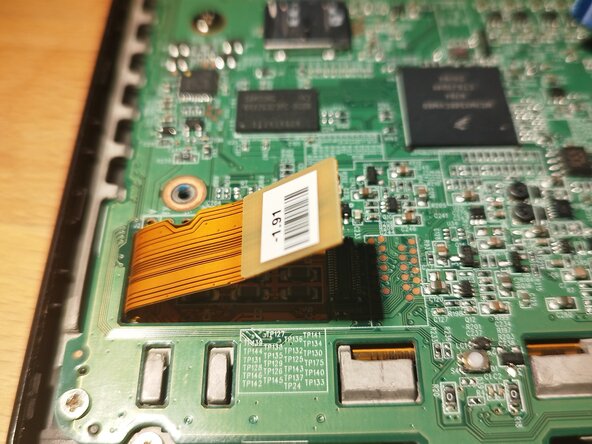
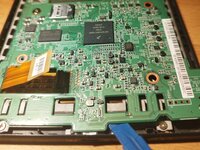
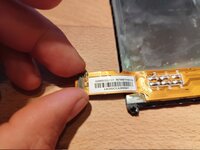
  3. Kobo Touch (N905B) E-Reader Screen Replacement, Disconnect screen: step 3, image 1 of 2 Kobo Touch (N905B) E-Reader Screen Replacement, Disconnect screen: step 3, image 2 of 2
    • Gently lift the flexcable.

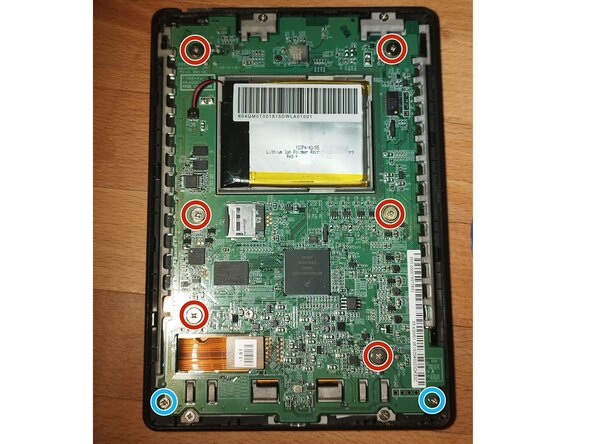
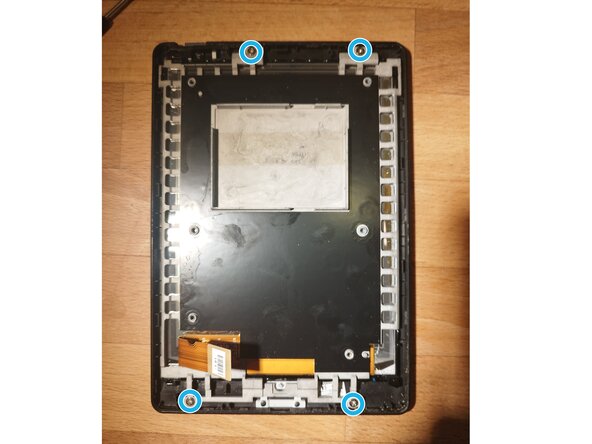
  4. Kobo Touch (N905B) E-Reader Screen Replacement, Unscrew the Board: step 4, image 1 of 1
    • Unscrew the displayed srews.

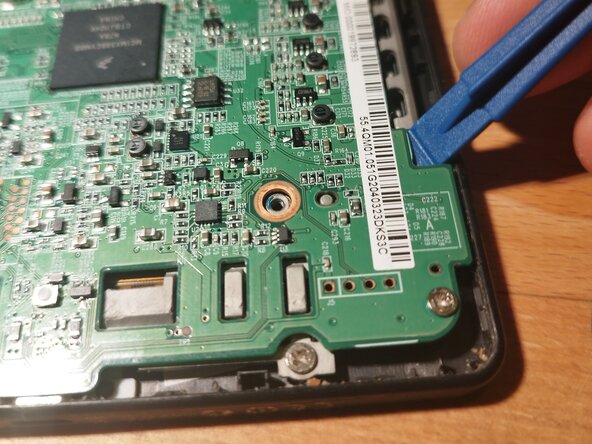
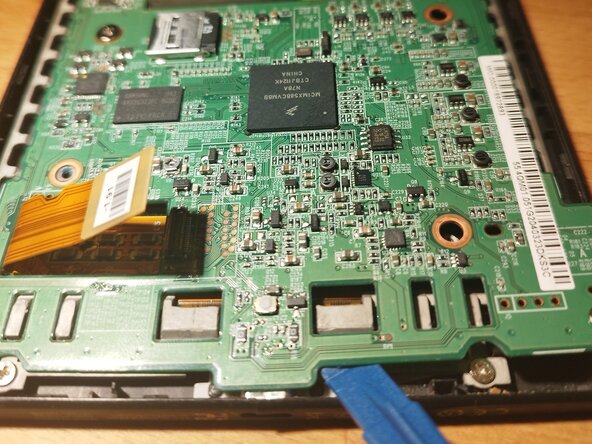
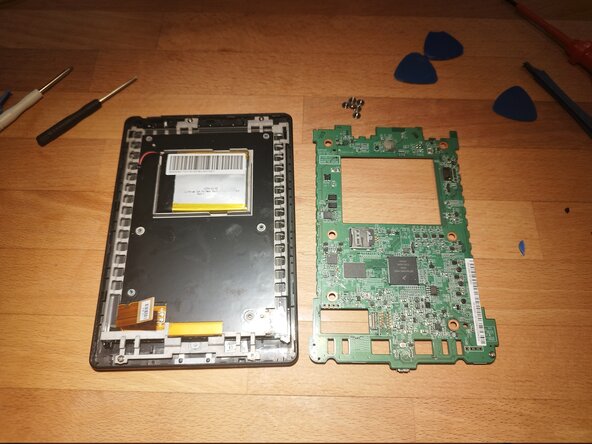
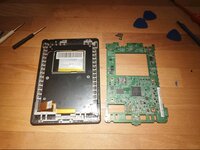
  5. Kobo Touch (N905B) E-Reader Screen Replacement, Lift up the Board: step 5, image 1 of 3 Kobo Touch (N905B) E-Reader Screen Replacement, Lift up the Board: step 5, image 2 of 3 Kobo Touch (N905B) E-Reader Screen Replacement, Lift up the Board: step 5, image 3 of 3
    • Best to start on the top and then pull it out so that the USB plug does not block the way (not the way shown in the picture)

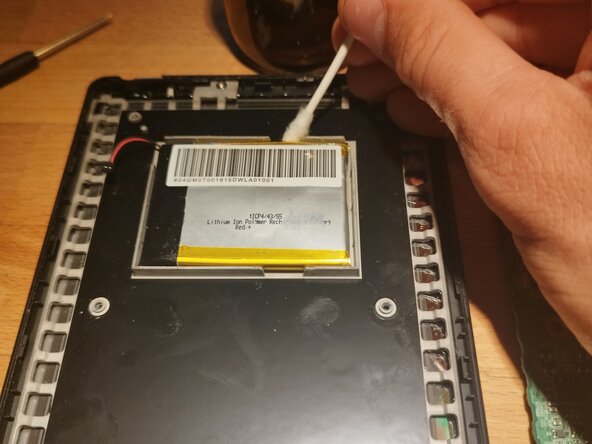
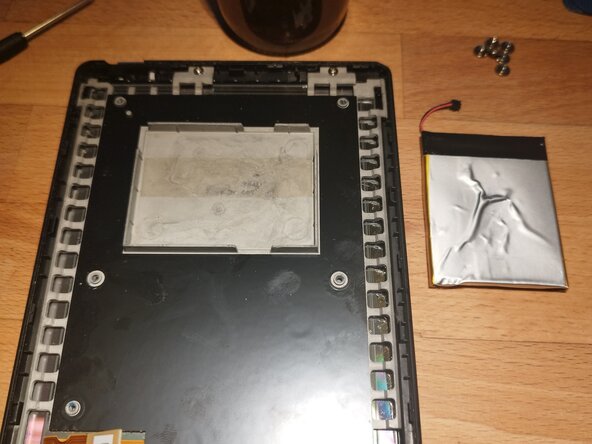
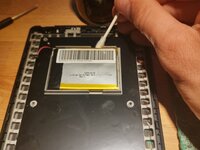
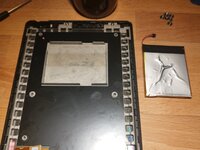
  6. Kobo Touch (N905B) E-Reader Screen Replacement, (Optional) Remove the Battery: step 6, image 1 of 2 Kobo Touch (N905B) E-Reader Screen Replacement, (Optional) Remove the Battery: step 6, image 2 of 2
    • Use Isopropyl alcoholo to loosen the glue.

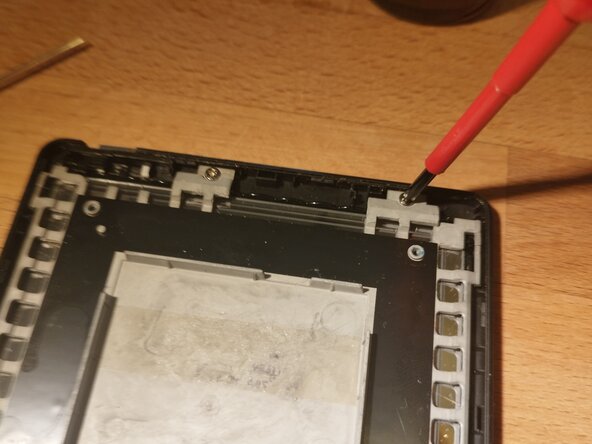
  7. Kobo Touch (N905B) E-Reader Screen Replacement, Unscrew back plate: step 7, image 1 of 2 Kobo Touch (N905B) E-Reader Screen Replacement, Unscrew back plate: step 7, image 2 of 2
    • Unscrew

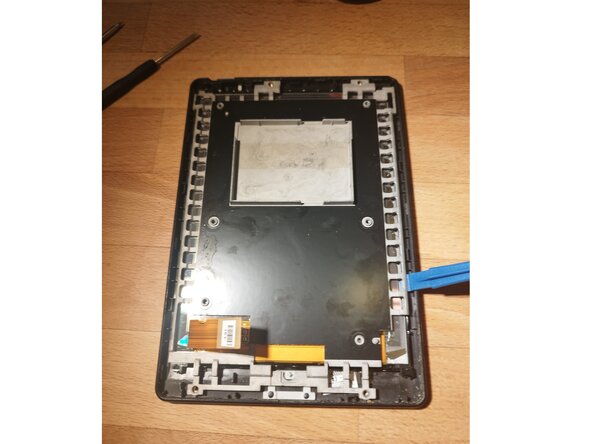
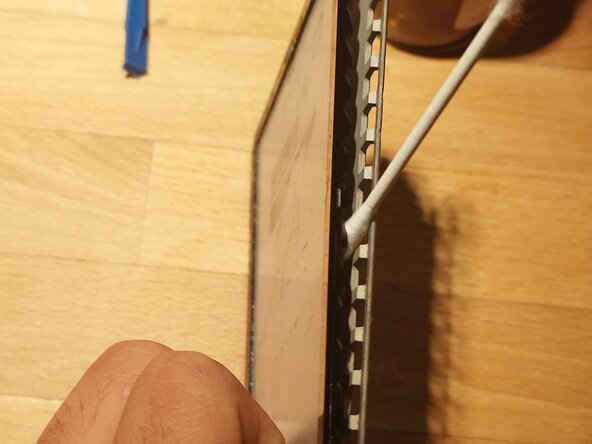
  8. Kobo Touch (N905B) E-Reader Screen Replacement, Remove plastic frame: step 8, image 1 of 3 Kobo Touch (N905B) E-Reader Screen Replacement, Remove plastic frame: step 8, image 2 of 3 Kobo Touch (N905B) E-Reader Screen Replacement, Remove plastic frame: step 8, image 3 of 3
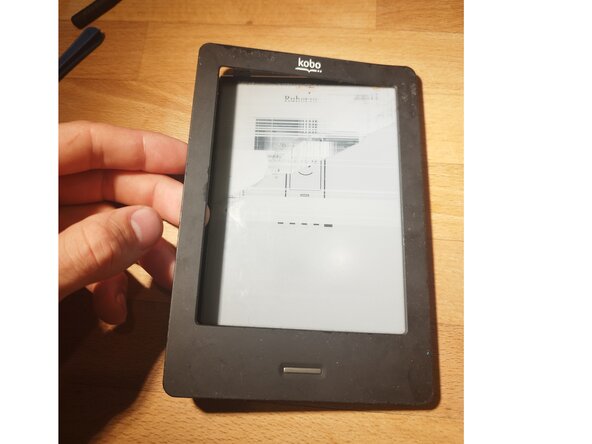
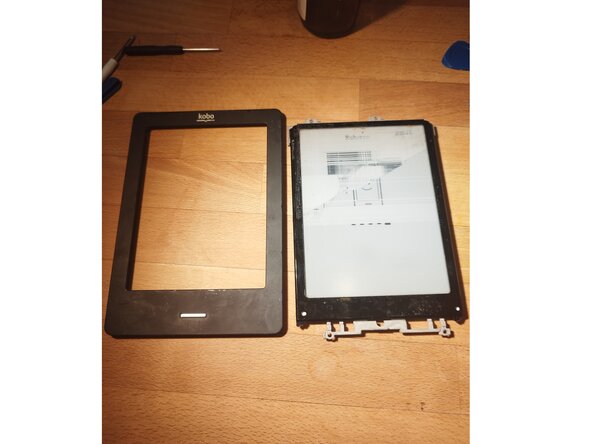
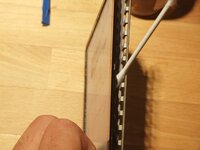
    • Use isoprop and push from the front to remove the frame.

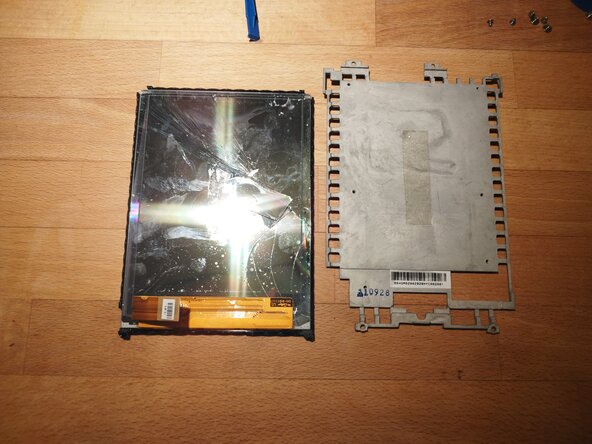
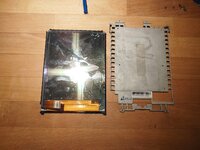
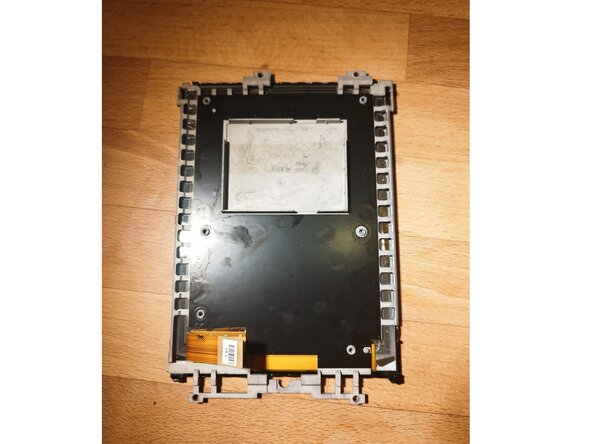
  9. Kobo Touch (N905B) E-Reader Screen Replacement, Remove screen from back panel: step 9, image 1 of 3 Kobo Touch (N905B) E-Reader Screen Replacement, Remove screen from back panel: step 9, image 2 of 3 Kobo Touch (N905B) E-Reader Screen Replacement, Remove screen from back panel: step 9, image 3 of 3
    • Use a lot of isoprop. The glue strip is right in the middle .

    • If the screen is broken, remove all parts.

    • Here you can use force, as you will not damage anything any further as it already is.

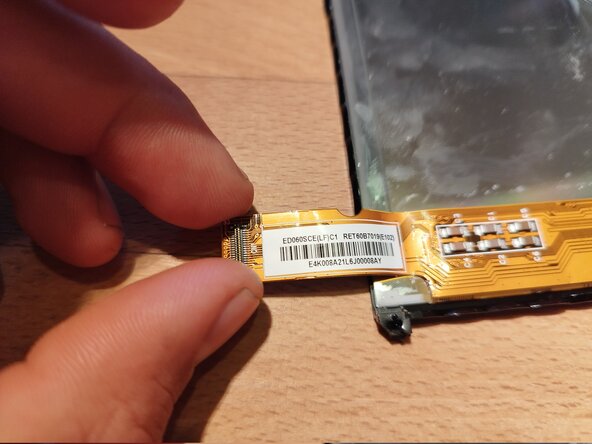
  10. Kobo Touch (N905B) E-Reader Screen Replacement, Search for replacement: step 10, image 1 of 2 Kobo Touch (N905B) E-Reader Screen Replacement, Search for replacement: step 10, image 2 of 2
    • Search for replacement parts with following requirements:

    • 6 inch

    • ED060SCE or similar (the last letters can differ)

    • Kobo N905C N905A are also compatible.

Conclusion

To reassemble your device, follow these instructions in reverse order.

One other person completed this guide.

LStrong

Member since: 09/12/25

415 Reputation

2 Guides authored

2 Guide Comments

Hi

I've got a kobo touch acquired from a friend. When I did factory reset it wouldn't connect to WiFi

Then, it suddenly had a line of dots down the middle.

Now it won't turn on, or do anything.

What can I do?

jane bartlett - Reply
Hi Jane,
Sorry for that.

When it happened after a factory reset, this sounds like a software issue.
Maybe try a hard reset like described here: https://help.kobo.com/hc/en-us/articles/...

Otherwise I did not have this problem yet and do not know anything about it.

Leander


LStrong - Reply
Add Comment

View Statistics:

Past 24 Hours: 1

Past 7 Days: 14

Past 30 Days: 55

All Time: 141