
Kindle 2 Wireless Card Replacement

Dayna Scott and 13 other contributors
Last updated on Jan 10, 2025
Views: 2.7K
View statistics:
- Past 24 Hours:
- 2
- Past 7 Days:
- 19
- Past 30 Days:
- 105
- All Time:
- 2,663
Comments: 7
6 comments on steps, 1 guide comment.
Go to guide commentsCompleted: 1 2
1 person has marked this guide "completed." Will you be next?
2 people have marked this guide "completed." Including you — great job!
Favorites: 0 1
No one has favorited (and subscribed to) this guide. Will you be the first?
1 person has favorited (and subscribed to) this guide — and that's you!
Inconsistent Images
Updating the images on this guide to be more consistent with the prerequisites would increase its awesomeness.
Slice and Dice
The steps in this guide should be split up and made into a series of prerequisite guides.
Introduction
Go to step 1 ↓Use this guide to replace the wireless card in your Kindle 2. Typically, wireless cards stop working due to physical damage, overheating, or simply old age. The Kindle 2 wireless card recognizes wireless networks and allows your device to connect to Wi-Fi. Without a working wireless card, your device may have issues with internet connectivity, dropped connections, or slow speeds. This guide will help you navigate the inside of the product if you are unsure what you are looking at. Always use caution when handling your device as the inner workings of the device may be sensitive when exposed.
What you need


-
-
-
Lay the Kindle face down on a soft cloth to protect its screen.
-
Wedge the plastic opening tool in the small opening between the grey plastic and the metal casing.
-
Move the plastic opening tool across the opening while pressing down to separate the grey plastic from the metal casing.
-
Slide the gray plastic top piece away from the Kindle's metal casing.
-
Once the gray plastic top piece is detached from the metal back cover, remove it.
 Ask FixBot
-
-
-
Use a Phillips #00 screwdriver to remove the two 4 mm screws from the metal casing.
-
-
-
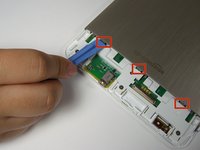
Use the plastic opening tool to push down and pry towards the metal casing to release each of the three clips that hold the metal case in place.
-
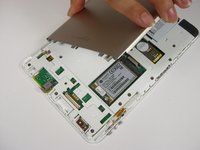
Remove the metal casing.
-
-
-
Use a Phillips #00 screwdriver to remove the two 3 mm screws that hold the battery in place.
-
-
-
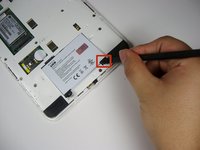
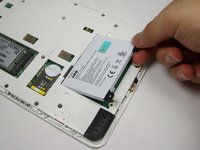
Pry upward under the black tab with the spudger to dislodge the battery.
-
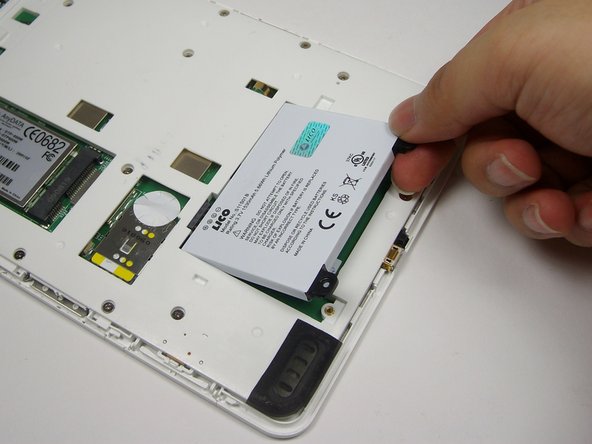
Use your fingers to lift the battery out of the device.
-
-
-
-
-
Use a Phillips #00 screwdriver to remove the two 2mm screws from the wireless card.
-
-
-
-
Use the plastic opening tool to wedge underneath the connection and gently pop off the wire cap.
-
-
-
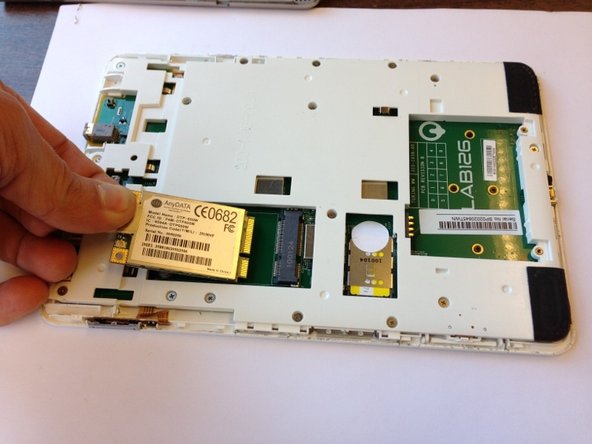
Use your fingers to lift the left end of the wireless card.
-
Pull the card out of the slot.
-
-






To reassemble your device, follow these instructions in reverse order.
Cancel: I did not complete this guide.
One other person completed this guide.

Team

Cal Poly, Team 12-32, Amido Spring 2013 Member of Cal Poly, Team 12-32, Amido Spring 2013
CPSU-AMIDO-S13S12G32
4 Members
72 Guides authored
