Installation of the 8BitDo Mod Kit for Original N64 Controller

What you need

  1. Installation of the 8BitDo Mod Kit for Original N64 Controller, Nintendo 64 Controller Teardown: step 1, image 1 of 3 Installation of the 8BitDo Mod Kit for Original N64 Controller, Nintendo 64 Controller Teardown: step 1, image 2 of 3 Installation of the 8BitDo Mod Kit for Original N64 Controller, Nintendo 64 Controller Teardown: step 1, image 3 of 3
    • Behold the glorious retro controller face, then forget about it because you will flip the controller for the rest of the teardown.

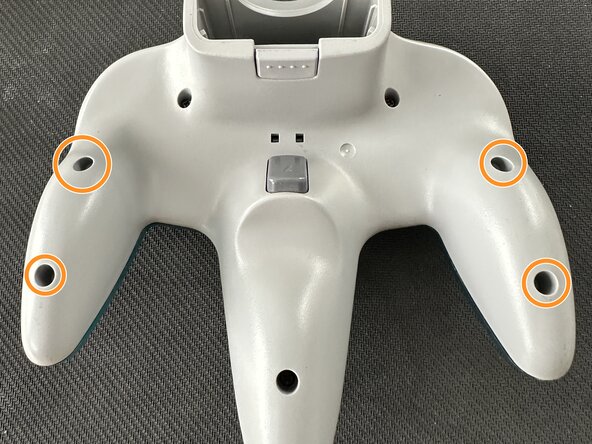
    • Use the size #1 Philips to remove the 7 screws on the back of the controller.

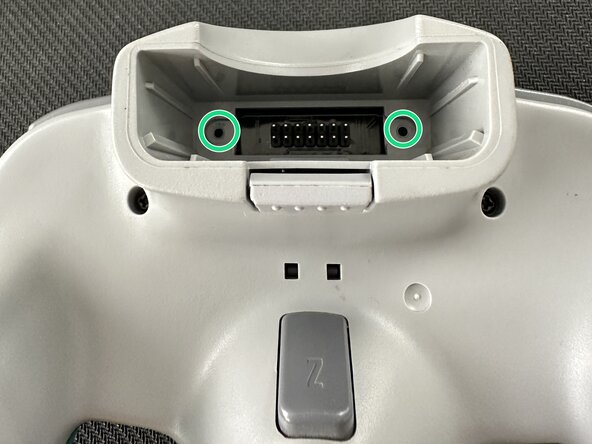
    • Use the size #0 Philips to remove the smaller screws in the controller pak slot.

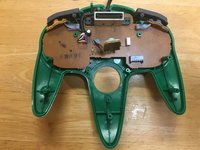
  2. Installation of the 8BitDo Mod Kit for Original N64 Controller: step 2, image 1 of 1
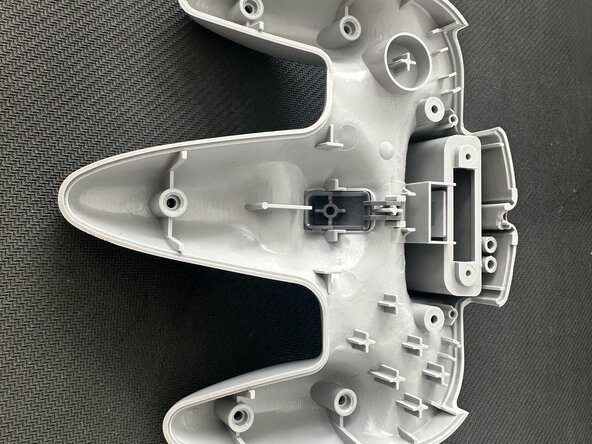
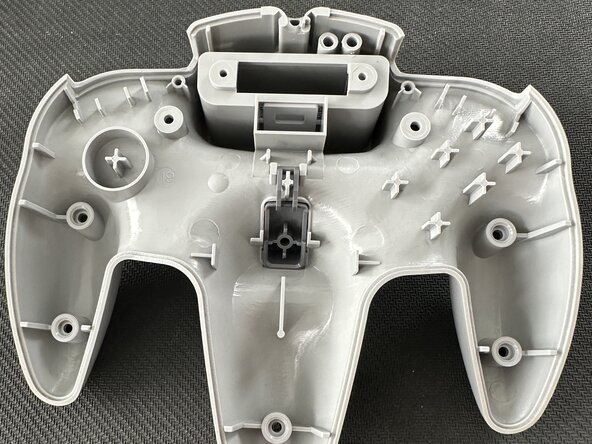
    • Remove the back plate. You can now see the:

    • Power Input

    • Game Pak Slot

    • Trigger Button Assemblies

    • Z Button Assembly

    • Joystick Module

  3. Installation of the 8BitDo Mod Kit for Original N64 Controller: step 3, image 1 of 1
    • Using a spudger or similar tool, carefully pry the Z button assembly from the joystick module.

    • Remove the 3 size #0 screws holding in the joystick module.

    • Remove the joystick cable from the main board.

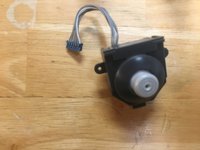
  4. Installation of the 8BitDo Mod Kit for Original N64 Controller: step 4, image 1 of 2 Installation of the 8BitDo Mod Kit for Original N64 Controller: step 4, image 2 of 2
    • Remove the joystick module.

    • This particular module is a third party replacement. Yours may look different.

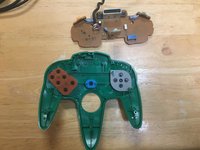
  5. Installation of the 8BitDo Mod Kit for Original N64 Controller: step 5, image 1 of 2 Installation of the 8BitDo Mod Kit for Original N64 Controller: step 5, image 2 of 2
    • Remove the main board and trigger assemblies.

    • Your controller is now fully disassembled!

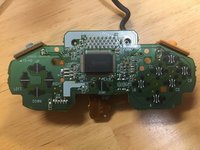
  6. Installation of the 8BitDo Mod Kit for Original N64 Controller: step 6, image 1 of 1
    • Full IC Identification:

    • You may need to enlarge it to view the text.

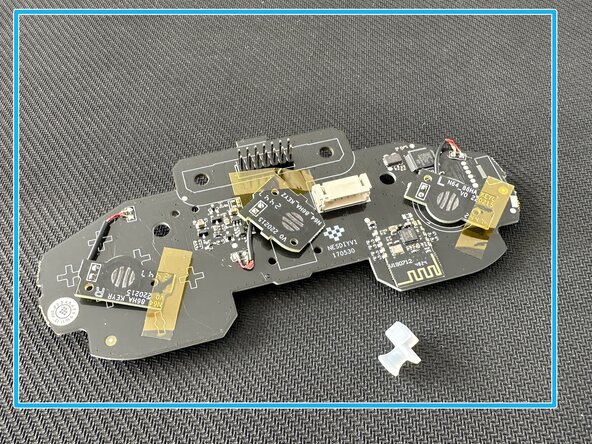
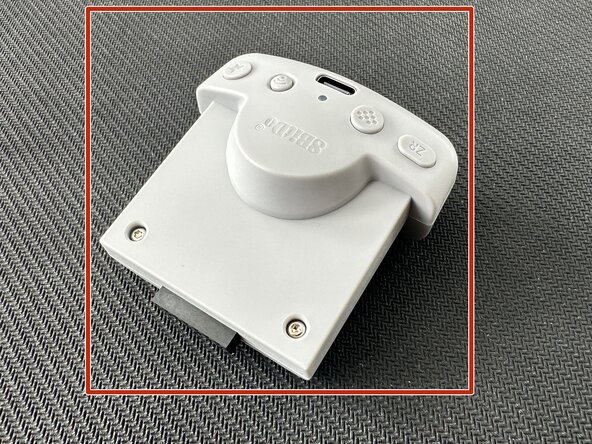
  7. Installation of the 8BitDo Mod Kit for Original N64 Controller, Prepare all the mod kit elements: step 7, image 1 of 3 Installation of the 8BitDo Mod Kit for Original N64 Controller, Prepare all the mod kit elements: step 7, image 2 of 3 Installation of the 8BitDo Mod Kit for Original N64 Controller, Prepare all the mod kit elements: step 7, image 3 of 3
    • Rumble pak / wireless connector

    • Hall effect stick

    • Mother board

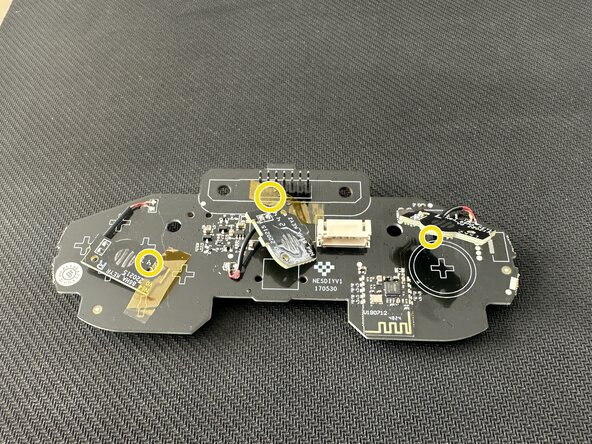
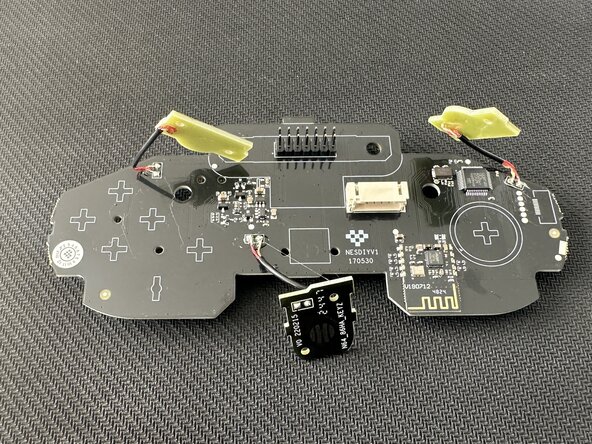
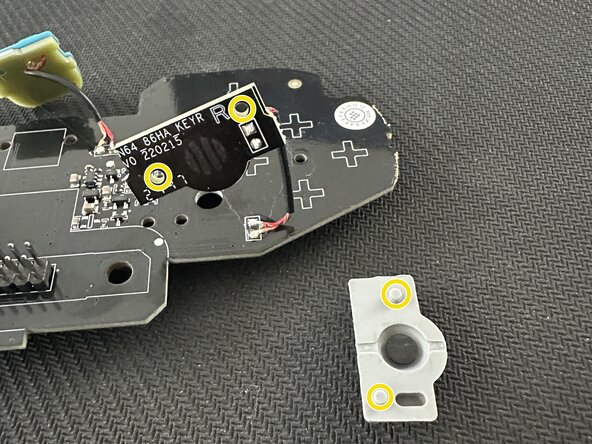
  8. Installation of the 8BitDo Mod Kit for Original N64 Controller, Remove motherboard tapes.: step 8, image 1 of 2 Installation of the 8BitDo Mod Kit for Original N64 Controller, Remove motherboard tapes.: step 8, image 2 of 2
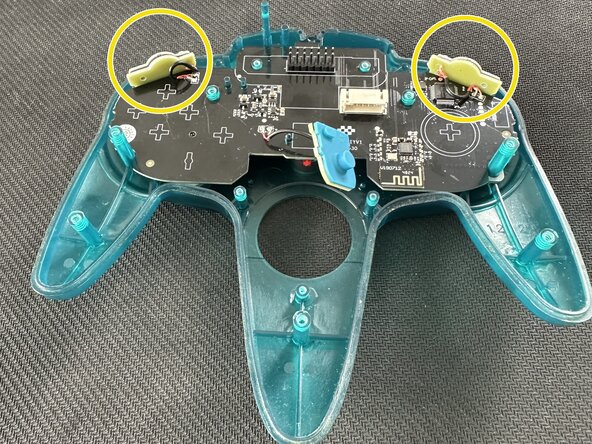
    • Remove carefully tapes that keep L, R, Z buttons contacts in place. Wires seems fragile act with precautions

  9. Installation of the 8BitDo Mod Kit for Original N64 Controller, Put Z, L, R button's membranes: step 9, image 1 of 3 Installation of the 8BitDo Mod Kit for Original N64 Controller, Put Z, L, R button's membranes: step 9, image 2 of 3 Installation of the 8BitDo Mod Kit for Original N64 Controller, Put Z, L, R button's membranes: step 9, image 3 of 3
    • Place membranes on their respective motherboard connectors. Holes are positioned on the connector to guide your positioning.

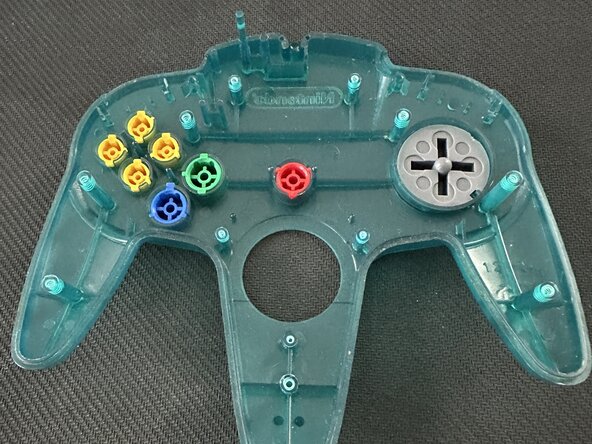
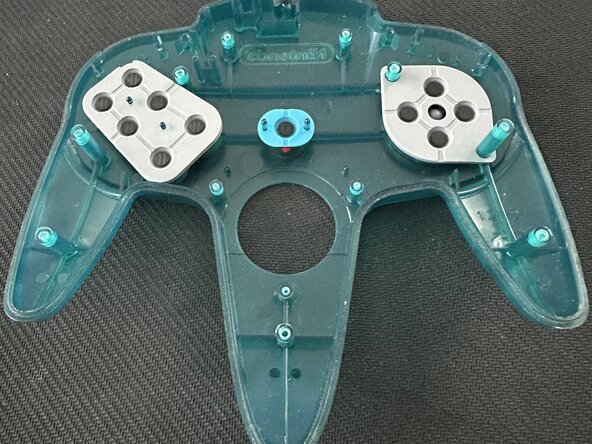
  10. Installation of the 8BitDo Mod Kit for Original N64 Controller, Place buttons and membranes on the front shell.: step 10, image 1 of 3 Installation of the 8BitDo Mod Kit for Original N64 Controller, Place buttons and membranes on the front shell.: step 10, image 2 of 3 Installation of the 8BitDo Mod Kit for Original N64 Controller, Place buttons and membranes on the front shell.: step 10, image 3 of 3
    • Put buttons in their respective holes, cutout are there to avoid any misplace.

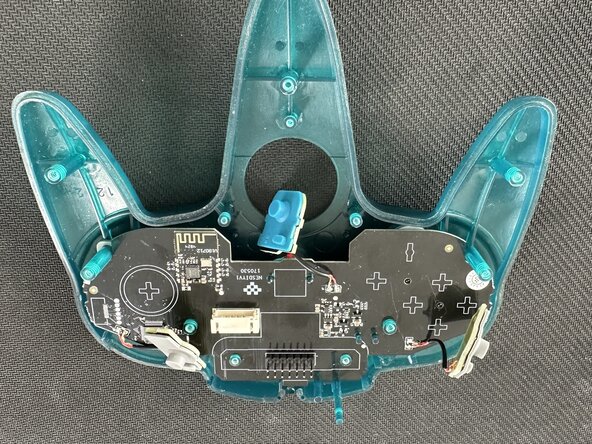
  11. Installation of the 8BitDo Mod Kit for Original N64 Controller, Position the motherboard on the front shell.: step 11, image 1 of 3 Installation of the 8BitDo Mod Kit for Original N64 Controller, Position the motherboard on the front shell.: step 11, image 2 of 3 Installation of the 8BitDo Mod Kit for Original N64 Controller, Position the motherboard on the front shell.: step 11, image 3 of 3
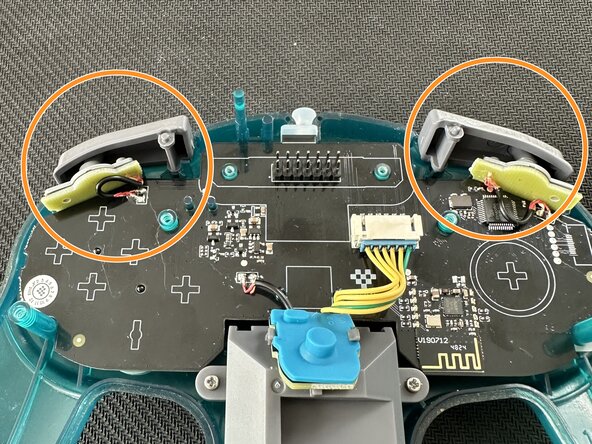
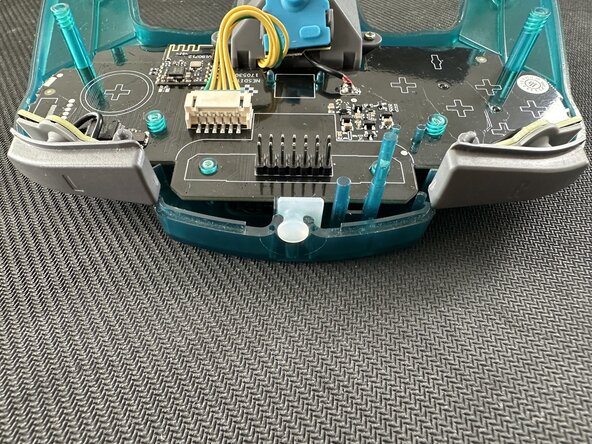
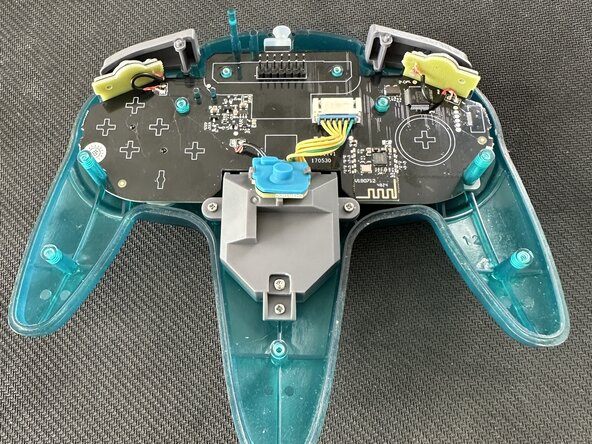
    • Put the motherboard on the front shell.

    • Place L and R connectors in their housing.

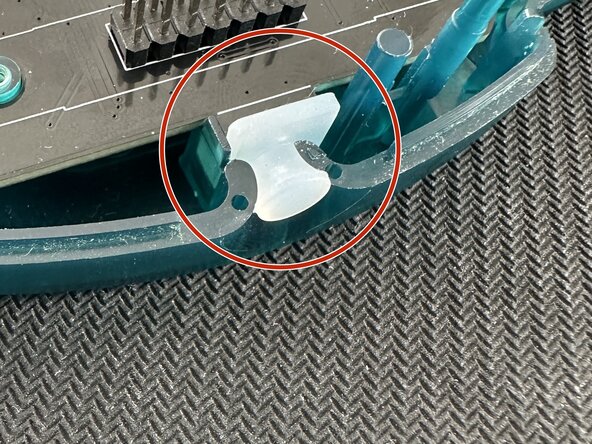
    • Don't forget the silicone in the old cable enclosure.

  12. Installation of the 8BitDo Mod Kit for Original N64 Controller, Place the new stick in its enclosure: step 12, image 1 of 1
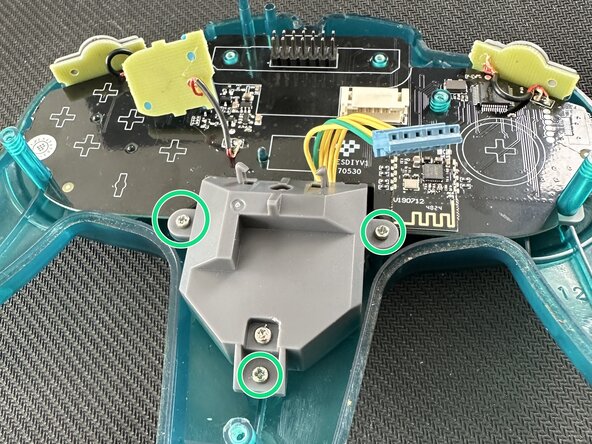
    • Place the stick.

    • Tighten the 3 screws.

  13. Installation of the 8BitDo Mod Kit for Original N64 Controller, Attach the Z button connector to the stick module: step 13, image 1 of 1
    • Attach the Z button connector and its membrane onto the stick clips.

  14. Installation of the 8BitDo Mod Kit for Original N64 Controller, Connect the stick: step 14, image 1 of 2 Installation of the 8BitDo Mod Kit for Original N64 Controller, Connect the stick: step 14, image 2 of 2
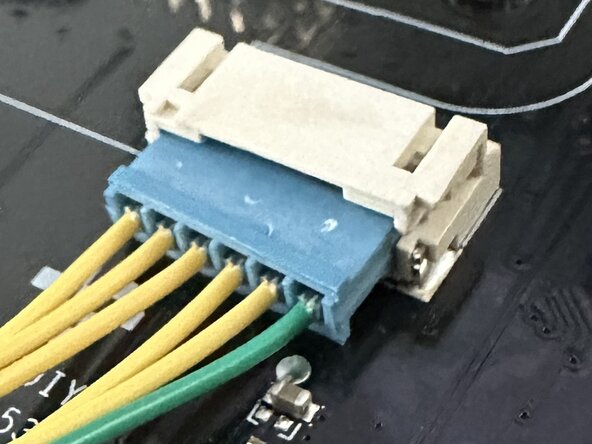
    • Insert the stick plug inside its connector on the motherboard.

    • The green wire must be on the L button side.

    • If the controller is positioned with the stick in front of you, the L button is on your right, remember you are working upside done.

  15. Installation of the 8BitDo Mod Kit for Original N64 Controller, Place L and R buttons: step 15, image 1 of 3 Installation of the 8BitDo Mod Kit for Original N64 Controller, Place L and R buttons: step 15, image 2 of 3 Installation of the 8BitDo Mod Kit for Original N64 Controller, Place L and R buttons: step 15, image 3 of 3
    • Place L and R buttons on the front shell.

  16. Installation of the 8BitDo Mod Kit for Original N64 Controller, Place the Z button: step 16, image 1 of 2 Installation of the 8BitDo Mod Kit for Original N64 Controller, Place the Z button: step 16, image 2 of 2
    • Place the Z button on the bottom shell.

  17. Installation of the 8BitDo Mod Kit for Original N64 Controller, Assemble the controller and tighten the screw  : step 17, image 1 of 3 Installation of the 8BitDo Mod Kit for Original N64 Controller, Assemble the controller and tighten the screw  : step 17, image 2 of 3 Installation of the 8BitDo Mod Kit for Original N64 Controller, Assemble the controller and tighten the screw  : step 17, image 3 of 3
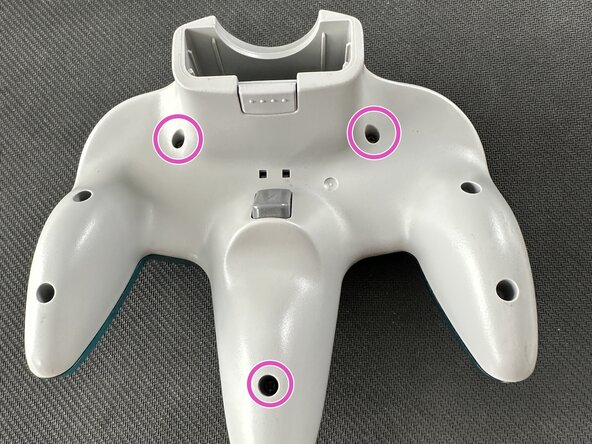
    • Put together top and bottom shells.

    • Place the bottom part on to the top one, doing the opposite may led some part to fall.

    • At first, tighten only the first 3 screws, this will reduce undo steps in case of problem.

  18. Installation of the 8BitDo Mod Kit for Original N64 Controller, Connect the rumble pak: step 18, image 1 of 1
    • Place the rumble pak in its enclosure.

  19. Installation of the 8BitDo Mod Kit for Original N64 Controller, Test the controller: step 19, image 1 of 3 Installation of the 8BitDo Mod Kit for Original N64 Controller, Test the controller: step 19, image 2 of 3 Installation of the 8BitDo Mod Kit for Original N64 Controller, Test the controller: step 19, image 3 of 3
    • For this part will use the Nintendo Switch

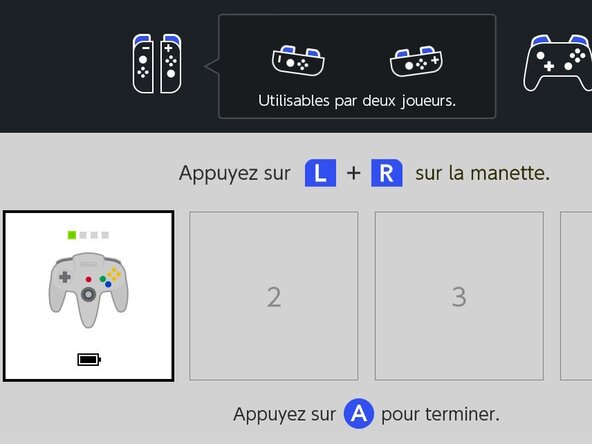
    • Connect the controller to your console. Put the rumble pak in "S" position (via its bottom switch), push "Start" and hold connect button to start pairing.

    • It the controller does not appear, try to update it (see next step).

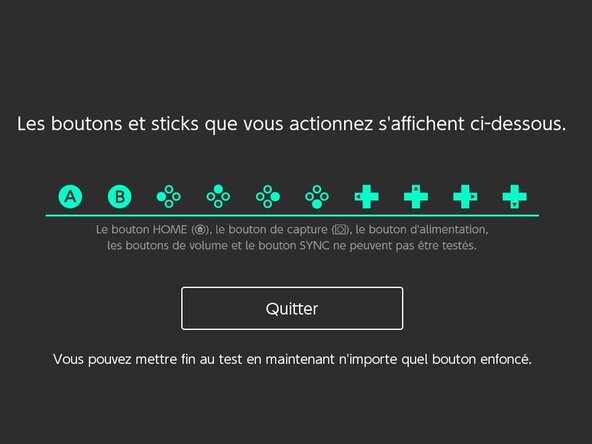
    • Test each button via the Nintendo Switch dedicated button tester menu. Access it via the switch settings "Controller and sensors" section then submenu "Test input controller". See the official Nintendo documentation for more information.

    • n.b its important to test each button before re-assembling.

  20. Installation of the 8BitDo Mod Kit for Original N64 Controller, Optional - Update the controller: step 20, image 1 of 1
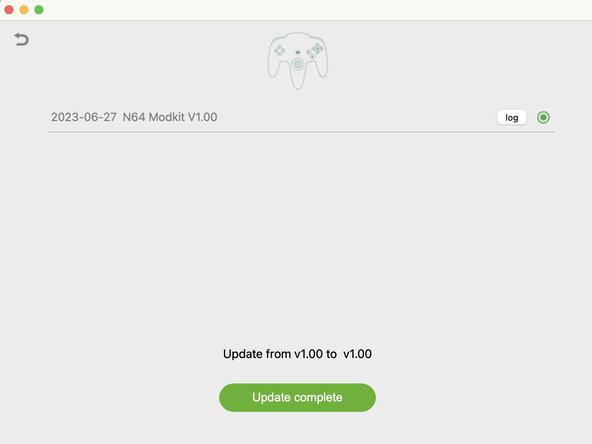
    • Download the 8BitDo upgrade tool.

    • Connect the controller to a computer via an USB-C cable. (the rumble pak must be attached to the controller).

    • Do the upgrade. Even it says 1.00 to 1.00

  21. Installation of the 8BitDo Mod Kit for Original N64 Controller, Tighten the last screws: step 21, image 1 of 2 Installation of the 8BitDo Mod Kit for Original N64 Controller, Tighten the last screws: step 21, image 2 of 2
    • Once everything works tighten the last bottom screws.

    • Do not forget to tighten the extension port screws.

Conclusion

Your controller is now fully operational with windows and android bluetooth devices. It also works with the Nintendo Switch and its Nintendo 64 app provided with a Nintendo Switch Online Subscription.

One other person completed this guide.

Special thanks to these translators:

fr en

100%

Marc_Alx is helping us fix the world! Want to contribute?
Start translating ›

Attached Documents

Marc_Alx

Member since: 02/27/22

975 Reputation

2 Guides authored

0 Guide Comments

Add Comment

View Statistics:

Past 24 Hours: 3

Past 7 Days: 45

Past 30 Days: 208

All Time: 960