
Install macOS Printer Drivers

Anthony Fassler and one other contributor
Last updated on Jun 23, 2022
Views: 5.8K
View statistics:
- Past 24 Hours:
- 7
- Past 7 Days:
- 35
- Past 30 Days:
- 190
- All Time:
- 5,752
Comments: 2
2 guide comments.
Go to guide commentsCompleted: 4 5
4 people have marked this guide "completed." Will you be next?
5 people have marked this guide "completed." Including you — great job!
Favorites: 0 1
No one has favorited (and subscribed to) this guide. Will you be the first?
1 person has favorited (and subscribed to) this guide — and that's you!
Community-Contributed Guide
An awesome member of our community made this guide. It was not created by iFixit staff.
Introduction
Go to step 1 ↓Fix the problem "This update requires macOS 12.0 or earlier." Or install printer drivers on macOS. (Pilots, Drivers)
-
-
-
Find the driver for your printer brand on the link below:
-
Download the driver for your printer, by clicking on the "Download" button.
 Ask FixBot
-
-
-
Open your .dmg file
-
Open your .pkg file
-
If this message appears: "This update requires macOS 12.0 or earlier." click Close and continue with the next step.
-
Otherwise, continue with step 7.
-
-
-
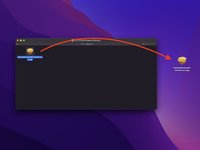
Move your .pkg file to your desktop
-
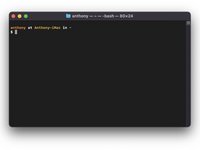
Open Terminal
-
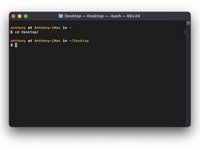
Enter: cd Desktop/ then press the Enter key
-
-
-
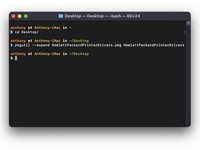
Enter the following command: pkgutil --expand FileName.pkg FileName
-
Then press the Enter key.
-
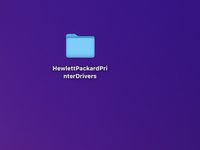
A folder with the file name appears on your desktop.
-
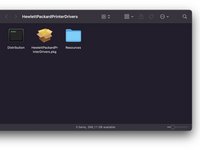
Open the folder.
-
-
-
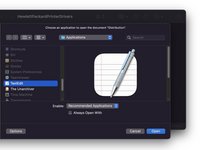
Open the Distribution file with TextEdit
-
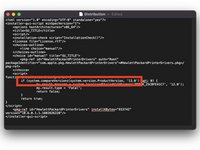
Then change the number after (system.compareVersions(system.version.ProductVersion, '12.0')" to that of your macOS version or later.
-
Save the file and close it.
-
-
-
-
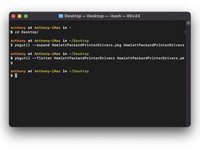
Return to the Terminal
-
Enter the following command: pkgutil --flatten FileName FileName.pkg and press the Enter key.
-
Close theTerminal and open FileName.pkg on your desktop.
-
-
-
Congratulations, you can proceed with the installation by following the steps one by one.
-
-










Congratulations, you made it!
Cancel: I did not complete this guide.
4 other people completed this guide.
Special thanks to these translators:
100%


These translators are helping us fix the world! Want to contribute?
Start translating ›

2 Guide Comments
Merci pour cet excellent tutoriel, j'ai récupéré le fonctionnement de mon ancienne imprimante HP sur mon Mac !
Bravo !!!
