
Insignia Flex 8 Camera Replacement

Grace Gerke and 3 other contributors
Last updated on Jan 18, 2016
Views: 905
View statistics:
- Past 24 Hours:
- 2
- Past 7 Days:
- 17
- Past 30 Days:
- 63
- All Time:
- 905
Comments: 2
2 comments on steps.
Completed: 0 1
No one has marked this guide "completed." Will you be the first?
1 person has marked this guide "completed." It's you — great job!
Favorites: 2 3
2 people have favorited (and subscribed to) this guide. Will you be next?
3 people have favorited (and subscribed to) this guide — including you!
Introduction
Go to step 1 ↓This guide will explain how to replace your old Insignia Flex 8 camera.
What you need
Tools
-
-
Spudger4.9


-
-
-
Hold down the power button for five seconds until the tablet powers down.
 Ask FixBot
-
-
-
Remove the back casing from the screen by sliding a credit card or a similarly thin but firm object in between the casing and the screen.
-
Remove the back casing and set aside.
-
-
-
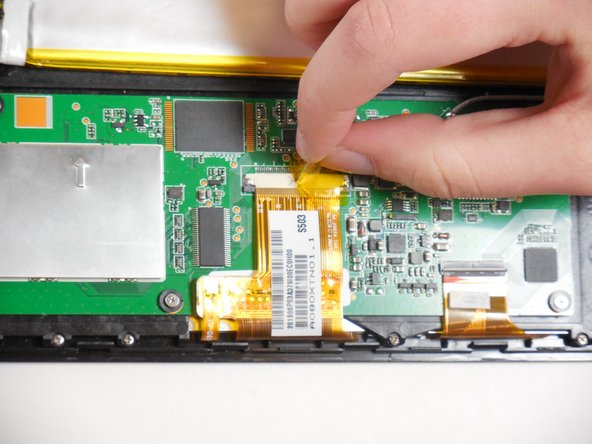
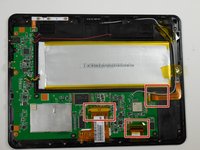
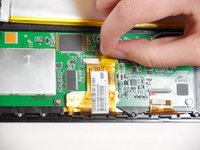
Peel tape off of ribbon connectors. Starting at the power button, work clockwise around the tablet.
-
-
-
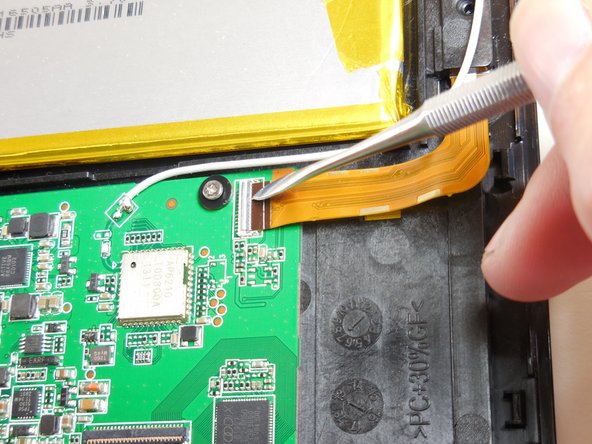
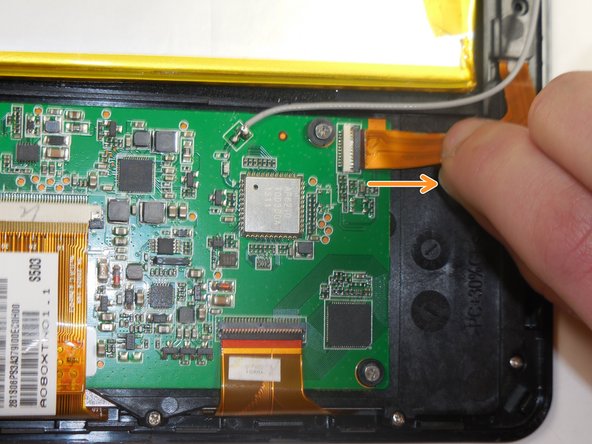
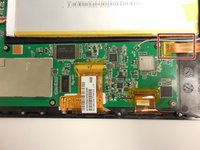
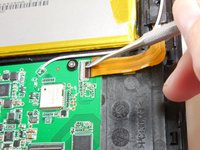
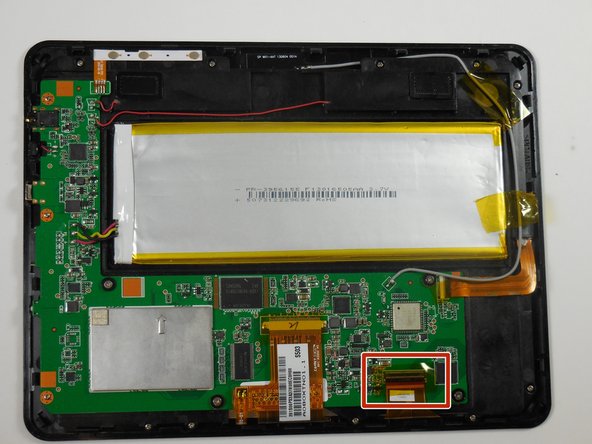
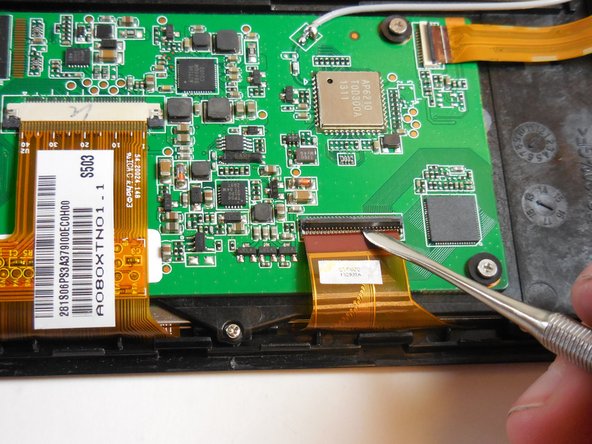
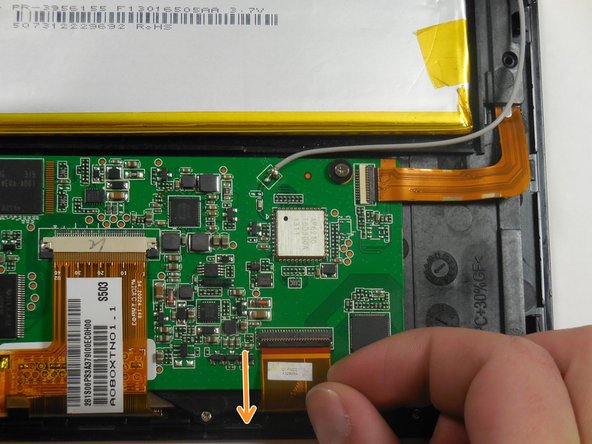
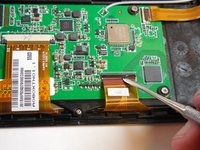
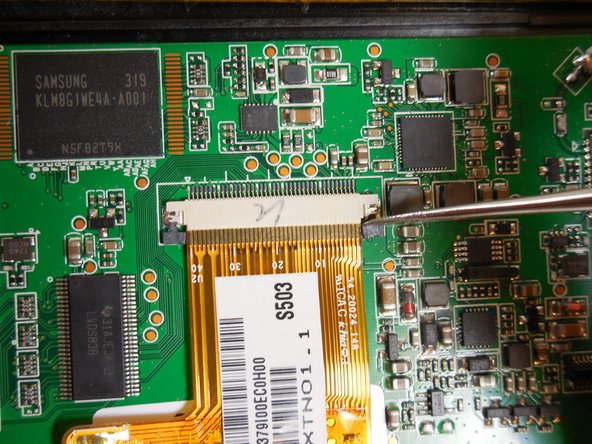
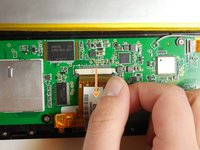
To remove the camera ribbon cable, lift the flap using a spudger.
-
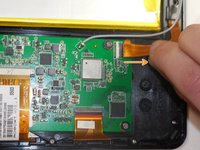
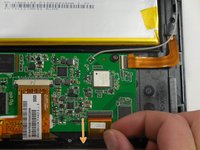
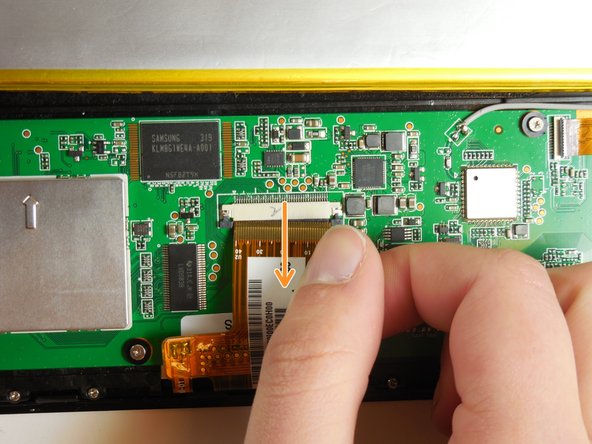
Pull the ribbon directly back to release it.
-
-
-
-
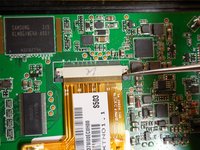
Remove the second ribbon cable by prying up the black flap using a spudger.
-
Pull the ribbon cable horizontally directly away from the battery.
-
-
-
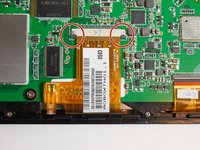
Remove the final ribbon cable by pulling back the two black tabs on either side of the ribbon cable.
-
Pull the ribbon horizontally directly away from the battery.
-
-
-
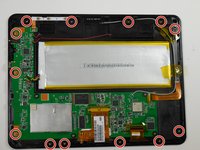
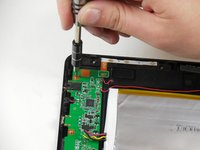
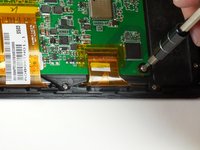
Unscrew the thirteen 4.75mm screws around the perimeter of the tablet using a PH 00 screwdriver.
-
-
-
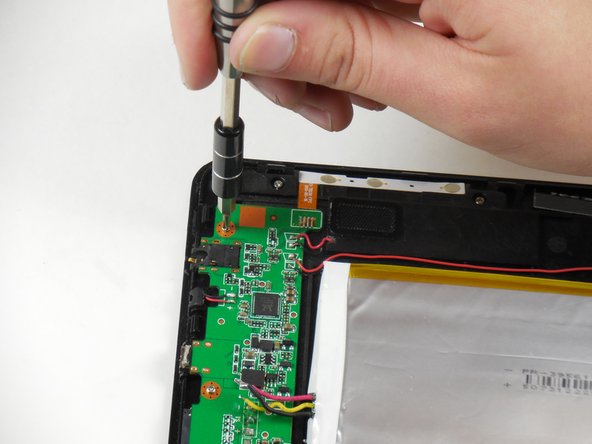
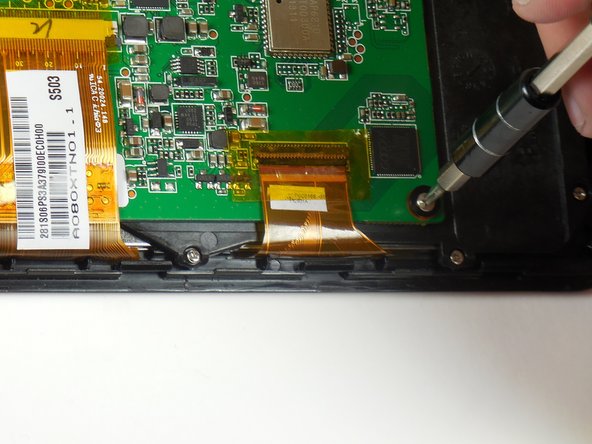
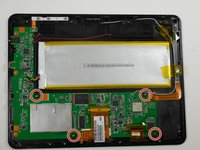
Unscrew the four 3.75mm screws and plastic washers using a PH 00 screwdriver.
-
Lift up the circuit board.
-
-
-
Lift the circuit board and black internal mounting piece away from the screen.
-
Set the circuit board aside.
-
-
-
-
-
Remove the L shaped ribbon cable from screen.
-
The camera is attached to the end of this cable.
-
-








To reassemble your device, follow these instructions in reverse order.

Team

Colorado Springs, Team 5-5, Panko Spring 2015 Member of Colorado Springs, Team 5-5, Panko Spring 2015
UCCS-PANKO-S15S5G5
3 Members
72 Guides authored
