
InFocus LP435Z Power Supply Replacement

Andrew Kennedy and 6 other contributors
Last updated on Jul 21, 2026
Views: 3.4K
View statistics:
- Past 24 Hours:
- 2
- Past 7 Days:
- 14
- Past 30 Days:
- 88
- All Time:
- 3,438
Comments: 0
No one has left comments on this guide. Will you be first?
Go to guide commentsCompleted: 3 4
3 people have marked this guide "completed." Will you be next?
4 people have marked this guide "completed." Including you — great job!
Favorites: 2 3
2 people have favorited (and subscribed to) this guide. Will you be next?
3 people have favorited (and subscribed to) this guide — including you!
Featured Guide
This guide has been found to be exceptionally cool by the iFixit staff.
Introduction
Go to step 1 ↓The power supply is what transforms the alternating current electricity from a wall outlet into a lower voltage direct current that is usable by the projector. There are many sensitive electronics in a power supply, and a power surge or other electrical issue can fry capacitors and other delicate components, breaking the power supply and preventing the projector from turning on.
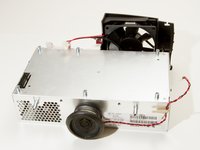
The power supply in this projector has an enclosure which the speaker and main fan are mounted on, and the base of the enclosure with the attached power supply can be removed and replaced.
What you need
Tools
-
-
-
×2


-
-
-
Place the projector on its back (buttons down) with the lens facing away from you.
-
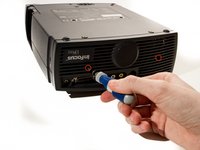
Remove the two 84mm screws in the upper left and right corners of the projector using the Phillips #2 screwdriver.
-
Remove the remaining three 8.5mm screws using the Phillips #1 screwdriver.
 Ask FixBot
-
-
-
Use the plastic opening tools to push down the clips holding the lamp cover in place, and remove it.
-
-
-
Remove the two 8.5mm rear screws holding the rear case plate to the projector using the Phillips #1 screwdriver.
-
Pull the rear plate straight off and set it aside.
-
-
-
Flip the projector over and turn around so that the lens faces you.
-
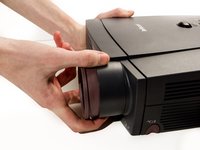
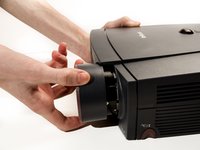
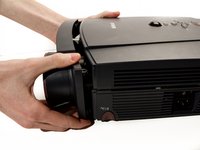
Twist the gray zoom adjustment ring clockwise and extend the lens all the way out, and then slide the zoom adjustment ring all the way towards the end of the lens as far as it will go.
-
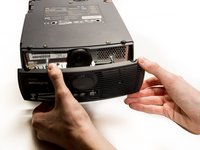
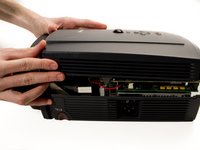
Slide the front case plate towards the loosened zoom adjustment ring, until the top plate of the projector is freed from underneath the lip of the front case plate.
-
-
-
-
-
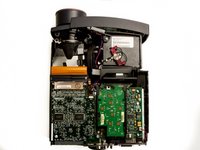
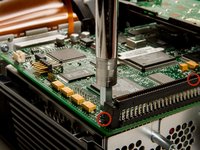
Remove the four T10 Torx 8.5 mm screws holding the DLP board in place.
-
-
-
-
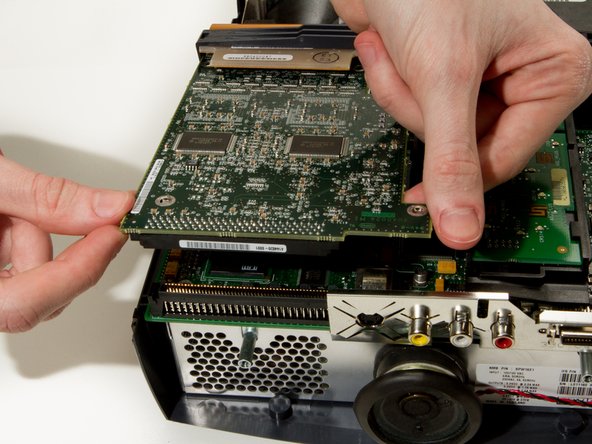
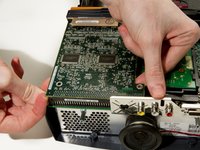
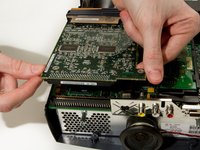
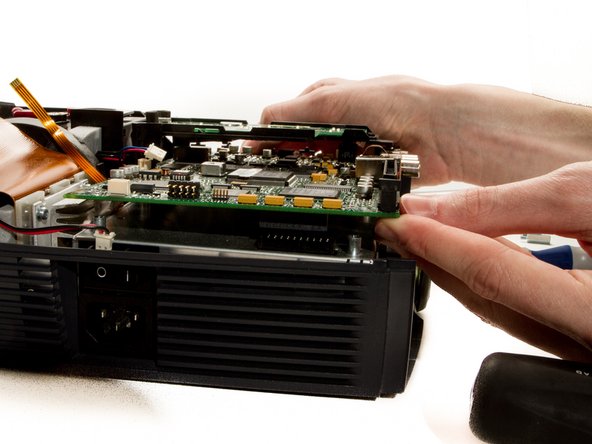
Detach the DLP board from where it is connected to the motherboard by a large 100 pin connector.
-
Pry up gently while wiggling from left to right if needed.
-
-
-
Remove the 2 remaining T10 Torx 8mm screws securing the motherboard to the power supply.
-
-
-
Remove all other cables connected to the motherboard.
-
Remove the Speaker Cable
-
-
-
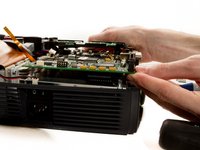
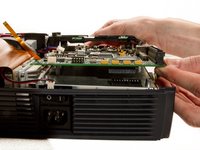
Flip up the DLP board, leaving it attached to the large ribbon cable.
-
Remove DLP Power Cable.
-
-
-
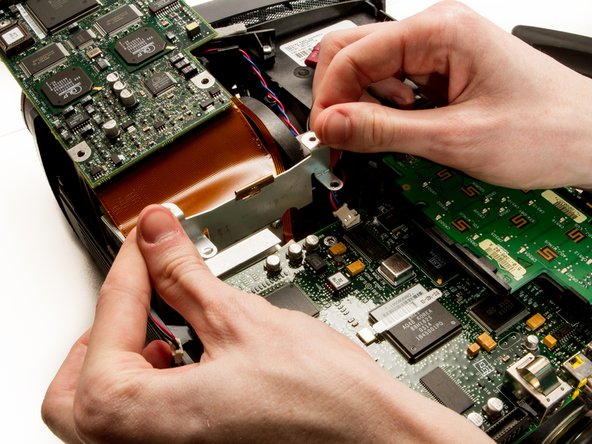
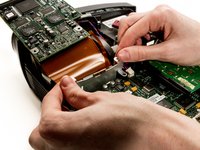
Pry out the DLP support piece by gently wiggling it side to side while applying a steady pull. It will slide out.
-
-
-
Remove the two 1/4" screws using the nut driver.
-
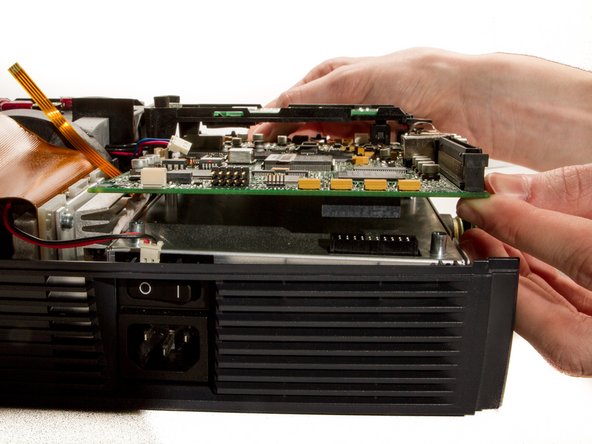
Gently pry up the motherboard from the connector on top of the power supply.
-
-
-
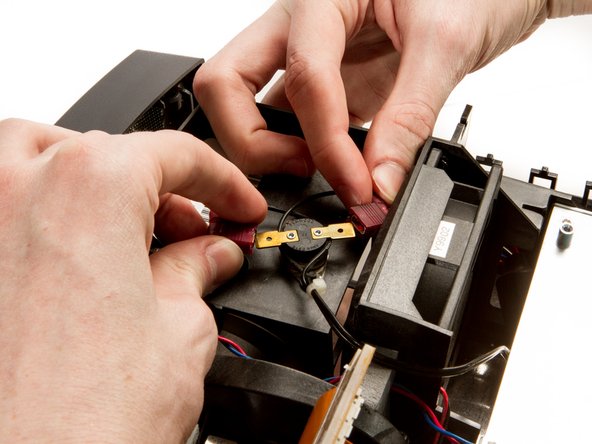
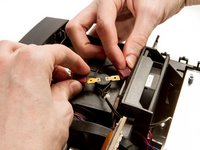
Disconnect the lamp power supply cables from the top of the lamp housing, by gently pulling the two wires in opposite directions.
-
-
-
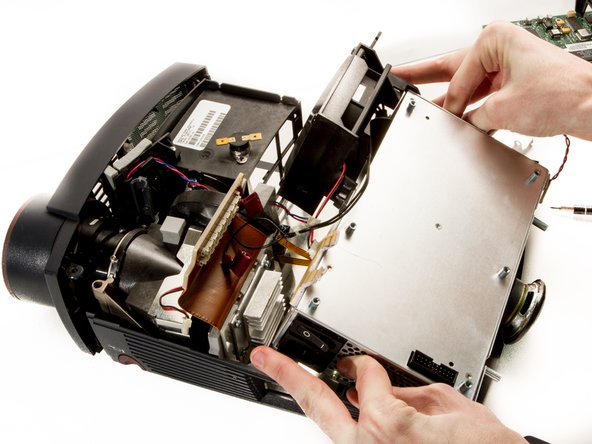
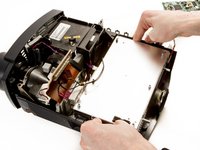
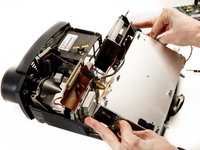
Use your thumbs to pry the sides of the external shell away from the power supply so it can be lifted out.
-
-
-
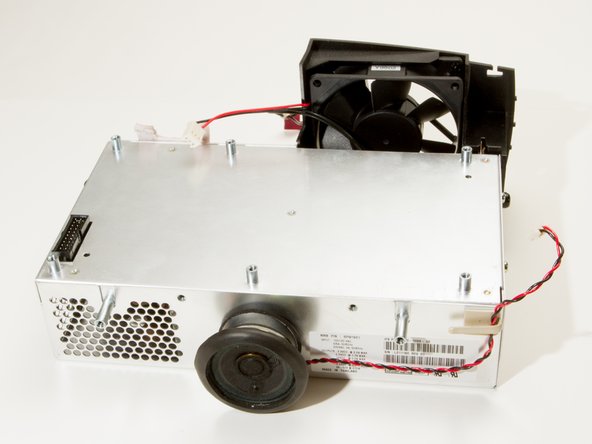
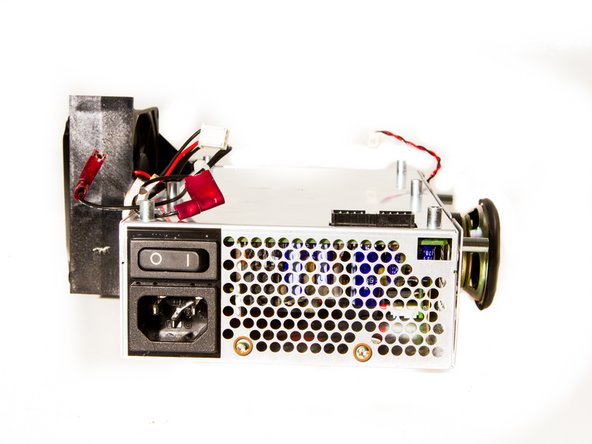
Rotate the power supply so that the main fan enclosure faces to the right, with the motherboard mounting pegs on top.
-
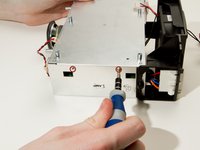
Remove the two #2 Phillips 7mm screws on the side of the power supply.
-
Remove two more #2 Phillips 7mm screws on the opposite side of the power supply.
-
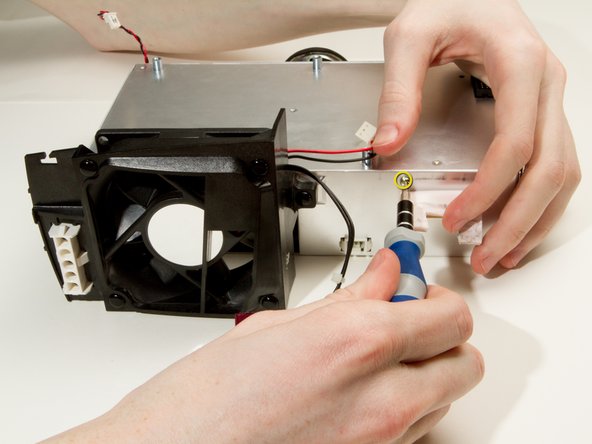
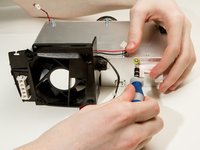
Rotate the power supply so the fan faces towards you, and remove a fifth #2 Phillips 7mm screw from just under the foam pad.
-
-
-
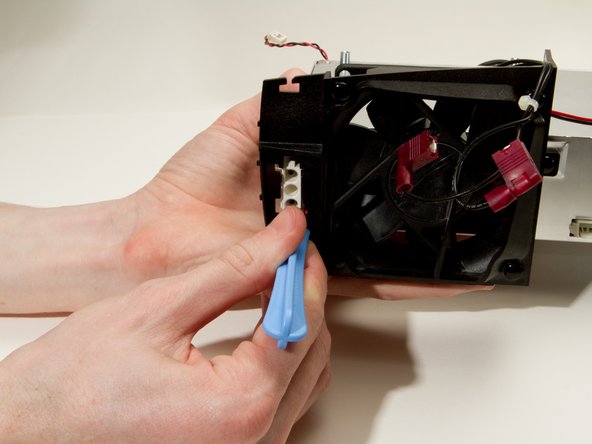
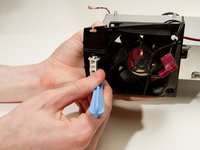
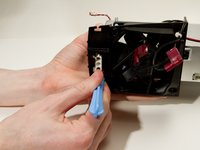
Use a plastic prying tool to push the white molex connector through the fan enclosure.
-
-
-
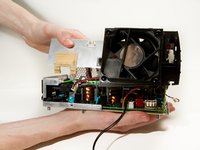
Flip the power supply over so that the motherboard mounting pegs are on the bottom.
-
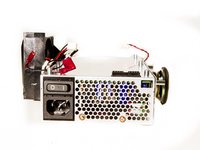
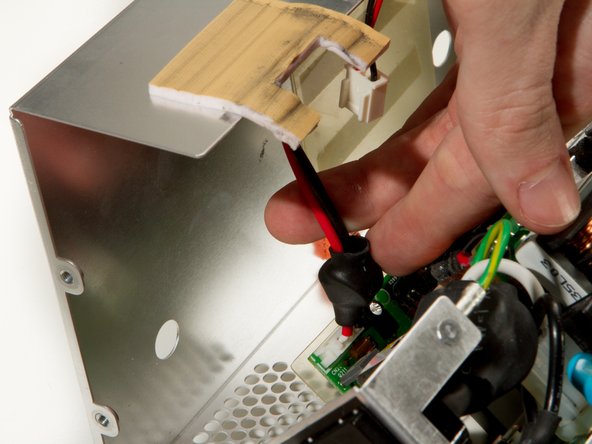
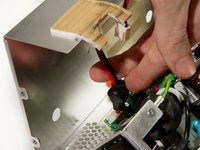
Carefully open the power supply, and be mindful of the cable that will be pulled taut that needs to be disconnected.
-
-










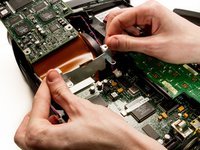







To reassemble your device, follow these instructions in reverse order.
Cancel: I did not complete this guide.
3 other people completed this guide.

Team

Cal Poly, Team 20-3, Maness Winter 2013 Member of Cal Poly, Team 20-3, Maness Winter 2013
CPSU-MANESS-W13S20G3
4 Members
72 Guides authored
