Free Shipping on Domestic Orders $75+

InFocus IN35W Fan Replacement

What you need

    1. InFocus IN35W Fan Replacement, Top Plate: step 1, image 1 of 3 InFocus IN35W Fan Replacement, Top Plate: step 1, image 2 of 3 InFocus IN35W Fan Replacement, Top Plate: step 1, image 3 of 3
      • Use the plastic opening tool to remove the front plastic casing surrounding the lens.

      • Pry apart the clips securing the top and bottom of the device using the plastic opening tool.

      Ask FixBot

      Add Comment

    2. InFocus IN35W Fan Replacement: step 2, image 1 of 2 InFocus IN35W Fan Replacement: step 2, image 2 of 2
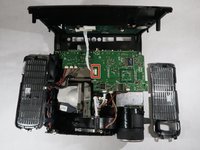
      • Pull the top piece up.

      • The two gray ventilation grates will slip off the device.

      Ask FixBot

      Add Comment

    3. InFocus IN35W Fan Replacement: step 3, image 1 of 2 InFocus IN35W Fan Replacement: step 3, image 2 of 2
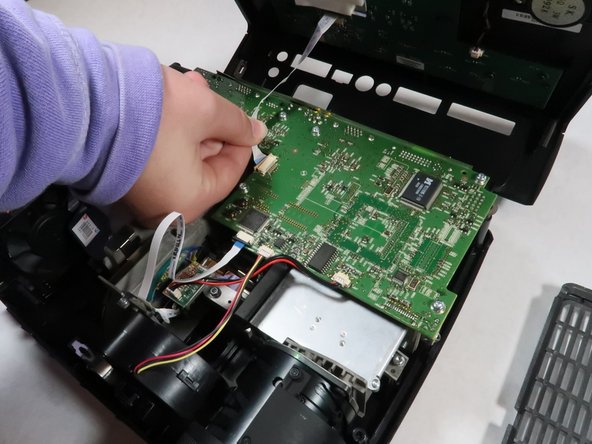
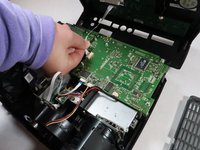
      • Detach the white speaker wire that connects the motherboard to the top piece.

      • Remove the top cover from the device.

      Ask FixBot

      Add Comment

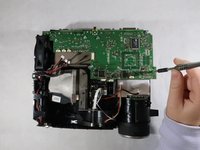
    1. InFocus IN35W Fan Replacement, Motherboard: step 4, image 1 of 2 InFocus IN35W Fan Replacement, Motherboard: step 4, image 2 of 2
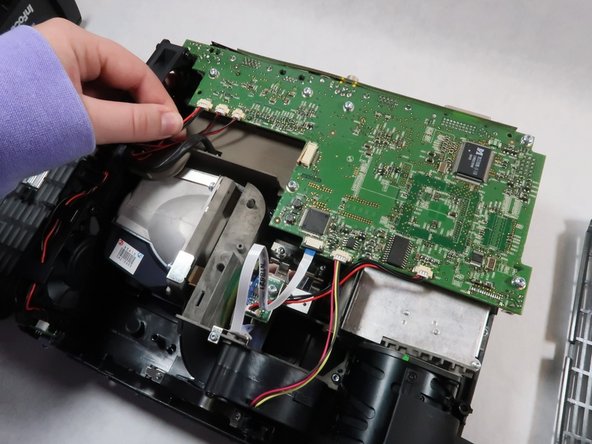
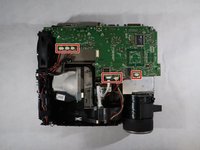
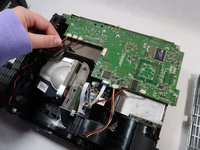
      • Detach all six of the cables and speaker wires from the white connectors on the motherboard.

      Ask FixBot

      Add Comment

    2. InFocus IN35W Fan Replacement: step 5, image 1 of 2 InFocus IN35W Fan Replacement: step 5, image 2 of 2
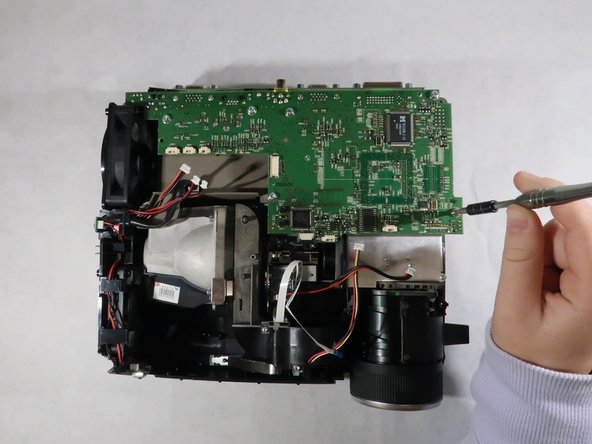
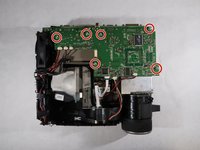
      • Remove the six 4 mm Torx TR10 screws from the motherboard.

      Ask FixBot

      Add Comment

    3. InFocus IN35W Fan Replacement: step 6, image 1 of 1
      • Carefully grasp the outsides of the motherboard and pull it up to remove it from the device.

      Ask FixBot

      Add Comment

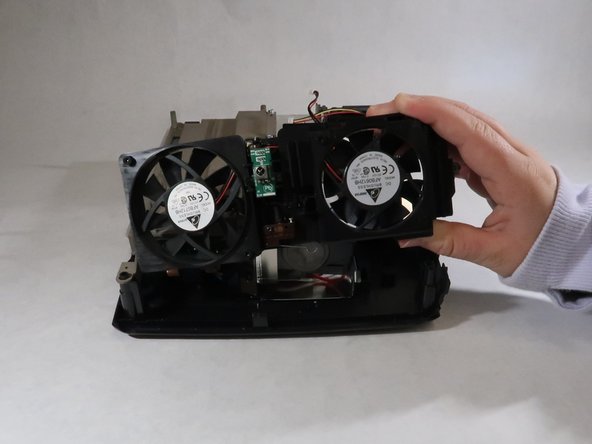
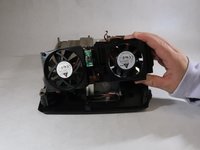
    1. InFocus IN35W Fan Replacement, Fan: step 7, image 1 of 2 InFocus IN35W Fan Replacement, Fan: step 7, image 2 of 2
      • The fan is located on the side of the device.

      • Lift the fan up and out of the projector body.

      Ask FixBot

      Add Comment

Conclusion

To reassemble your device, follow these instructions in reverse order.

Cancel: I did not complete this guide.

Grace Hubert

Member since: 10/18/21

608 Reputation

5 Guides authored

Team

UMass Dartmouth, Team 1-2, Simcock Fall 2021 Member of UMass Dartmouth, Team 1-2, Simcock Fall 2021

UMASSD-SIMCOCK-F21S1G2

4 Members

13 Guides authored

0 Guide Comments

Add Comment

View Statistics:

Past 24 Hours: 2

Past 7 Days: 9

Past 30 Days: 18

All Time: 331