Introduction
The HyperX Cloud III (model 727A9AA) is receiving audio, but you struggle to control the sound level? The volume wheel might be the problem. The volume wheel is essential to monitor the sound level of the headset's audio. The volume wheel is part of the right earphone.
Note that replacing the volume wheel requires skills in soldering. If you are new or not familiar with soldering, use our guide on soldering and desoldering connections.
What you need
-
-
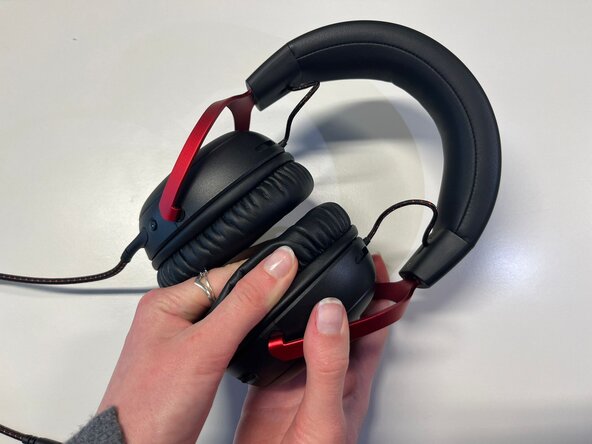
Pinch the side of one ear cushion with your thumb.
-
Slide it with your thumb to remove it completely from the outline.
-
Do the same on the other side of the headset if you want to replace both ear cushions.
 Ask FixBot
-
-
-
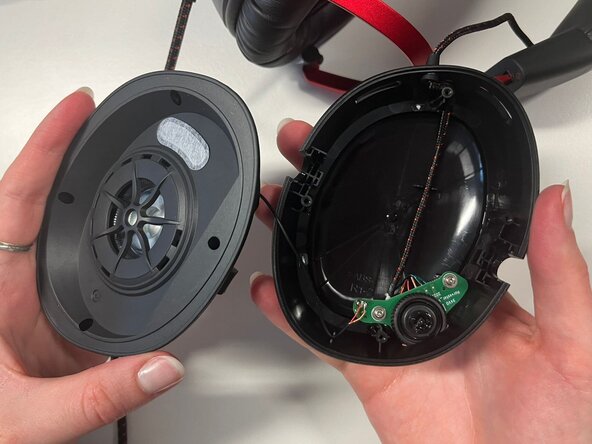
Use a Phillips #2 screwdriver to remove the four 9.4 mm-long screws securing the speaker plate to the earphone.
-
Use your fingers to pull and remove the black speaker plate.
-
-
-
-
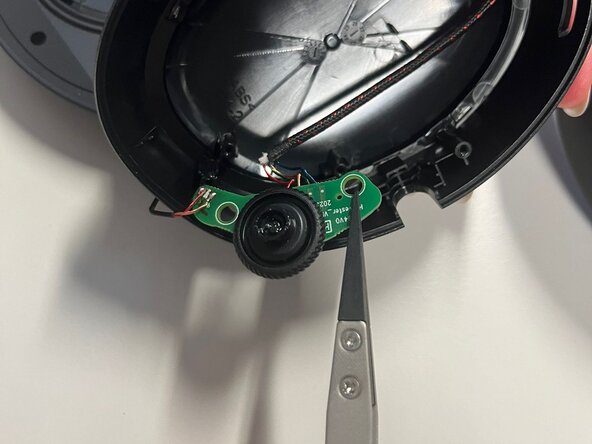
Use a Phillips #2 screwdriver to remove the two 6.7 mm-long screws securing the board.
-
-
-
Use tweezers to turn the board backward and desolder the wires connected to the sound wheel on this side.
-






To reassemble your device, follow the steps instructions in reverse order.
Prior knowledge of soldering is required and working with wires is necessary.
Repair didn’t go as planned? Try some basic troubleshooting or ask our Answers community for help.

Team

Université Paris Cité, Team 4-4, Duvezin Winter 2026 Member of Université Paris Cité, Team 4-4, Duvezin Winter 2026
UPARIS-DUVEZIN-W26S4G4
3 Members
5 Guides authored
