
TOSHIBA Satellite E45W-C4200X TrackPad Replacement

Hudson Bennett and 3 other contributors
Last updated on Jul 1, 2020
Views: 742
View statistics:
- Past 24 Hours:
- 2
- Past 7 Days:
- 15
- Past 30 Days:
- 64
- All Time:
- 742
Comments: 0
No one has left comments on this guide. Will you be first?
Go to guide commentsCompleted: 1 2
1 person has marked this guide "completed." Will you be next?
2 people have marked this guide "completed." Including you — great job!
Favorites: 0 1
No one has favorited (and subscribed to) this guide. Will you be the first?
1 person has favorited (and subscribed to) this guide — and that's you!
Introduction
Go to step 1 ↓With this guide, you will be able to learn how to replace your Trackpad on your Toshiba Satellite E45W-C4200X.
The trackpad is vital tool for controlling your curser on your computer.
Before using this guide, make sure to review the troubleshooting page to ensure theTrackpad will need to be replaced.
Make sure to power off your laptop completely and disconnect from any external power source prior to beginning the process.
What you need
Tools


-
-
-
Remove the ten 1 mm screws that secure the back cover using a Phillips #1 screwdriver.
 Ask FixBot
-
-
-
Use plastic opening tool to separate the back cover from the laptop.
-
Lift and remove the casing.
-
-
-
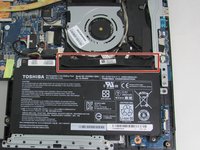
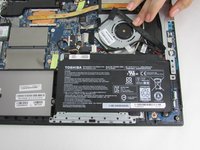
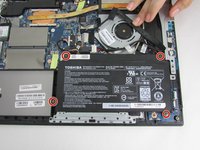
Remove the four 0.5 mm screws that hold the battery in using the Phillips #1 screwdriver.
-
-
-
-
-
-
Use the heat gun to heat the top of the keyboard cover to loosen the adhesive.
-
-
-
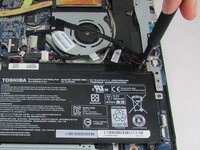
Use the heat gun to apply heat to the track pad and use the metal spudger to remove the track pad.
-
-






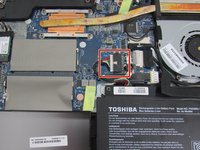
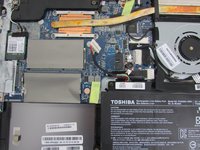


To reassemble your device, follow these instructions in reverse order.
Cancel: I did not complete this guide.
One other person completed this guide.

Team

The Citadel Military College of South Carolina, Team S3-G19, Eggleston Spring 2020 Member of The Citadel Military College of South Carolina, Team S3-G19, Eggleston Spring 2020
CMCSC-EGGLESTON-S20S3G19
4 Members
36 Guides authored
