
How to setup God Mode

Last updated on Oct 25, 2025
Views: 700
View statistics:
- Past 24 Hours:
- 2
- Past 7 Days:
- 22
- Past 30 Days:
- 109
- All Time:
- 700
Comments: 0
No one has left comments on this guide. Will you be first?
Go to guide commentsCompleted: 1 2
1 person has marked this guide "completed." Will you be next?
2 people have marked this guide "completed." Including you — great job!
Favorites: 1 2
1 person has favorited (and subscribed to) this guide. Will you be next?
2 people have favorited (and subscribed to) this guide — including you!
Introduction
Go to step 1 ↓This guide will show you how to setup God Mode on newer versions of Windows (Known to work on 7-present), but is being demonstrated on a Windows 10 system. This mode is useful when you cannot readily find the settings in the legacy Control Panel or even the Settings app, and provides a quick list.
-
-
-
Select New
-
Select Folder under New.
-
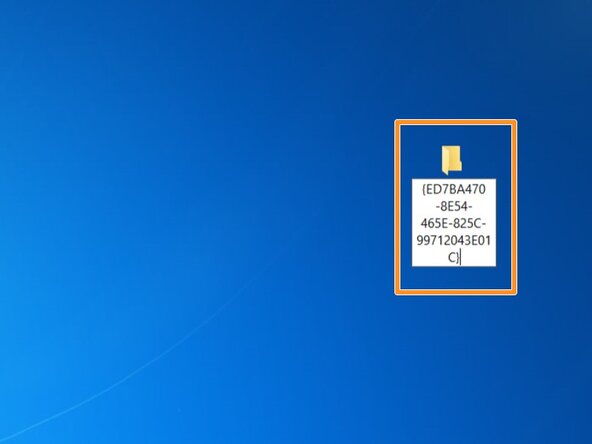
Copy this exactly as shown. DO NOT deviate: God Mode.{ED7BA470-8E54-465E-825C-99712043E01C}
-
Look for an icon that looks similar to the control panel. If you see this, God Mode is setup correctly.
 Ask FixBot
-
-
-
Select New
-
Select Folder under New.
-
Copy this exactly as shown. DO NOT deviate: God Mode.{ED7BA470-8E54-465E-825C-99712043E01C}
-
Look for an icon that looks similar to the control panel. If you see this, God Mode is setup correctly.
-
-
-





To reassemble your device, follow these instructions in reverse order.
Cancel: I did not complete this guide.
One other person completed this guide.


