How to repair a IdeaPad with faulty fingerprint

What you need

  1. How to repair a IdeaPad with faulty fingerprint, Back Panel: step 1, image 1 of 2 How to repair a IdeaPad with faulty fingerprint, Back Panel: step 1, image 2 of 2
    • Remove the ten 5 mm Phillips #00 screws that are holding the back panel on.

  2. How to repair a IdeaPad with faulty fingerprint: step 2, image 1 of 3 How to repair a IdeaPad with faulty fingerprint: step 2, image 2 of 3 How to repair a IdeaPad with faulty fingerprint: step 2, image 3 of 3
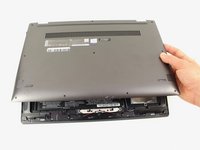
    • Use a spudger to pry open the back case at the two hinge cutouts.

    • Gently use the plastic opening tool around the edges of the laptop to pry up the clips holding the rest of the back panel.

  3. How to repair a IdeaPad with faulty fingerprint: step 3, image 1 of 2 How to repair a IdeaPad with faulty fingerprint: step 3, image 2 of 2
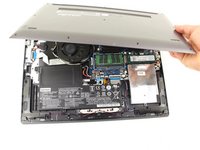
    • Once all the clips have been disengaged, lift off the back cover.

  4. How to repair a IdeaPad with faulty fingerprint, Battery: step 4, image 1 of 2 How to repair a IdeaPad with faulty fingerprint, Battery: step 4, image 2 of 2
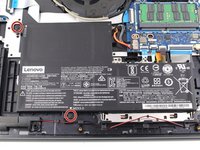
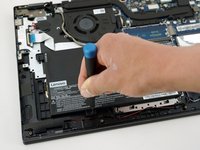
    • Remove the two 5 mm Phillips #00 screws that secure the battery in place.

  5. How to repair a IdeaPad with faulty fingerprint: step 5, image 1 of 3 How to repair a IdeaPad with faulty fingerprint: step 5, image 2 of 3 How to repair a IdeaPad with faulty fingerprint: step 5, image 3 of 3
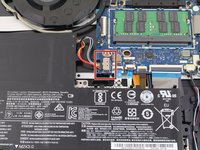
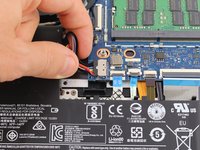
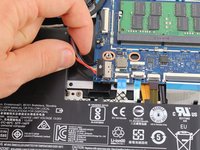
    • Using your fingers, grasp the entire bundle of wires to pull the battery cable from its connector. This will cut off power to the motherboard.

    • Be sure to apply even pressure across the wires and connector to not damage the battery cable.

    • Remove the battery from the device.

Conclusion

To reassemble your device, follow these instructions in reverse order.

[deleted]

Member since: 02/07/19

221 Reputation

1 Guide authored

0 Guide Comments

Add Comment

View Statistics:

Past 24 Hours: 0

Past 7 Days: 1

Past 30 Days: 7

All Time: 106
