
Toshiba Satellite p875 s7200 Screen Replacement

Danny Amado and 2 other contributors
Last updated on Dec 13, 2018
Views: 1.6K
View statistics:
- Past 24 Hours:
- 2
- Past 7 Days:
- 13
- Past 30 Days:
- 62
- All Time:
- 1,644
Comments: 0
No one has left comments on this guide. Will you be first?
Go to guide commentsCompleted: 0 1
No one has marked this guide "completed." Will you be the first?
1 person has marked this guide "completed." It's you — great job!
Favorites: 0 1
No one has favorited (and subscribed to) this guide. Will you be the first?
1 person has favorited (and subscribed to) this guide — and that's you!
Action Shots
Be an action hero! This guide needs images that better demonstrate how to perform specific actions.
Introduction
Go to step 1 ↓If you need to replace the screen, follow this guide. The screen can be accessed by removing the computer from its casing and then removing the hinges. To replace this part, you will need a Phillips 0 screw driver and a plastic opening tool.
What you need
Tools


-
-
-
Remove the battery by sliding the tabs to the left.
-
Use the spudger to lift out the battery.
 Ask FixBot
-
-
-
Use the Phillips head screw driver to remove the screw holding the back plate on.
-
-
-
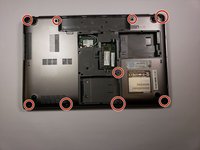
Remove the 6 mm screws around the edges with the Phillips head screw driver. Then remove the 6mm screw holding the disc drive into place.
-
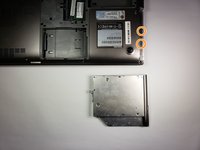
Sliding out the disc drive will reveal the final two 4 mm screws on the bottom of the device.
-
-
-
Flip the laptop over to begin the process of removing the keyboard.
-
Use the spudger to pop the keyboard off. Start at the bottom of the keyboard and work your way around.
-
-
-
Use the Phillips head screw driver to remove the last 6mm screws holding the case together.
-
After removing the keyboard and the screws, use the spudger around the edges of the laptop to remove the face plate.
-
-
-
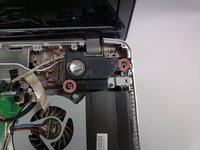
Use the Phillips head screwdriver to remove the 5mm screws on the right speaker.
-
Repeat the process for the left side.
-
-
-
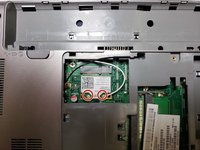
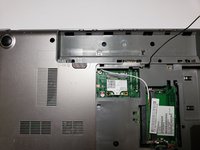
Flip the laptop over and disconnect the black and white display wires by pulling them upwards.
-
The second image shows the disconnected wires.
-
Flip the laptop back over and pull the black and white wires through their holes in the motherboard.
-
-
-
Move the speakers out of the way after removing their holding screws.
-
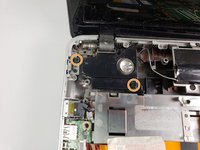
Remove the two 4mm screws on the hinges on each side of the laptop.
-
-
-
-
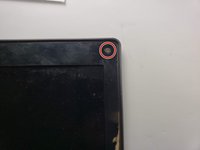
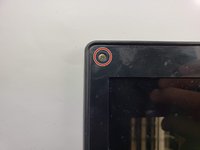
Use the screw driver to remove the two black disks from the top corners of the display.
-
Remove the 5mm screws that were hidden behind the little black disks.
-
Use the spudger tool to pop the cover off of the edge.
-
-
-
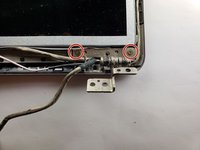
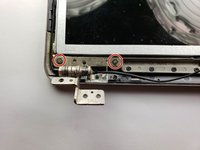
Remove the two 3 mm screws holding the display in place. Repeat this step for both the left and right sides.
-
-
-
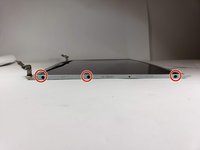
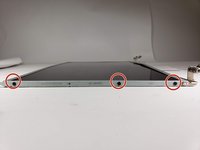
Use the screw driver to remove the six 3 mm screws holding the brackets and hinges onto the display.
-
-












To reassemble your device, follow these instructions in reverse order.

Team

Baylor, Team S1-G3, Williams Fall 2018 Member of Baylor, Team S1-G3, Williams Fall 2018
BU-WILLIAMS-F18S1G3
4 Members
60 Guides authored
