This guide has more recent changes. Switch to the latest unverified version.

How to create a ChromeOS Recovery USB Drive

Jacob Mehnert and
Last updated on Jan 7, 2024
Views: 62K
View statistics:
- Past 24 Hours:
- 11
- Past 7 Days:
- 108
- Past 30 Days:
- 561
- All Time:
- 61,528
Comments: 16
1 comment on steps, 15 guide comments.
Go to guide commentsCompleted: 103 104
103 people have marked this guide "completed." Will you be next?
104 people have marked this guide "completed." Including you — great job!
Favorites: 4 5
4 people have favorited (and subscribed to) this guide. Will you be next?
5 people have favorited (and subscribed to) this guide — including you!
Community-Contributed Guide
An awesome member of our community made this guide. It was not created by iFixit staff.
Introduction
Go to step 1 ↓If your Chromebook's operating system ever becomes corrupted or damaged, you can recover it using Google's Recovery Utility application. This process has the tool completely remove the currently installed OS and reinstalls it onto the device.
While Chrome OS is known for being a somewhat stable operating system there are moments when you would want to have a recovery drive handy. For example, you would want to use a recovery USB in one of the following scenarios...
- You see this error message: "Chrome OS is missing or damaged"
- Other troubleshooting steps have no effect on the immediate issue.
What you need
Tools

-
-
-
In order to make your recovery device, you will need the following items.
-
1 x USB Drive or SD Card (8 GB is the minimum)
-
1 x computer running the Google Chrome Browser, or Chrome OS.
 Ask FixBot
-
-
-
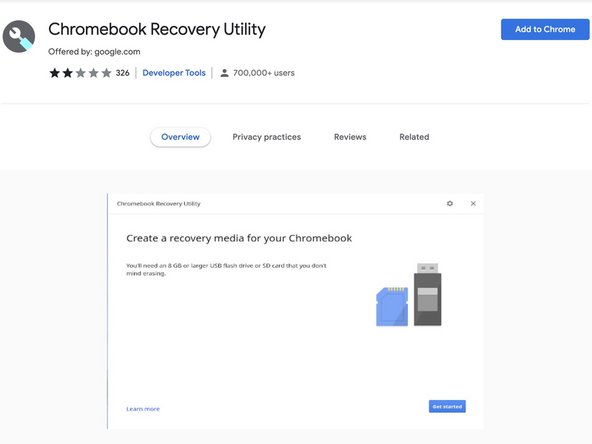
Open Google Chrome and navigate to the Chrome Web Store and download the Chromebook Recovery Utility extension.
-
Add the utility to Chrome and launch it. You will be greeted with this page.
-
-
-
-
Click on "Get started" and you will be prompted to enter the model of your Chromebook.
-
-
-
Plug in your spare 8 GB USB Drive and select it from the dropdown menu.
-
-
-
You will be presented with a screen that shows the drive you selected. Click on the "Create now" button and the processes will begin.
-
-


If you intend on reusing the drive for storing files you will need to use the Recover Utility application to erase the data on the drive, and you will need to reformat it with a recovery tool.
Cancel: I did not complete this guide.
103 other people completed this guide.


15 Guide Comments
Thanks only this is working all the other instructions on google didnt work… Direct and simple instructions
I'm glad to hear that this guide helped you out!
Hello....I followed all you said here yet my USB flash drives got corrupted after the recovery utility completed
Hello, you might need to wipe the USB drive and attempt to install the recovery tool again. You might also want to check that the drive is formatted to FAT32. Other formats have been known to cause errors with the recovery tool.
Does it matter if it’s a 2.0 or 3.0 USB drive???
