
How to clean Microtek ScanMaker 5900 glass

Steven Shaginyan and 4 other contributors
Last updated on Jul 19, 2021
Views: 3.1K
View statistics:
- Past 24 Hours:
- 1
- Past 7 Days:
- 12
- Past 30 Days:
- 38
- All Time:
- 3,101
Comments: 0
No one has left comments on this guide. Will you be first?
Go to guide commentsCompleted: 0 1
No one has marked this guide "completed." Will you be the first?
1 person has marked this guide "completed." It's you — great job!
Favorites: 1 2
1 person has favorited (and subscribed to) this guide. Will you be next?
2 people have favorited (and subscribed to) this guide — including you!
Needs Better Images
Better photos will improve this guide. Help out by taking, editing, or uploading new ones!
Better Introduction
Improve this guide by completing or revising its introduction.
Introduction
Go to step 1 ↓This guide will show the user how to open the top half of the scanner and clean the interior side of the surface glass.
What you need
Tools


-
-
-
Loosen the screws on the serial port by turning them counter clockwise by hand.
-
After loosening the screws, pull the serial port out.
 Ask FixBot
-
-
-
Lift lid to its vertical position.
-
Pull lid straight up to remove it from the scanner.
-
-
-
-
-
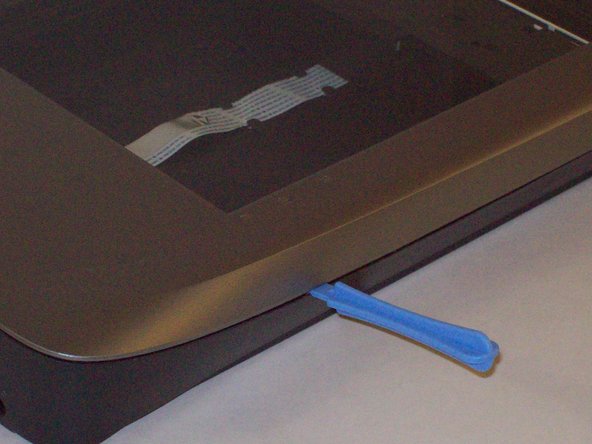
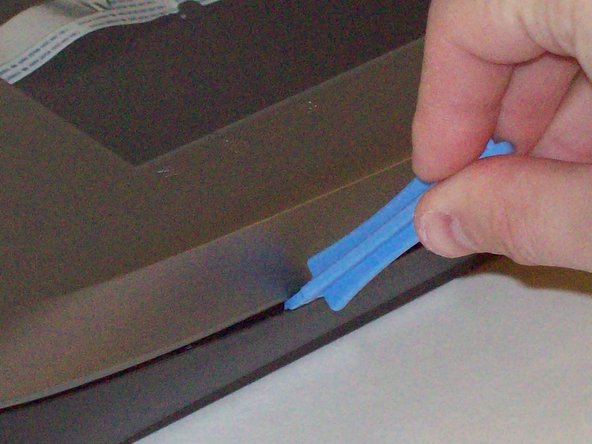
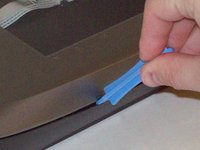
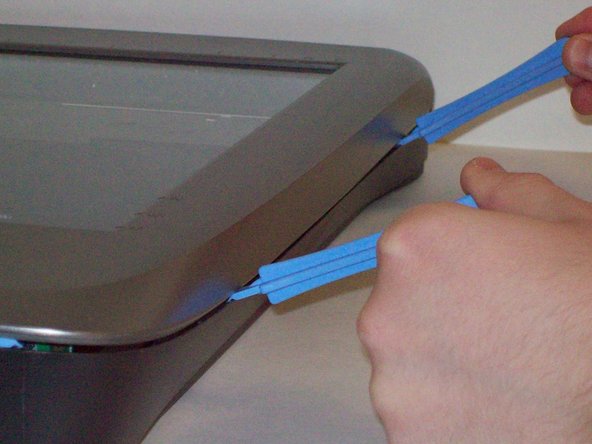
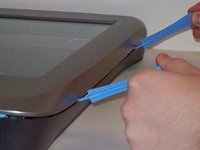
Push the plastic opening tools into the crack between the top and the bottom of the chassis.
-
-
-
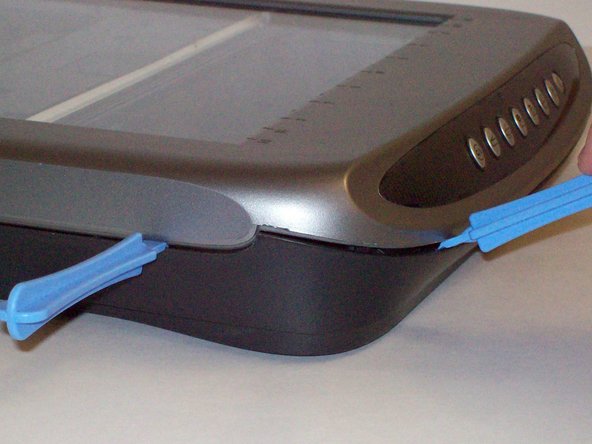
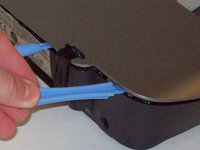
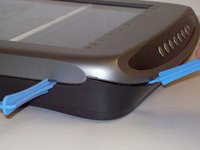
After placing one plastic opening tool into the slit, slide other plastic opening tools along the slit to detach the top from the bottom of the chassis.
-
Go all the way along the chassis until you can lift the upper lid.
-
-
-
-
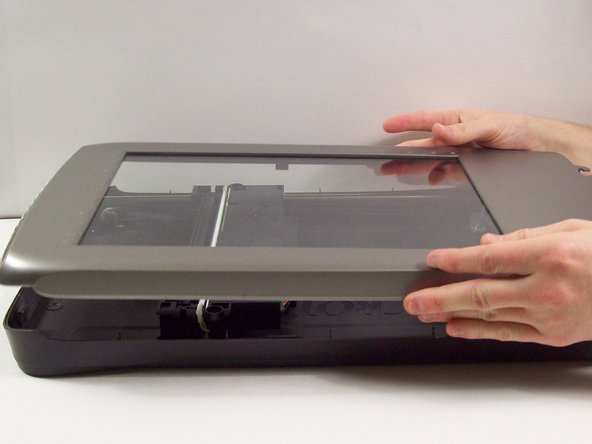
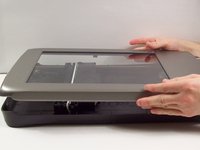
Do this by grabbing the upper lid from the sides and rotating it ninety degrees so it is perpendicular to the bottom lid.
-
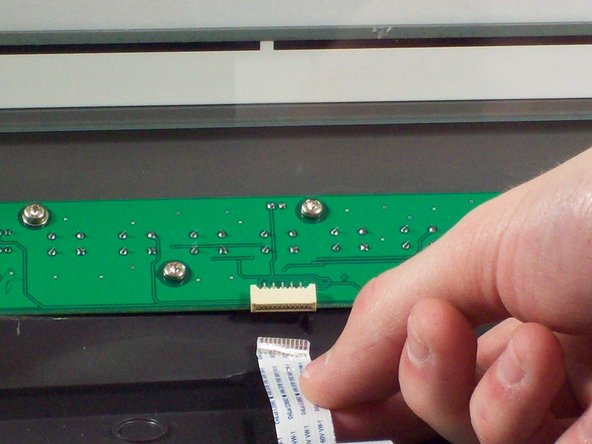
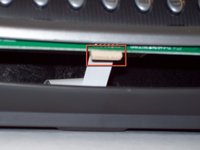
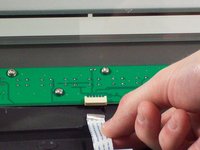
Grab the ribbon cable and gently pull it out of its slot with your fingers.
-
The upper lid can now safely be removed from the bottom lid.
-
-
-
-
-
Using a soft lint-free cloth clean the surface glass of dust, finger prints and other debris.
-
-





To reassemble your device, follow these instructions in reverse order.

Team

Cal Poly, Team 6-9, Regan Fall 2011 Member of Cal Poly, Team 6-9, Regan Fall 2011
CPSU-REGAN-F11S6G9
2 Members
132 Guides authored
