
Toshiba Satellite P105-S6147 Keyboard Replacement

Benjamin Wilkinson and 5 other contributors
Last updated on Dec 9, 2019
Views: 695
View statistics:
- Past 24 Hours:
- 1
- Past 7 Days:
- 10
- Past 30 Days:
- 53
- All Time:
- 695
Comments: 0
No one has left comments on this guide. Will you be first?
Go to guide commentsCompleted: 2 3
2 people have marked this guide "completed." Will you be next?
3 people have marked this guide "completed." Including you — great job!
Favorites: 0 1
No one has favorited (and subscribed to) this guide. Will you be the first?
1 person has favorited (and subscribed to) this guide — and that's you!
Introduction
Go to step 1 ↓This is a replacement guide for the Toshiba Satellite P105-S6147 Keyboard. This part’s purpose is to perform functions and input text. Replace this part if the keyboard is unresponsive, there are many missing keys, or the keys continue to stick after cleaning. Refer to this troubleshooting guide before replacing the keyboard.
All the tools you will need in this guide can be found in the iFixit Pro Toolkit. We suggest you perform this replacement on a large, level workspace where you can avoid knocking small parts onto the floor. Label any small parts so you know where to put them when reassembling the laptop.
Consult the Toshiba Satellite P105-S6147 Device Page for further questions.
What you need
Tools


-
-
-
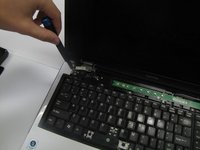
Use the iFixit opening tool to remove the cover at the top of the keyboard.
-
Insert the tool in the small space above the keyboard and gently pry until the cover pops out of its retaining clips.
-
Repeat the prying across the top of the keyboard until the whole cover is loose.
 Ask FixBot
-
-
-
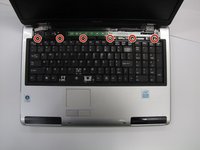
Use the Phillips #0 screwdriver to remove six 6 mm screws labeled “F4” at the top of the keyboard.
-
-
-
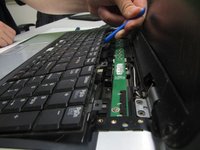
Use the iFixit opening tool to pry the keyboard out of its retaining clips.
-
Insert the tool into the groove surrounding the laptop and pry until the keyboard “pops” out of the laptop body.
-
Once the keyboard is free from the laptop body, gently flip the keyboard over, as seen in the third picture.
-
-
-
-
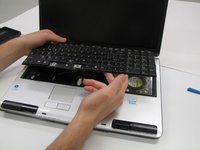
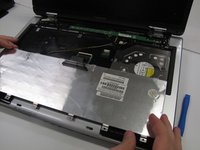
Lay the keyboard down on the bottom of the laptop, as seen in image one.
-
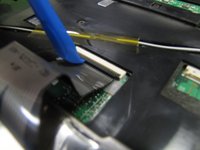
Locate the ribbon cable connecting the bottom of the keyboard to the laptop. There will be a small black and white clip securing the ribbon cable to the laptop.
-
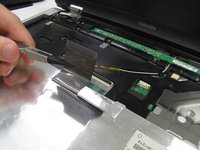
Use the iFixit opening tool to gently open the clip, freeing the ribbon cable from the laptop body.
-
Gently remove the keyboard from the laptop body.
-
-






To reassemble your device, follow these instructions in reverse order.
Cancel: I did not complete this guide.
2 other people completed this guide.

Team

University of North Texas, Team S1-G2, Friess Fall 2019 Member of University of North Texas, Team S1-G2, Friess Fall 2019
UNT-FRIESS-F19S1G2
2 Members
60 Guides authored
