How to Replace or Clean a Macbook Key

Last updated on Dec 27, 2022
Views: 82K
View statistics:
- Past 24 Hours:
- 19
- Past 7 Days:
- 128
- Past 30 Days:
- 633
- All Time:
- 81,642
Comments: 1
1 guide comment.
Go to guide commentsCompleted: 19 20
19 people have marked this guide "completed." Will you be next?
20 people have marked this guide "completed." Including you — great job!
Favorites: 74 75
74 people have favorited (and subscribed to) this guide. Will you be next?
75 people have favorited (and subscribed to) this guide — including you!
Needs Better Images
Better photos will improve this guide. Help out by taking, editing, or uploading new ones!
Community-Contributed Guide
An awesome member of our community made this guide. It was not created by iFixit staff.
Introduction
Go to step 1 ↓If you ever spilled soda all over your MacBook's keyboard and need to clean the keys, you should follow this guide. This does not apply to the newer Macbook pros and airs because they use different key mechanisms.
What you need
Tools
-
-
Spudger4.9
-
-


-
-
-
Stick your finger underneath the key. Gently pry it up.
 Ask FixBot
-
-
-
Now, carefully use your spudger or small flathead to, very gently, pry up the key mechanism, being careful not to damage it.
-
-
-
-
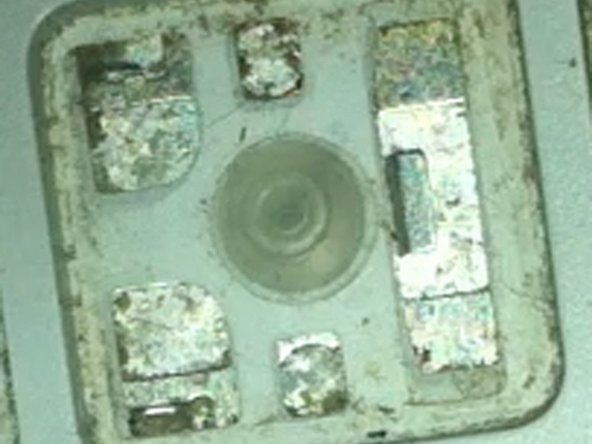
Once you have removed and cleaned the key (or have not cleaned) take a close look at the key. There is a big hook on the right side, and two smaller hooks on the top left and bottom left.
-
-
-
Now what you want to do, is hold the mechanism flat side up. Put the mechanism into the hook on the right side. A spudger or small flathead might help.
-
-
-
Now pop in the two pins on the bottom left and top left into their hooks using a small spudger or flathead.
-
-
-
Now, take the key cap and pop it back on the computer.
-
Now test the keyboard, verifying that everything works.
-
-




That was the guide on how to clean the keys on a MacBook.
Cancel: I did not complete this guide.
19 other people completed this guide.