Free Shipping on Domestic Orders $75+

How to Repair Apple Wireless Keyboard A1314 - Doesn't Turn On

Views: 22K

View statistics:

Past 24 Hours:
10
Past 7 Days:
84
Past 30 Days:
365
All Time:
21,592
Comments: 10

3 comments on steps, 7 guide comments.

Go to guide comments
Completed: 6

6 people have marked this guide "completed." Will you be next?

Favorites: 1

1 person has favorited (and subscribed to) this guide. Will you be next?

Time Required: 5 - 10 minutes
Difficulty: Easy
Community-Contributed Guide

An awesome member of our community made this guide. It was not created by iFixit staff.

How to Repair Apple Wireless Keyboard A1314 - Doesn't Turn On

What you need

Tools

Video Overview

    1. How to Repair Apple Wireless Keyboard A1314 - Doesn't Turn On, How to Repair Apple Wireless Keyboard A1314 - Doesn't Turn On: step 1, image 1 of 1
      • As you can see from the photo, the negative pole of the battery is connected to the main board through the aluminum body of the keyboard.

      • There are two contact areas:

      • Between the battery cover and the KB aluminum body

      • Between the power button assemble and the KB aluminum body

      • If the device has a power problem, we need to check and clean these two places

      Ask FixBot

      Add Comment

    2. How to Repair Apple Wireless Keyboard A1314 - Doesn't Turn On, Battery replacement: step 2, image 1 of 3 How to Repair Apple Wireless Keyboard A1314 - Doesn't Turn On, Battery replacement: step 2, image 2 of 3 How to Repair Apple Wireless Keyboard A1314 - Doesn't Turn On, Battery replacement: step 2, image 3 of 3
      • Use a Coin to remove the metal battery screw cover

      • Change the batteries (AA) and test the keyboard

      • If the keyboard does not work, go to the next step

      Ask FixBot

      Add Comment

    3. How to Repair Apple Wireless Keyboard A1314 - Doesn't Turn On, Cleaning battery cover area: step 3, image 1 of 3 How to Repair Apple Wireless Keyboard A1314 - Doesn't Turn On, Cleaning battery cover area: step 3, image 2 of 3 How to Repair Apple Wireless Keyboard A1314 - Doesn't Turn On, Cleaning battery cover area: step 3, image 3 of 3
      • Use cotton buds, Toothpicks and Isopropyl Alcohol to clean the contact area and the battery cap.

      • Test the device and f the keyboard does not work, go to the next step

      Ask FixBot

      Add Comment

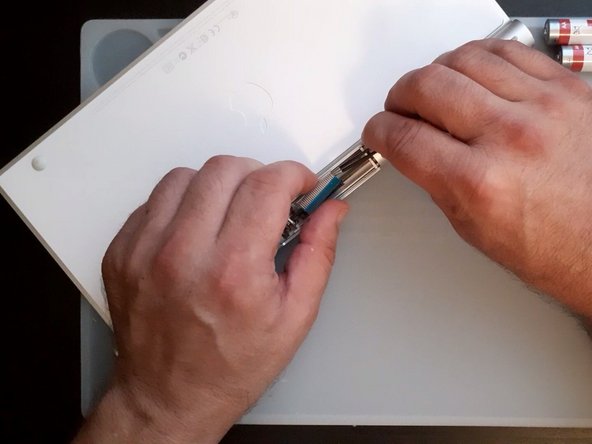
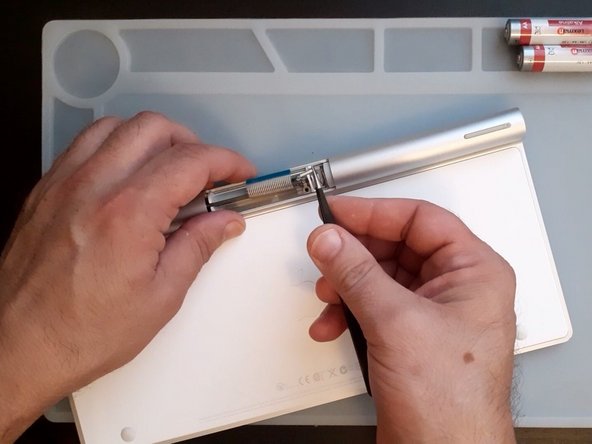
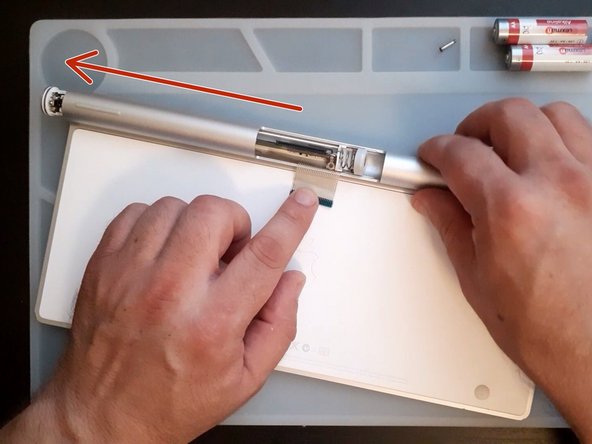
    4. How to Repair Apple Wireless Keyboard A1314 - Doesn't Turn On, Logic Board Removal Part 1: step 4, image 1 of 3 How to Repair Apple Wireless Keyboard A1314 - Doesn't Turn On, Logic Board Removal Part 1: step 4, image 2 of 3 How to Repair Apple Wireless Keyboard A1314 - Doesn't Turn On, Logic Board Removal Part 1: step 4, image 3 of 3
      • Remove the plastic cap from the middle on the tube and disconnect the KB flex cable

      • There are a screw secured the BT antenna, remove it

      • Slide the board out.

      • Be careful for the KB Flex Cable

      Ask FixBot

      Add Comment

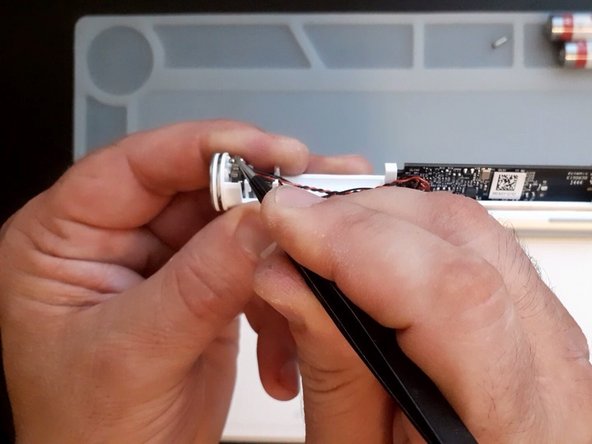
    5. How to Repair Apple Wireless Keyboard A1314 - Doesn't Turn On: step 5, image 1 of 3 How to Repair Apple Wireless Keyboard A1314 - Doesn't Turn On: step 5, image 2 of 3 How to Repair Apple Wireless Keyboard A1314 - Doesn't Turn On: step 5, image 3 of 3
      Tool used on this step:
      Tweezers
      $4.99
      Buy
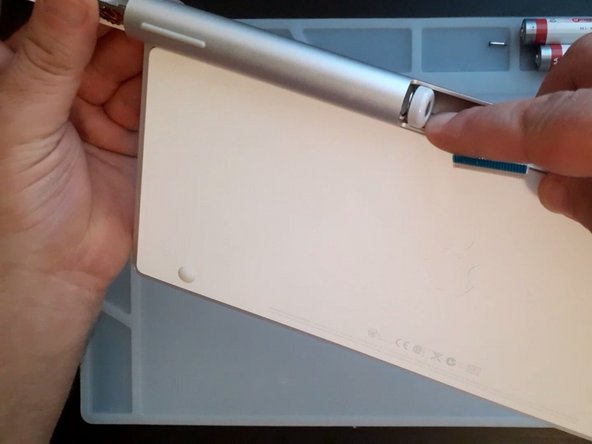
      • Use tweezers or a sharp metal tool and slightly bend the contact plate outwards

      • Clean the tube and the contact plate

      • Install back the logic board plate and be careful for the flex

      Ask FixBot

      Add Comment

Conclusion

To reassemble your device, follow these instructions in reverse order.

Cancel: I did not complete this guide.

6 other people completed this guide.

ZFix

Member since: 12/09/13

197,729 Reputation

330 Guides authored

Team

Master Techs Member of Master Techs

Community

336 Members

8,282 Guides authored

7 Guide Comments

Add a little dielectric grease to the battery end cap. Had considerable corrosion despite batteries not leaking. Strange design.

George Walsh - Reply Share

Wow! This fixed actually worked! I was about to thrown this A1314 keyboard out (2009 model)! You can remove the plastic "cap" with a precision flathead screwdriver. Also, be careful when disassembling the ribbon cable - there is a plastic retaining clip holding it in place. Use the precision screwdriver to carefully release the tabs on either side and then pop it out. The ribbon cable will then easily side out. By the way...I'm typing this comment on my newly fixed wireless keyboard! Thanks again!

Vic - Reply Share

its great having this guide. I got the keyboard to work again.

shinnranchgrouse - Reply Share

from time to time it makes error sound and interfering apps such as blinking pop up menus ... speaking about MacBook Pro 2017 Monterey

Not to mention that it's not connecting to MacBook Air M1 at all ... )) Goodby my 2009 bluetooth .. Sad ..It is like new and working with other apps except adobe )

Alec - Reply Share

Mi teclado no se enlaza al prenderlo se queda enciendido el led de letras mayúsculas y no se apaga ! Y no funciona ninguna tecla para enlazarlo!

ialex - Reply Share

Add Comment

View Statistics:

Past 24 Hours: 10

Past 7 Days: 84

Past 30 Days: 365

All Time: 21,592