How to Remove a Blob from an AnkerMake M5 3D Printer

What you need

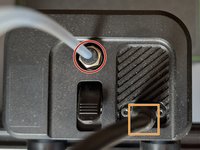
  1. How to Remove a Blob from an AnkerMake M5 3D Printer, Prepare to Remove Extruder Housing: step 1, image 1 of 3 How to Remove a Blob from an AnkerMake M5 3D Printer, Prepare to Remove Extruder Housing: step 1, image 2 of 3 How to Remove a Blob from an AnkerMake M5 3D Printer, Prepare to Remove Extruder Housing: step 1, image 3 of 3
    • Press down on the black collar while pulling up on the PTFE tubing.

    • Using a 1.5mm hex wrench, remove the two screws on either side of the USB-C cable.

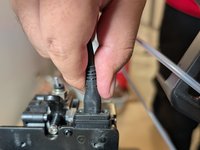
  2. How to Remove a Blob from an AnkerMake M5 3D Printer, Remove the USB-C Cable: step 2, image 1 of 2 How to Remove a Blob from an AnkerMake M5 3D Printer, Remove the USB-C Cable: step 2, image 2 of 2
    • Pull straight up on the USB-C cable.

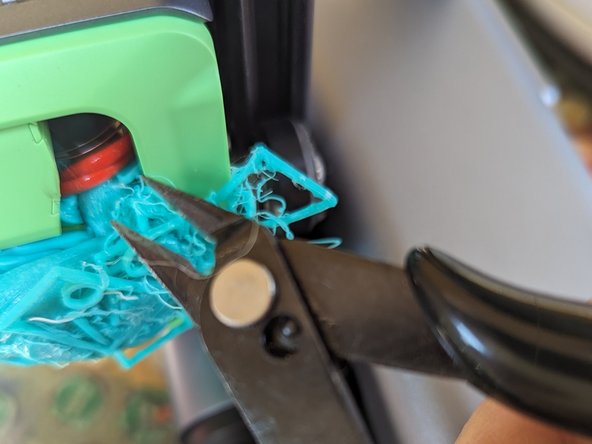
  3. How to Remove a Blob from an AnkerMake M5 3D Printer, Clear Blob Chunks to Remove Extruder Housing Trim: step 3, image 1 of 3 How to Remove a Blob from an AnkerMake M5 3D Printer, Clear Blob Chunks to Remove Extruder Housing Trim: step 3, image 2 of 3 How to Remove a Blob from an AnkerMake M5 3D Printer, Clear Blob Chunks to Remove Extruder Housing Trim: step 3, image 3 of 3
    • Use clippers to remove the blobs in order to remove the extruder housing rim.

  4. How to Remove a Blob from an AnkerMake M5 3D Printer, Clean Heater Block After Blob Has Melted Off: step 4, image 1 of 2 How to Remove a Blob from an AnkerMake M5 3D Printer, Clean Heater Block After Blob Has Melted Off: step 4, image 2 of 2
    • Plug the printer back in.

    • Power on the printer and heat the nozzle to 250°C for a few minutes to soften the blob. In many cases, the heat will melt off the blob if the extruder housing is removed.

  5. How to Remove a Blob from an AnkerMake M5 3D Printer, Clean Thermal Sleeve: step 5, image 1 of 2 How to Remove a Blob from an AnkerMake M5 3D Printer, Clean Thermal Sleeve: step 5, image 2 of 2
    • Once heated, turn off and unplug the printer. Carefully wiggle off the softened filament blob.

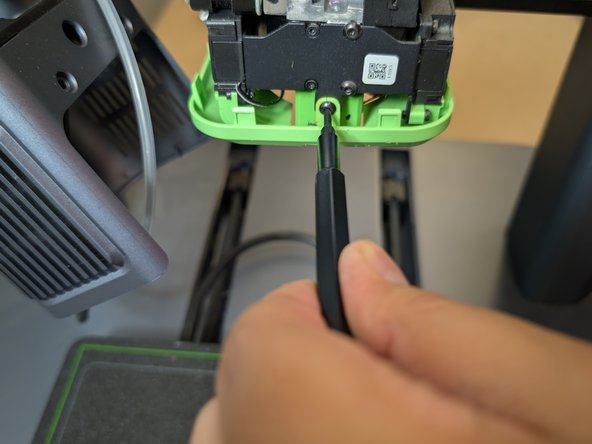
  6. How to Remove a Blob from an AnkerMake M5 3D Printer, Remove the Trim Screws: step 6, image 1 of 2 How to Remove a Blob from an AnkerMake M5 3D Printer, Remove the Trim Screws: step 6, image 2 of 2
    • Use the Phillips #00 Screwdriver to remove the screws from the housing of the nozzle.

  7. How to Remove a Blob from an AnkerMake M5 3D Printer, Remove Extruder Housing Trim: step 7, image 1 of 2 How to Remove a Blob from an AnkerMake M5 3D Printer, Remove Extruder Housing Trim: step 7, image 2 of 2
    • After the screws have been removed, the housing comes off by pulling down.

  8. How to Remove a Blob from an AnkerMake M5 3D Printer, Look for Electrical Damage and Wires to Avoid: step 8, image 1 of 3 How to Remove a Blob from an AnkerMake M5 3D Printer, Look for Electrical Damage and Wires to Avoid: step 8, image 2 of 3 How to Remove a Blob from an AnkerMake M5 3D Printer, Look for Electrical Damage and Wires to Avoid: step 8, image 3 of 3
    • For any remaining blob pieces, use a heated craft knife and clippers.

    • Be careful to avoid any electrical wiring for the fans and thermistor.

  9. How to Remove a Blob from an AnkerMake M5 3D Printer, The Blob is Removed! Inspect the Parts: step 9, image 1 of 3 How to Remove a Blob from an AnkerMake M5 3D Printer, The Blob is Removed! Inspect the Parts: step 9, image 2 of 3 How to Remove a Blob from an AnkerMake M5 3D Printer, The Blob is Removed! Inspect the Parts: step 9, image 3 of 3
    • Now that the blob has been removed, it it time to clean the thermal sleeve.

    • The thermal sleeve may be embedded in the blob, and removing it might damage it. In that case install a new one.

  10. How to Remove a Blob from an AnkerMake M5 3D Printer, Print a Test Object to Ensure the Printer Works: step 10, image 1 of 1
    • With the blob removed, inspect the nozzle for tightness and alignment. Adjust if necessary.

    • If the nozzle appears to be clear, create a test object to ensure that the nozzle is clean and in good condition.

  11. How to Remove a Blob from an AnkerMake M5 3D Printer, Assess Damaged Parts: step 11, image 1 of 2 How to Remove a Blob from an AnkerMake M5 3D Printer, Assess Damaged Parts: step 11, image 2 of 2
    • Some parts might have cosmetic damage.

    • Some parts might have functional damage. They can be replaced or reprinted, such as these orange fan ducts.

  12. How to Remove a Blob from an AnkerMake M5 3D Printer, Reassembled Extruder: step 12, image 1 of 1
    • Now the nozzle is clean and ready for use again.

Finish Line

2 other people completed this guide.

Adolfo Fabian

Member since: 10/23/24

241 Reputation

1 Guide authored

Team

0 Guide Comments

Add Comment

View Statistics:

Past 24 Hours: 6

Past 7 Days: 24

Past 30 Days: 144

All Time: 1,368