Free Shipping on Domestic Orders $75+

How to Refill Canon Pixma MG3550 Ink Cartridges

What you need

    1. How to Refill Canon Pixma MG3550 Ink Cartridges, How to Refill Canon Pixma MG3550 Ink Cartridges: step 1, image 1 of 2 How to Refill Canon Pixma MG3550 Ink Cartridges, How to Refill Canon Pixma MG3550 Ink Cartridges: step 1, image 2 of 2
      • Prepare materials.

      • You will need red, yellow, blue, and black ink and 4 syringes for the inks. These are available on Amazon.

      • Paper towel and gloves are not required but recommended.

      Ask FixBot

      Add Comment

    2. How to Refill Canon Pixma MG3550 Ink Cartridges: step 2, image 1 of 3 How to Refill Canon Pixma MG3550 Ink Cartridges: step 2, image 2 of 3 How to Refill Canon Pixma MG3550 Ink Cartridges: step 2, image 3 of 3
      • Open the printer cover and take out the ink cartridge.

      Ask FixBot

      Add Comment

    3. How to Refill Canon Pixma MG3550 Ink Cartridges: step 3, image 1 of 3 How to Refill Canon Pixma MG3550 Ink Cartridges: step 3, image 2 of 3 How to Refill Canon Pixma MG3550 Ink Cartridges: step 3, image 3 of 3
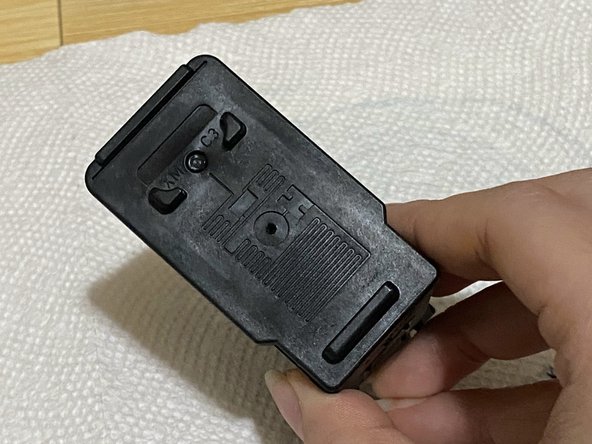
      • Remove the sticker label on the cartridge.

      • After removing the label, you will see a hole.

      • The black ink cartridge has one hole, and the color ink cartridge has three holes.

      Ask FixBot

      Add Comment

    4. How to Refill Canon Pixma MG3550 Ink Cartridges: step 4, image 1 of 2 How to Refill Canon Pixma MG3550 Ink Cartridges: step 4, image 2 of 2
      • For the black ink, first draw the ink into the syringe then insert the ink into the hole.

      Ask FixBot

      Add Comment

    5. How to Refill Canon Pixma MG3550 Ink Cartridges: step 5, image 1 of 2 How to Refill Canon Pixma MG3550 Ink Cartridges: step 5, image 2 of 2
      • The color ink cartridge will have three holes, one on the top and two on bottom.

      • Insert the red ink into the top hole.

      Ask FixBot

      Add Comment

    6. How to Refill Canon Pixma MG3550 Ink Cartridges: step 6, image 1 of 2 How to Refill Canon Pixma MG3550 Ink Cartridges: step 6, image 2 of 2
      • Insert the yellow ink into the bottom right hole.

      Ask FixBot

      Add Comment

    7. How to Refill Canon Pixma MG3550 Ink Cartridges: step 7, image 1 of 2 How to Refill Canon Pixma MG3550 Ink Cartridges: step 7, image 2 of 2
      • Insert the blue ink into the bottom left hole.

      Ask FixBot

      Add Comment

    8. How to Refill Canon Pixma MG3550 Ink Cartridges: step 8, image 1 of 3 How to Refill Canon Pixma MG3550 Ink Cartridges: step 8, image 2 of 3 How to Refill Canon Pixma MG3550 Ink Cartridges: step 8, image 3 of 3
      • Put the sticker label backs, place the cartridges back in the printer and close the lid.

      • Now you can start printing.

      Ask FixBot

      Add Comment

Finish Line

Cancel: I did not complete this guide.

5 other people completed this guide.

0 Guide Comments

Add Comment

View Statistics:

Past 24 Hours: 2

Past 7 Days: 12

Past 30 Days: 79

All Time: 2,864