How to Power Down and Store Your Smart Soldering Iron

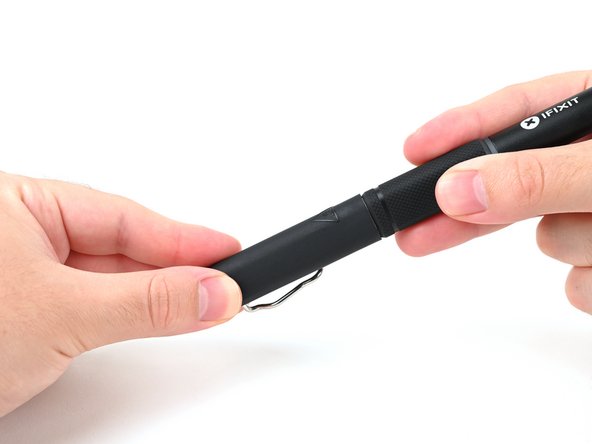
  1. How to Power Down and Store Your Smart Soldering Iron, Install the soldering iron cap: step 1, image 1 of 2 How to Power Down and Store Your Smart Soldering Iron, Install the soldering iron cap: step 1, image 2 of 2
    • Put the cap on the Smart Soldering Iron.

  2. How to Power Down and Store Your Smart Soldering Iron, Turn off the iron: step 2, image 1 of 3 How to Power Down and Store Your Smart Soldering Iron, Turn off the iron: step 2, image 2 of 3 How to Power Down and Store Your Smart Soldering Iron, Turn off the iron: step 2, image 3 of 3
    • The sliding power switch has a built-in color indicator for each position:

    • Orange: ON

    • Blue: OFF

    • Slide the power switch to the blue OFF position.

    • The LED will turn purple and pulse to show the iron is powering down.

    • Leave the soldering iron connected until the indicator ring turns blue, indicating it's now safe to touch the soldering iron tip.

    • Remember: The LED only functions when the soldering iron is connected to a power source—so use caution when handling an unplugged iron if you don't know how hot it is.

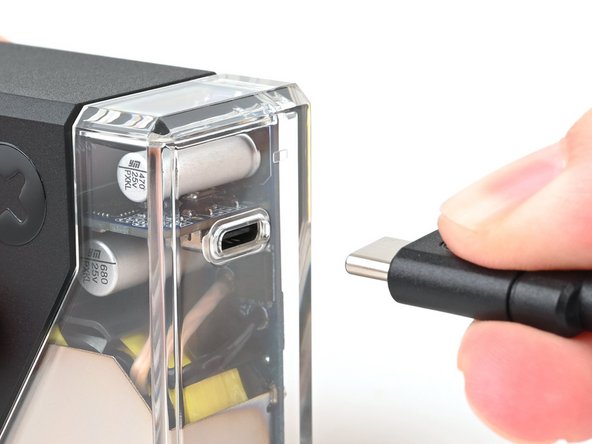
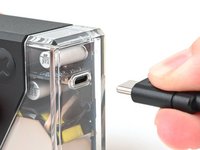
  3. How to Power Down and Store Your Smart Soldering Iron, Unplug the iron: step 3, image 1 of 2 How to Power Down and Store Your Smart Soldering Iron, Unplug the iron: step 3, image 2 of 2
    • Disconnect the iron's USB-C cable from your power source.

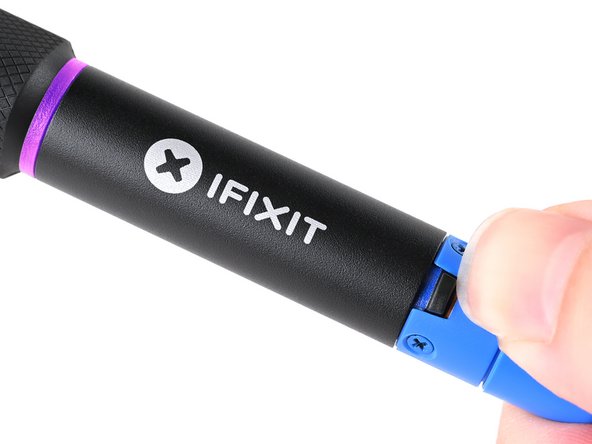
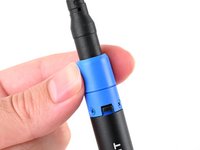
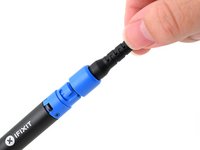
  4. How to Power Down and Store Your Smart Soldering Iron, Unlock the locking collar: step 4, image 1 of 3 How to Power Down and Store Your Smart Soldering Iron, Unlock the locking collar: step 4, image 2 of 3 How to Power Down and Store Your Smart Soldering Iron, Unlock the locking collar: step 4, image 3 of 3
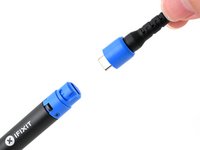
    • Twist the blue cable collar counter-clockwise and pull up to release it from the iron.

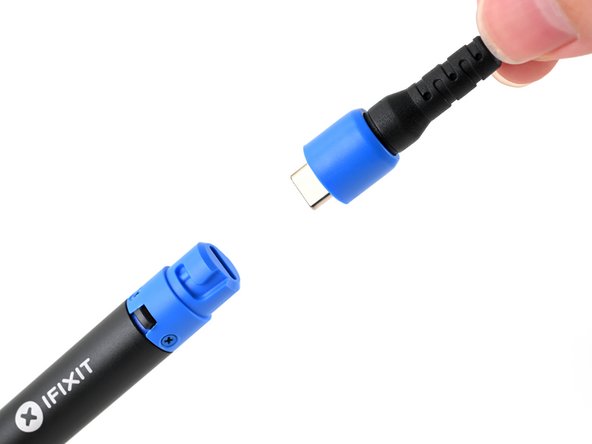
  5. How to Power Down and Store Your Smart Soldering Iron, Disconnect the cable from the iron: step 5, image 1 of 2 How to Power Down and Store Your Smart Soldering Iron, Disconnect the cable from the iron: step 5, image 2 of 2
    • Disconnect the USB-C cable from the Smart Soldering Iron.

  6. How to Power Down and Store Your Smart Soldering Iron, Your iron is ready to be stored: step 6, image 1 of 1
    • Your soldering iron and cable are ready to be put away!

    • It's best to store your Smart Soldering Iron in a cool and dry place to prevent rust or corrosion on metal parts.

Conclusion

Click here for more soldering skills, or ask our Answers community for help.

One other person completed this guide.

Kara Piepenbrink

Member since: 05/31/24

5,474 Reputation

21 Guides authored

Team

iFixit Member of iFixit

Staff

123 Members

23,638 Guides authored

0 Guide Comments

Add Comment

View Statistics:

Past 24 Hours: 0

Past 7 Days: 3

Past 30 Days: 37

All Time: 510