Shop the Holiday Gift Guide
Free Shipping on Domestic Orders $75+

How to Install and Remove Expansion Cards

Views: 556

View statistics:

Past 24 Hours:
14
Past 7 Days:
28
Past 30 Days:
88
All Time:
556
Comments: 0

No one has left comments on this guide. Will you be first?

Go to guide comments
Completed: 0

No one has marked this guide "completed." Will you be the first?

Favorites: 0

No one has favorited (and subscribed to) this guide. Will you be the first?

Time Required: 30 seconds - 1 minute
Difficulty: Very easy
OEM Guide

iFixit collaborated with the manufacturer to make this guide.

How to Install and Remove Expansion Cards

Introduction

Go to step 1 ↓

This guide shows how to install and remove Expansion Cards for your Framework Desktop.

The Expansion Cards are hot-swappable. You can install and remove them without turning off your desktop.

For information on Expansion Card compatibility, click here.

What you need

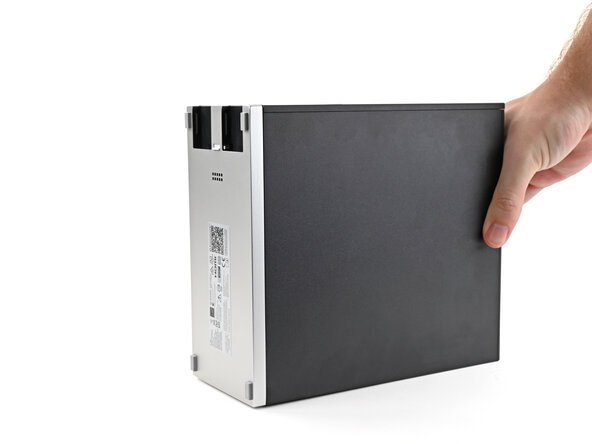
    1. How to Install and Remove Expansion Cards, Reposition the Desktop: step 1, image 1 of 2 How to Install and Remove Expansion Cards, Reposition the Desktop: step 1, image 2 of 2
      • Rotate the Desktop so its rear rests on your work surface.

      • If your Desktop is plugged in, consider powering down and unplugging it so the rear sits flat. Otherwise, you'll need to support it with one hand at an angle while you work.

      Ask FixBot

      Add Comment

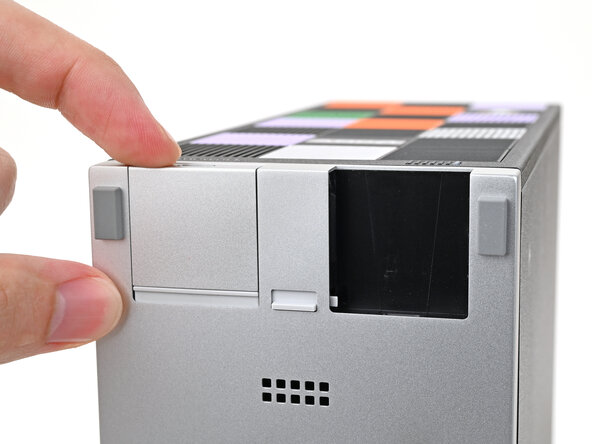
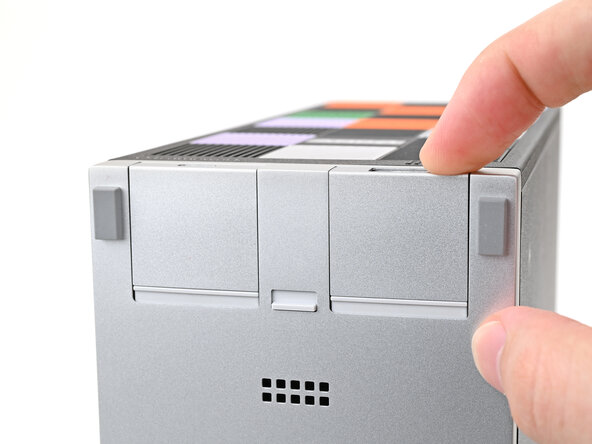
    2. How to Install and Remove Expansion Cards, Install an Expansion Card: step 2, image 1 of 3 How to Install and Remove Expansion Cards, Install an Expansion Card: step 2, image 2 of 3 How to Install and Remove Expansion Cards, Install an Expansion Card: step 2, image 3 of 3
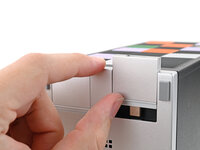
      • The next two steps show how to install an Expansion Card.

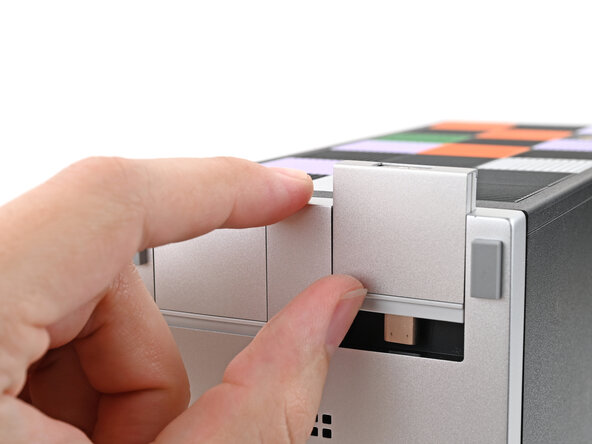
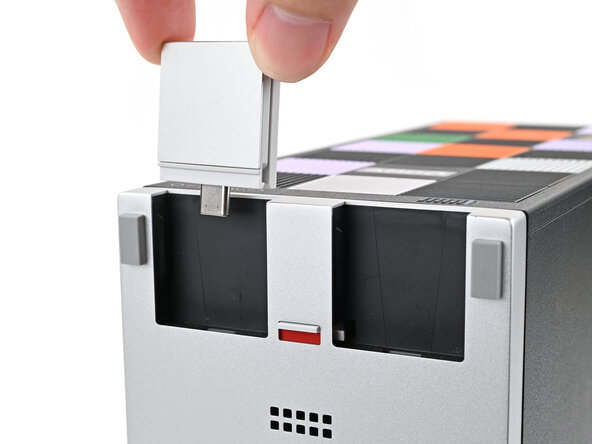
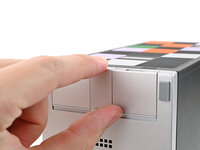
      • Slide an Expansion Card into an Expansion Card slot.

      • You don't need to unlock the latch to install the Expansion Cards—only when you want to remove them.

      • The Expansion Cards should click into place, and the front edge should be flush with the silver base.

      Ask FixBot

      Add Comment

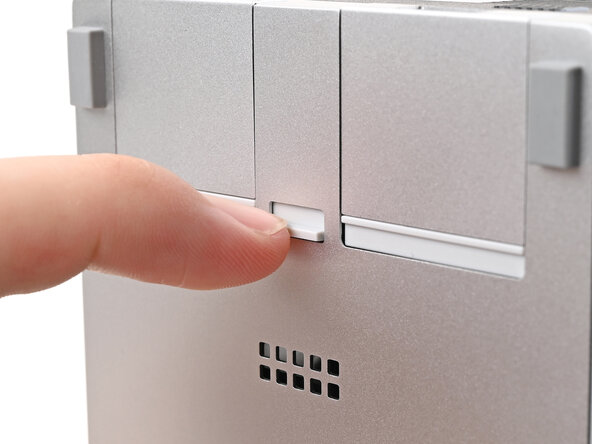
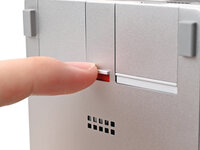
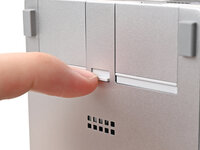
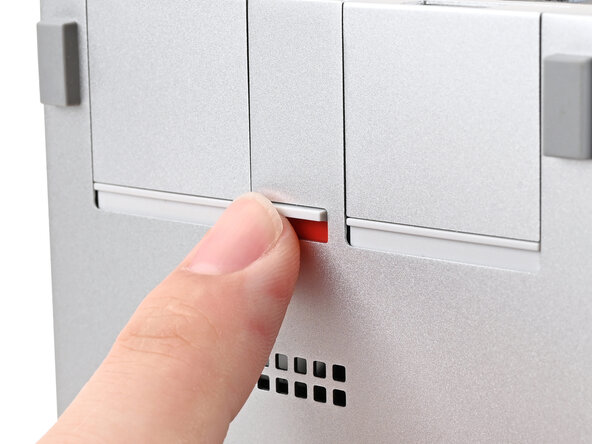
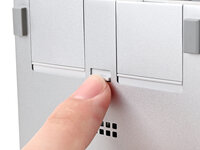
    3. How to Install and Remove Expansion Cards: step 3, image 1 of 2 How to Install and Remove Expansion Cards: step 3, image 2 of 2
      • If there's a red bar showing under the Expansion Card latch, use your finger to flip the latch and lock the Expansion Card into its slot.

      • Locking the Expansion Card slots helps keep the cards in place when you unplug cables from them.

      Ask FixBot

      Add Comment

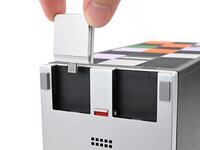
    4. How to Install and Remove Expansion Cards, Remove an Expansion Card: step 4, image 1 of 2 How to Install and Remove Expansion Cards, Remove an Expansion Card: step 4, image 2 of 2
      • The next two steps show how to remove an Expansion Card.

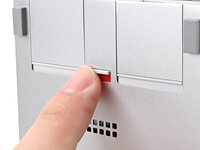
      • Use your finger to flip the Expansion Card latch into the unlocked position.

      • The latch displays a red bar when it's unlocked.

      Ask FixBot

      Add Comment

    5. How to Install and Remove Expansion Cards: step 5, image 1 of 3 How to Install and Remove Expansion Cards: step 5, image 2 of 3 How to Install and Remove Expansion Cards: step 5, image 3 of 3
      • Push up on the lip of the Expansion Card with your fingers.

      • Pull the Expansion Card out of its slot and remove it.

      Ask FixBot

      Add Comment

Conclusion

If you need help, contact Framework support.

Cancel: I did not complete this guide.

Author

with

Alex Diaz-Kokaisl

Member since: 01/16/22

252,477 Reputation

1,200 Guides authored

0 Guide Comments

Add Comment

View Statistics:

Past 24 Hours: 14

Past 7 Days: 28

Past 30 Days: 88

All Time: 556