
How to Install ChromeOS Flex

Last updated on Oct 17, 2026
Views: 111
View statistics:
- Past 24 Hours:
- 6
- Past 7 Days:
- 21
- Past 30 Days:
- 48
- All Time:
- 111
Comments: 0
No one has left comments on this guide. Will you be first?
Go to guide commentsCompleted: 0 1
No one has marked this guide "completed." Will you be the first?
1 person has marked this guide "completed." It's you — great job!
Favorites: 0 1
No one has favorited (and subscribed to) this guide. Will you be the first?
1 person has favorited (and subscribed to) this guide — and that's you!
Introduction
Go to step 1 ↓Follow this guide to replace Microsoft Windows or Apple MacOS with ChromeOS Flex on a desktop or laptop computer.
ChromeOS Flex is an operating system developed and maintained by Google. If you only use Google Chrome on your computer, installing ChromeOS Flex is a great way to extend its usable life.
Check if your device is in the ChromeOS Flex Certified models list. If it isn't certified, you may run into issues.
Back up all important data before beginning this guide.
-
-
-
Create a full system backup using our Clonezilla backup guide, or copy your important files to separate drive. Disconnect the backup drive before continuing.
-
If you're using a laptop, connect its power adapter so it's charging.
 Ask FixBot
-
-
-
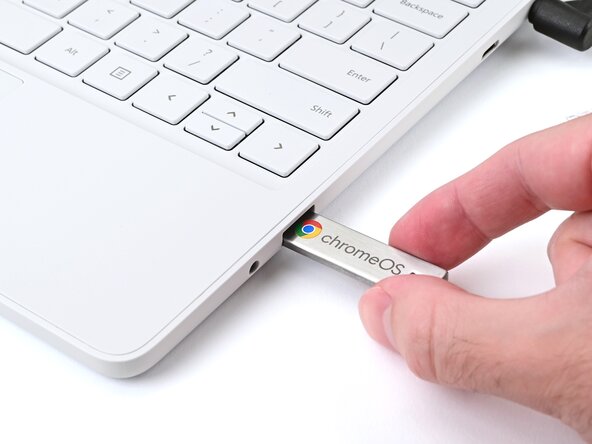
Connect the USB flash drive to the fastest available port on the computer.
-
Use a USB 3 drive connected to a USB 3 port for faster installation. USB 3 ports are usually colored blue and/or labeled SuperSpeed (SS).
-
-
-
If you're using Windows 7:
-
Restart the computer and repeatedly press the boot key specific to your device (like F2, F12, etc.). Click here for a table of boot keys for common brands.
-
Use the arrow keys to highlight the USB drive (beginning in UEFI:) from the list of options, then press Enter to boot from it. Skip the remainder of this step.
-
Open the Settings app and navigate to Update & Security → Recovery then select "Restart now" under Advanced startup.
-
In Advanced startup navigate to Use a device → UEFI: USB. This will boot the computer from the USB drive.
-
-
-
Shut down the Mac.
-
Press the power button and immediately hold down the Option key. Wait for the boot options to pop up.
-
Select the EFI Boot option to boot from the USB drive.
-
-
-
Click Get started, then Try it first.
-
Select Browse as Guest in the bottom‑left corner.
-
If you've changed your mind about trying it first, select Install ChromeOS Flex and skip the next step.
-
-
-
Test all the features of your computer, like the keyboard, mouse, touchpad, webcam, Wi‑Fi, and touchscreen.
-
Browse the web and navigate the operating system to ensure it's what you expect.
-
Once you're ready, click the time in the bottom‑right corner and select Exit guest (or Sign out if you've signed in with a Google account). This will take you back to the installer.
-
-
-
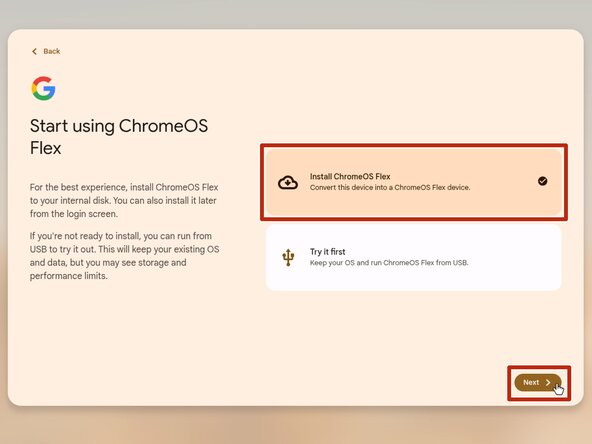
Ensure the Install ChromeOS Flex option is selected, then click Next.
-
Review the warning explaining that the installer will permanently erase the data on the computer.
-
Click Install ChromeOS Flex when you're ready to install. Then, click Install on the pop‑up window.
-
-
-
Wait for the installer to complete. When it does, it'll shut down the computer automatically.
-
Once it's shut down, unplug the USB drive.
-
Power on the computer to begin using ChromeOS Flex.
-
-
-
-
Connect to the internet and accept the Terms of Service, if prompted.
-
Select the type of Google account you'd like to sign in to, then click Next.
-
Wait for ChromeOS Flex to update. The progress is indicated on the left.
-
If you'd like to skip updating for now, click Skip and remind me later in the bottom‑right corner.
-
Click Next and follow the prompts to sign in to ChromeOS Flex.
-
-
-
Click the time in the bottom‑right corner of the screen.
-
Click the gear icon to open the Settings window.
-
Click About ChromeOS on the sidebar, then Check for Updates to get the system up‑to‑date. Restart the system if prompted.
-
-
-
Connect the USB drive to the computer.
-
Add the Chromebook Recovery Utility extension to your browser.
-
Open the extension and click the gear icon in the top‑right corner. Click Erase recovery media.
-
Select the USB drive you want erased from the drop‑down menu, then click Continue.
-
Verify the USB drive listed is the one you want erased, then click Erase now. Wait for the process to complete, and you're done!
-
-






Congratulations! You've successfully installed ChromeOS Flex.
Didn't go as planned? Try asking our ChromeOS Answers Community for help.

