
Lenovo ThinkPad X1 Carbon 6th Gen Wi-Fi Card Replacement

Dylan McDowell and 6 other contributors
Last updated on Jun 10, 2026
Views: 9K
View statistics:
- Past 24 Hours:
- 6
- Past 7 Days:
- 42
- Past 30 Days:
- 148
- All Time:
- 9,041
Comments: 27
27 comments on steps.
Completed: 6 7
6 people have marked this guide "completed." Will you be next?
7 people have marked this guide "completed." Including you — great job!
Favorites: 0 1
No one has favorited (and subscribed to) this guide. Will you be the first?
1 person has favorited (and subscribed to) this guide — and that's you!
Introduction
Go to step 1 ↓This guide will take you through the process of replacing the Wifi Card on your Lenovo ThinkPad X1 Carbon 6th Gen. Make sure that your drivers are up to date and the Wi-Fi card is visible in “Device Manager”. If your computer is having difficulty connecting to Wi-Fi and the card is not visible, this replacement will help.
Before you begin: Please remove the power from the unit as this could cause harm during the process. Also, make sure to ground yourself on any nearby metal or wear a grounding bracelet. This is to prevent any damage to the electrical components that could be touched.
In order to complete this project, provided are 8 simple steps to complete the project and get back to surfing the net.
What you need
Parts

Tools


-
-
-
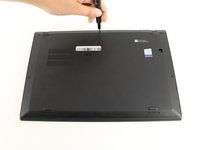
Use a Phillips #0 screwdriver to unscrew the five screws that secure the back cover to the laptop.
 Ask FixBot
-
-
-
Use a Jimmy to lift the cover directly up off of the locating pins.
-
Remove the back cover.
-
-
-
-
-
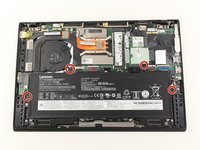
Use the Phillips #0 screwdriver to remove the four 5 mm screws that secure the battery to the laptop frame.
-
-
-
Lift the battery from the bottom edge and gently slide it out of the connector on the motherboard to remove it from the laptop.
-
-
-
-
-
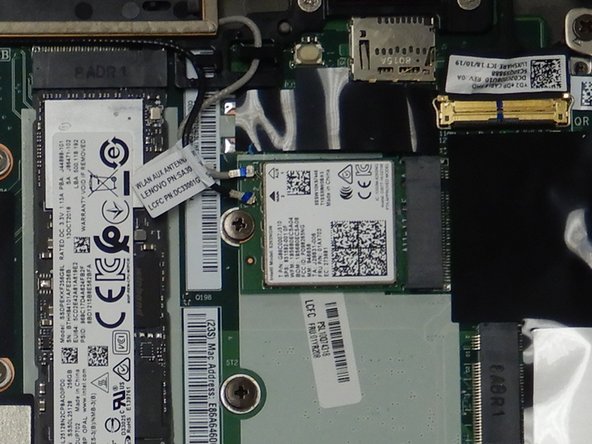
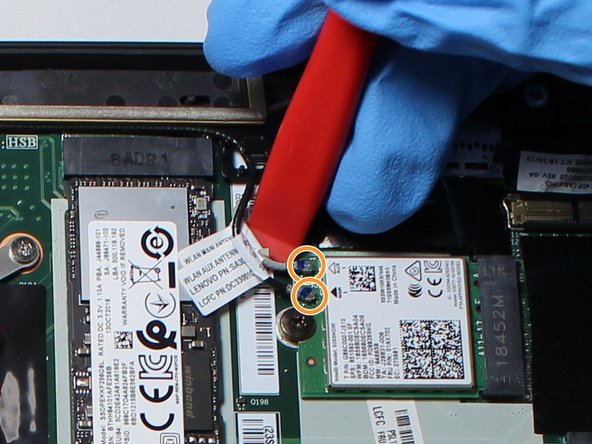
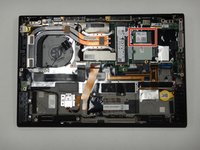
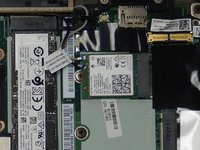
Locate the Wi-Fi Card on the side of the device opposite to the fan. It should have one black and one white pin connector wires as well as one retainer screw.
-
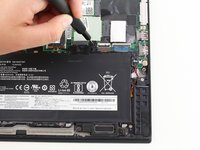
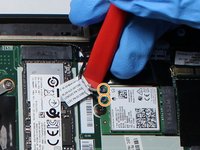
Use a plastic opening tool to lift up the two coaxial cables from the Wi-Fi Card.
-
-
-
Use a Phillips #0 Screwdriver to unscrew the 3 mm screw holding down the Wifi card.
-
-
-
-
Carefully slide the Wifi Card towards the center of the device to disconnect it.
-
-








To reassemble your device, follow these instructions in reverse order.
Cancel: I did not complete this guide.
6 other people completed this guide.

Team

The Citadel Military College of South Carolina, Team S1-G2, Eggleston Fall 2020 Member of The Citadel Military College of South Carolina, Team S1-G2, Eggleston Fall 2020
CMCSC-EGGLESTON-F20S1G2
3 Members
36 Guides authored
