Free Shipping on Domestic Orders $75+

Lenovo N20p Chromebook WLAN & Bluetooth Replacement

What you need

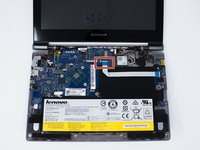
    1. Lenovo N20p Chromebook WLAN & Bluetooth Replacement, Keyboard: step 1, image 1 of 2 Lenovo N20p Chromebook WLAN & Bluetooth Replacement, Keyboard: step 1, image 2 of 2
      • Power down the Chromebook before starting any repair.

      • Remove the two 3.5 mm Phillips #0 screws using a screwdriver.

      • It is only necessary to remove these two screws to complete this step.

      Ask FixBot
      Add Comment

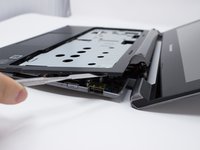
    2. Lenovo N20p Chromebook WLAN & Bluetooth Replacement: step 2, image 1 of 2 Lenovo N20p Chromebook WLAN & Bluetooth Replacement: step 2, image 2 of 2
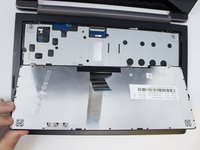
      • Use the hook of the metal spudger to carefully lift up the keyboard.

      • Lift the keyboard carefully. If you lift too quickly, it might break the two cables that connect the keyboard to the motherboard.

      Ask FixBot
      Add Comment

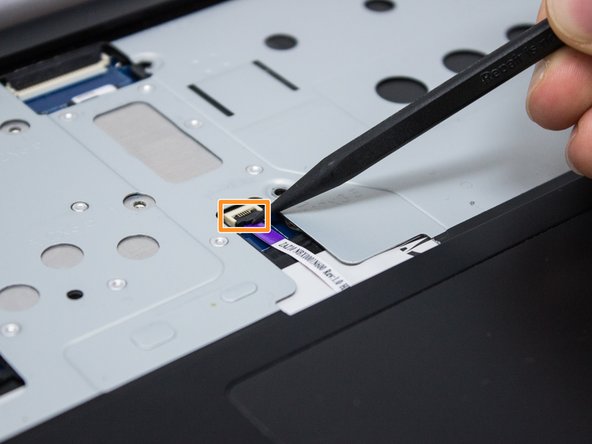
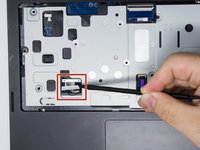
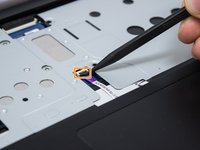
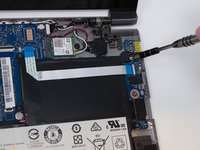
    3. Lenovo N20p Chromebook WLAN & Bluetooth Replacement: step 3, image 1 of 3 Lenovo N20p Chromebook WLAN & Bluetooth Replacement: step 3, image 2 of 3 Lenovo N20p Chromebook WLAN & Bluetooth Replacement: step 3, image 3 of 3
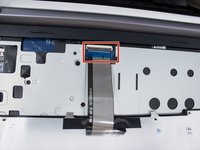
      • Carefully, disconnect the keyboard cable from the motherboard carefully by pulling on the blue tab of the cable.

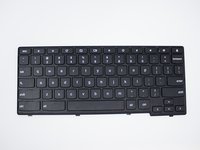
      • You will now be able to replace the keyboard.

      Ask FixBot
      Add Comment

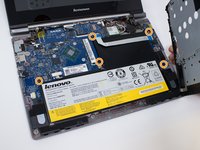
    1. Lenovo N20p Chromebook WLAN & Bluetooth Replacement, Battery: step 4, image 1 of 3 Lenovo N20p Chromebook WLAN & Bluetooth Replacement, Battery: step 4, image 2 of 3 Lenovo N20p Chromebook WLAN & Bluetooth Replacement, Battery: step 4, image 3 of 3
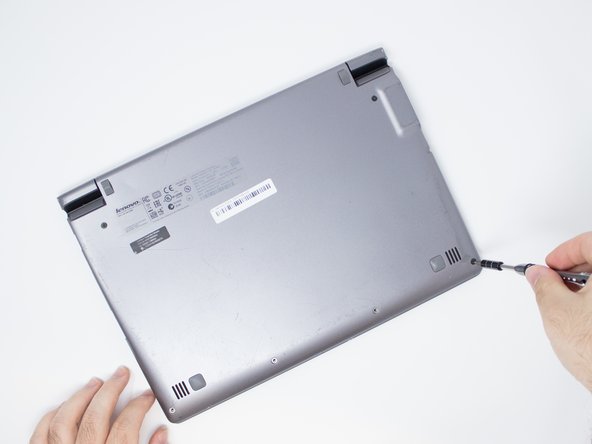
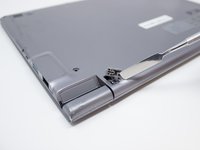
      • Remove the two rubber feet of the back of the Chromebook using a metal spudger.

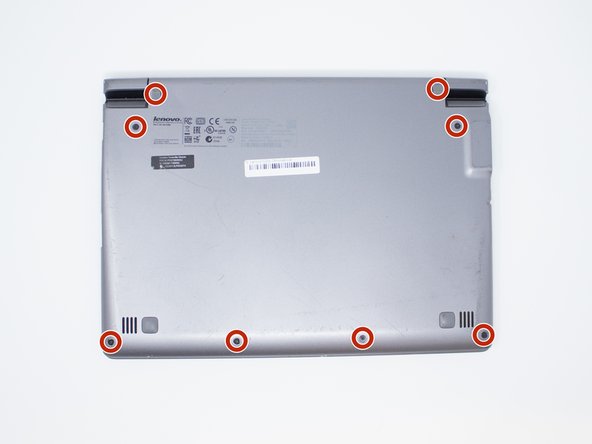
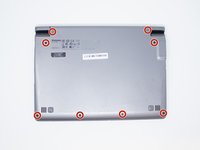
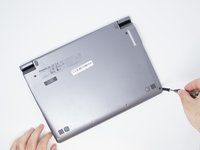
      • Remove six bottom 3.5 mm Phillips #0 screws and two top 5 mm Phillips #1 screws.

      Ask FixBot

      Add Comment

    2. Lenovo N20p Chromebook WLAN & Bluetooth Replacement: step 5, image 1 of 1
      • Remove all nine 3.5 mm Phillips #00 screws using a screwdriver.

      Ask FixBot
      Add Comment

    3. Lenovo N20p Chromebook WLAN & Bluetooth Replacement: step 6, image 1 of 2 Lenovo N20p Chromebook WLAN & Bluetooth Replacement: step 6, image 2 of 2
      • Disconnect the battery cable from the motherboard.

      • Disconnect the touch-pad cable from the motherboard.

      Ask FixBot
      Add Comment

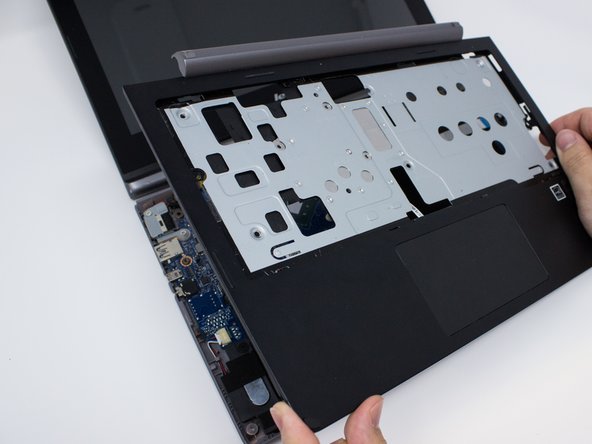
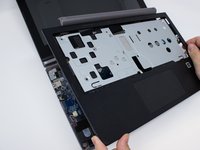
    4. Lenovo N20p Chromebook WLAN & Bluetooth Replacement: step 7, image 1 of 2 Lenovo N20p Chromebook WLAN & Bluetooth Replacement: step 7, image 2 of 2
      • Use the metal spudger along the seam between the keyboard and the bottom of the Chromebook to lift up and remove the palm rest assembly.

      • It is normal for it to click loudly when it is released. Corner tags will be harder to release than other tags and will make a loud sound.

      Ask FixBot
      Add Comment

    5. Lenovo N20p Chromebook WLAN & Bluetooth Replacement: step 8, image 1 of 3 Lenovo N20p Chromebook WLAN & Bluetooth Replacement: step 8, image 2 of 3 Lenovo N20p Chromebook WLAN & Bluetooth Replacement: step 8, image 3 of 3
      • Disconnect the USB cable from the motherboard by pulling the blue tab out of the cable.

      • Remove all five 3.0 mm Phillips #00 screws which connect the battery and motherboard.

      Ask FixBot

      Add Comment

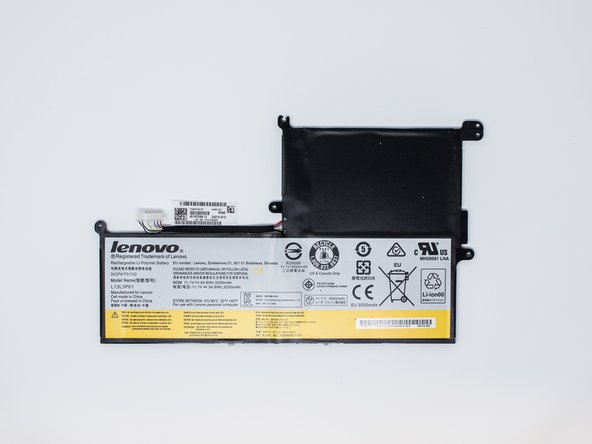
    6. Lenovo N20p Chromebook WLAN & Bluetooth Replacement: step 9, image 1 of 2 Lenovo N20p Chromebook WLAN & Bluetooth Replacement: step 9, image 2 of 2
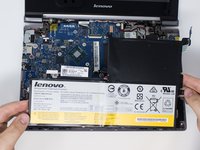
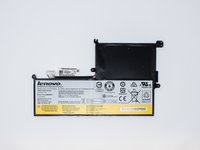
      • Remove the battery.

      • It is helpful to lift and hold the battery as shown.

      Ask FixBot

      Add Comment

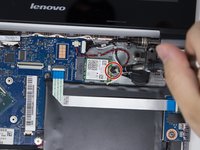
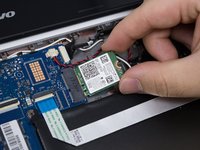
    1. Lenovo N20p Chromebook WLAN & Bluetooth Replacement, WLAN & Bluetooth: step 10, image 1 of 3 Lenovo N20p Chromebook WLAN & Bluetooth Replacement, WLAN & Bluetooth: step 10, image 2 of 3 Lenovo N20p Chromebook WLAN & Bluetooth Replacement, WLAN & Bluetooth: step 10, image 3 of 3
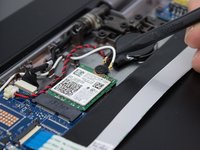
      • Disconnect the white and black cables from the WLAN & Bluetooth combo.

      • Remove the 2 mm Phillips #1 screw.

      • Lift and pull the WLAN & Bluetooth in the direction shown.

      Ask FixBot

      Add Comment
    2. Lenovo N20p Chromebook WLAN & Bluetooth Replacement: step 11, image 1 of 1
      • You will now be able to replace the WLAN & Bluetooth combo module.

      Ask FixBot

      Add Comment

Conclusion

To reassemble your device, follow these instructions in reverse order.

Cancel: I did not complete this guide.

Shihao Cao

Member since: 07/12/18

497 Reputation

4 Guides authored

Team

UW Tacoma, Team S1-G2, Cardinal Summer 2018 Member of UW Tacoma, Team S1-G2, Cardinal Summer 2018

UWT-CARDINAL-SU18S1G2

3 Members

36 Guides authored

0 Guide Comments

Add Comment

View Statistics:

Past 24 Hours: 0

Past 7 Days: 6

Past 30 Days: 19

All Time: 456