
How to Deep Clean a Mechanical Keyboard

Capreil Joseph and 3 other contributors
Last updated on Jun 20, 2025
Views: 1.1K
View statistics:
- Past 24 Hours:
- 4
- Past 7 Days:
- 37
- Past 30 Days:
- 187
- All Time:
- 1,113
Comments: 0
No one has left comments on this guide. Will you be first?
Go to guide commentsCompleted: 2 3
2 people have marked this guide "completed." Will you be next?
3 people have marked this guide "completed." Including you — great job!
Favorites: 0 1
No one has favorited (and subscribed to) this guide. Will you be the first?
1 person has favorited (and subscribed to) this guide — and that's you!
Introduction
Go to step 1 ↓In modern days, technology is growing faster and smarter by the year. Many people like to follow trends or get the latest and greatest gadgets. This results in many people throwing away good hardware that is easily fixable. This guide is very useful to know because it can reduce environmental waste and save lots of money for many people. Each year, landfills are filled with products that are still functioning. By learning to fix simple breakdowns, such as replacing a battery, it can significantly reduce unnecessary waste.
Today, you will understand and have good knowledge on how to deep clean your keyboard safely and properly. There are parts that require some patience and delicate handling, such as pulling the keys out and waiting for the keys to dry. This guide should not take too long. We recommend listening to music while completing this task to help pass the time.
We hope you find this guide helpful!
What you need
Tools
-
-
-
-
×10
-
-
×2
-


-
-
-
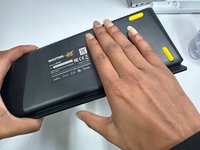
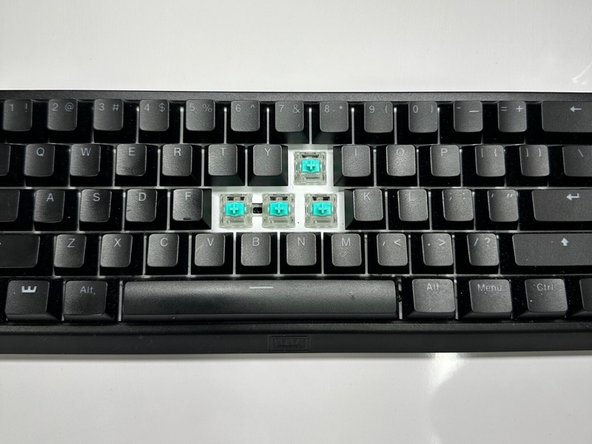
Take a picture of the keyboard for future reference.
 Ask FixBot
-
-
-
-
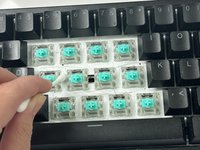
Scrub the rows with a dry toothbrush gently.
-
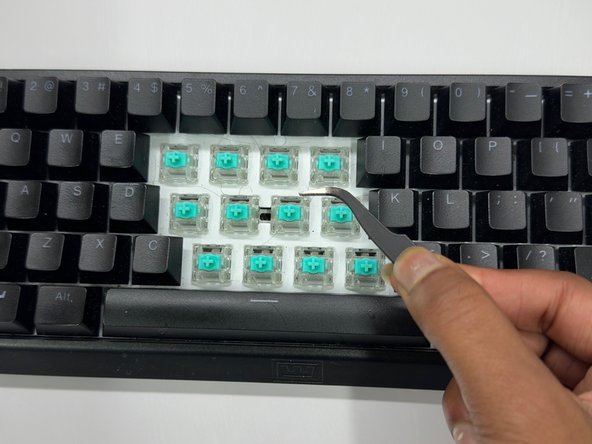
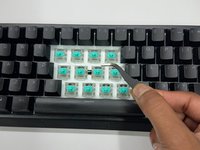
Use tweezer to get gunk out of hard to reach areas.
-
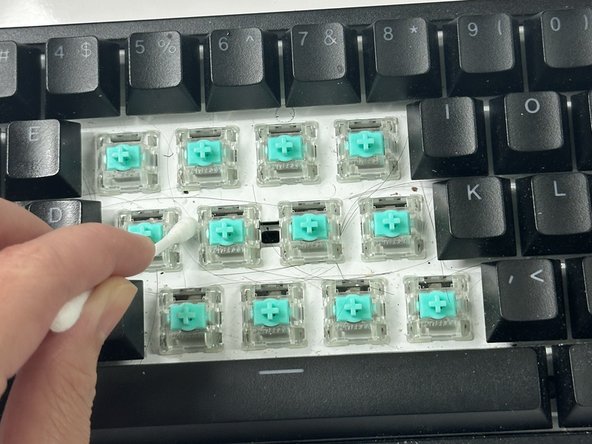
Scrub away any left over dirt that is still visible.
-
-
-
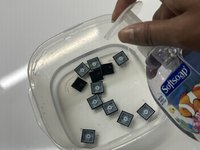
Fill the bowl with lukewarm water and add soap.
-
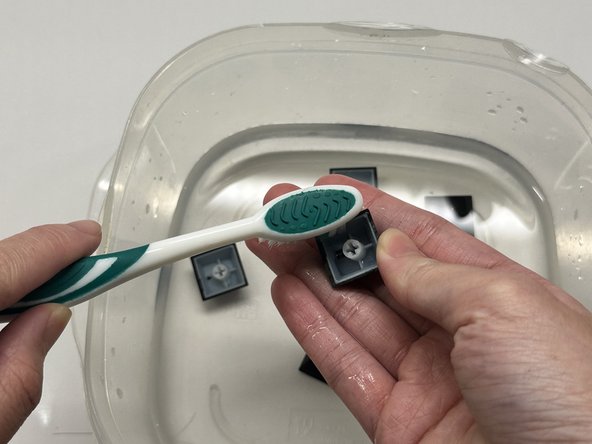
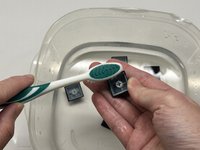
Use the toothbrush to gently scrub the keys.
-
Scrub all sides to ensure absolute cleanliness.
-
-
-
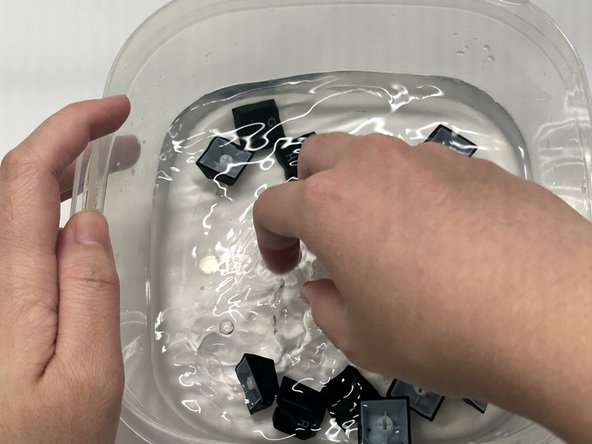
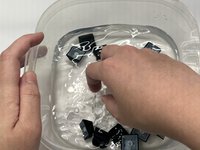
Soak the keys in the soap bath for 5 minutes.
-
Rinse the keys with lukewarm water.
-
-
-
Lay the keys letters-side up on the towel.
-
Let them completely dry.
-
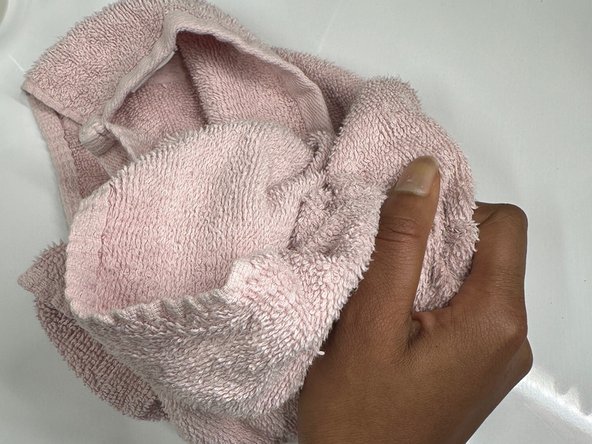
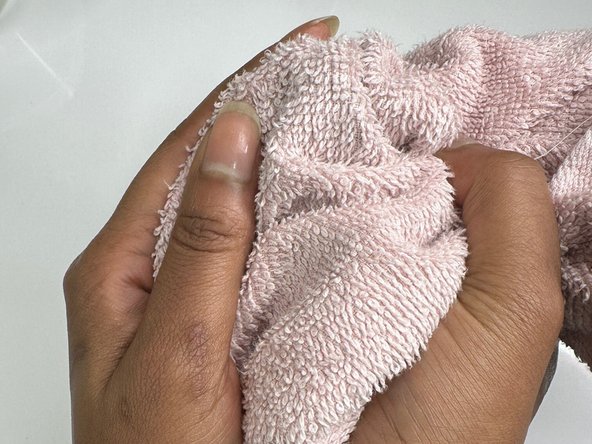
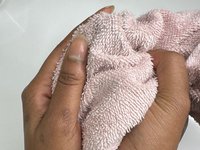
Gather the towel corners and make a sack.
-
Shake the keys vigorously to ensure faster dry time.
-
-
-
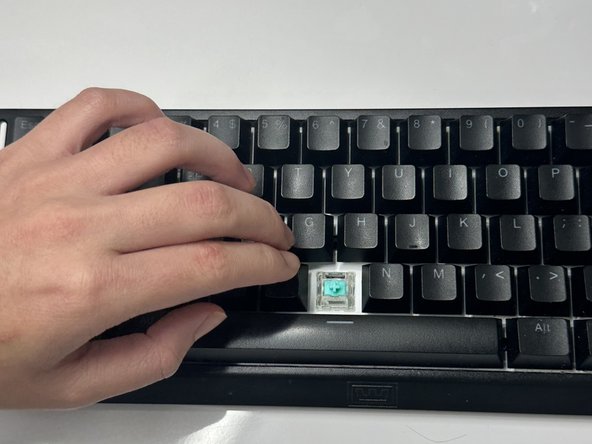
Use Step 1 to re-assemble the keyboard.
-
Test the keys to check for faultiness.
-
-


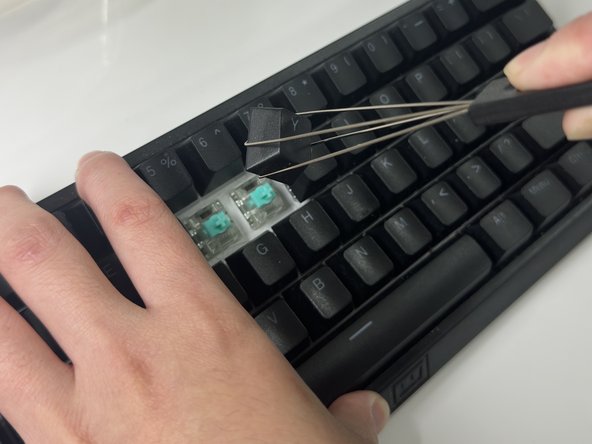
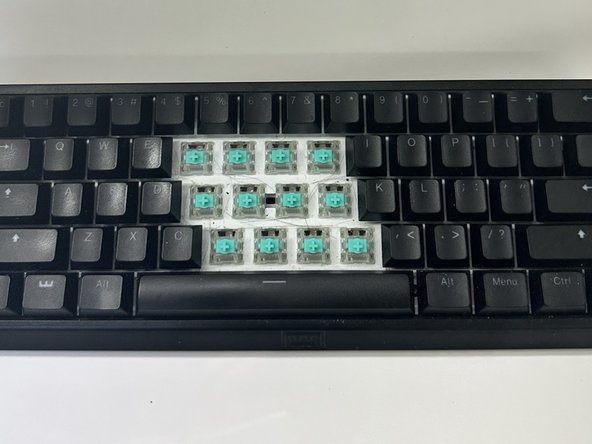


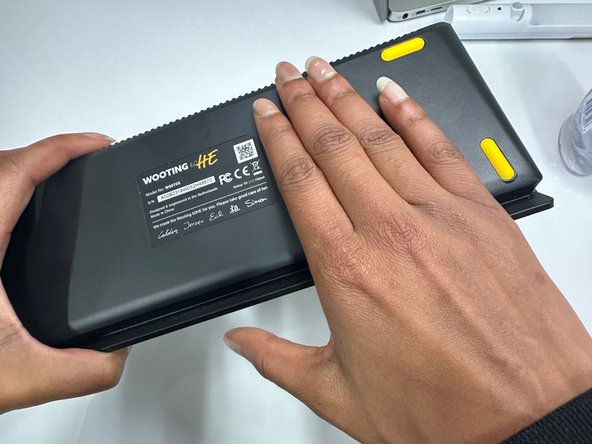






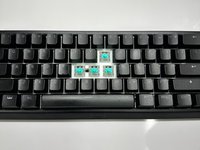
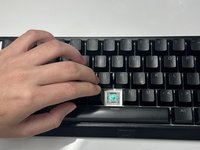
Aye, you did it! Pat yourself on the back for the hard work you have done today. Hopefully, you will gain an understanding of how to maintain your keyboard. Thank you so much for choosing this particular guide. Have a wonderful day!
Cancel: I did not complete this guide.
2 other people completed this guide.

Team

Sam Houston State, Team 2-11, Bennett Fall 2023 Member of Sam Houston State, Team 2-11, Bennett Fall 2023
SHSU-BENNETT-F23S2G11
2 Members
12 Guides authored
