
Acer Aspire 5750Z-4566 Hard Drive Replacement

Okeoghene Agbahowe and 2 other contributors
Last updated on Jul 6, 2026
Views: 1.2K
View statistics:
- Past 24 Hours:
- 4
- Past 7 Days:
- 16
- Past 30 Days:
- 75
- All Time:
- 1,177
Comments: 0
No one has left comments on this guide. Will you be first?
Go to guide commentsCompleted: 0 1
No one has marked this guide "completed." Will you be the first?
1 person has marked this guide "completed." It's you — great job!
Favorites: 0 1
No one has favorited (and subscribed to) this guide. Will you be the first?
1 person has favorited (and subscribed to) this guide — and that's you!
Introduction
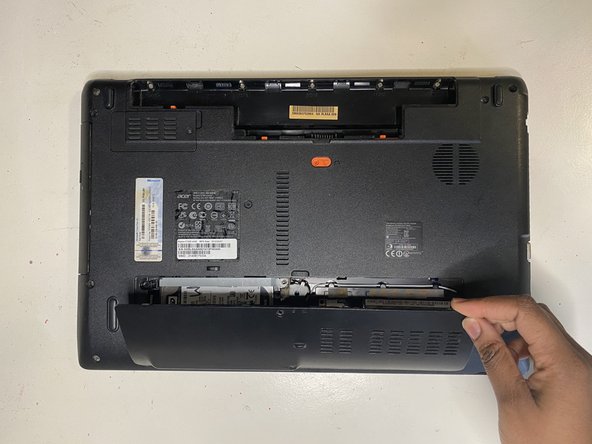
Go to step 1 ↓If your Acer Aspire (model 5750Z-4566 ) is displaying the error message; Smart failure predicted on the hard drive. Use this guide to replace the hard drive (also known as a hard disk).
The goal of this guide is to show the steps involved in the replacement of an Acer Aspire 5750Z-4566 hard drive. A hard drive failure may occur in the course of a normal operation or due to an external factor such as exposure to water or environmental contamination, which can lead to a crash.
This guide is necessary because hard drive failure often leads to data loss. It is essential to replace the hard drive when the computer experiences signs of a hard drive failure. It enables one the opportunity to back up the data stored on it and replace it before it completely wears out. The only tool required will be a Philips #0 screwdriver.
What you need
Tools


 Ask FixBot




To reassemble your device, follow these instructions in reverse order.

Team

York University, Team S2-G3, O'Regan Winter 2021 Member of York University, Team S2-G3, O'Regan Winter 2021
YORK-O'REGAN-W21S2G3
1 Member
12 Guides authored
