15% Off Selected iFixit Tools — Limited Time
Free Shipping on Domestic Orders $75+

Screen replacement for the Samsung Galaxy A50

Archived Guide
This guide is retained solely for historical purposes. Use the updated version of the guide to perform your repair.
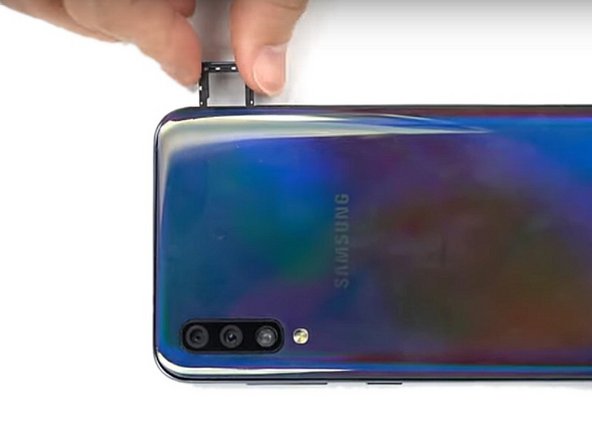
  1. Screen replacement for the Samsung Galaxy A50, Eject sim card tray: step 1, image 1 of 1
    • Turn off your phone before you start

    • Eject sim card tray

    Ask FixBot
    Add Comment

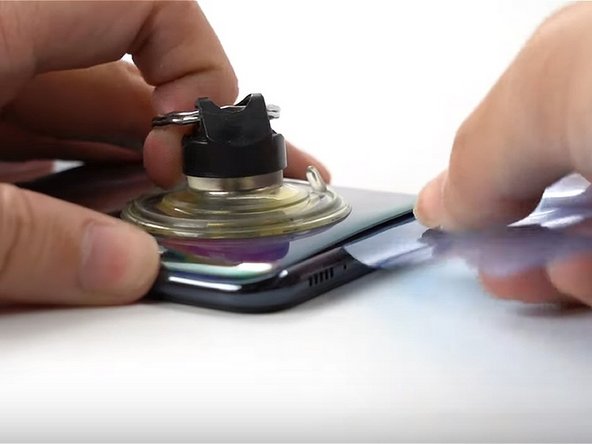
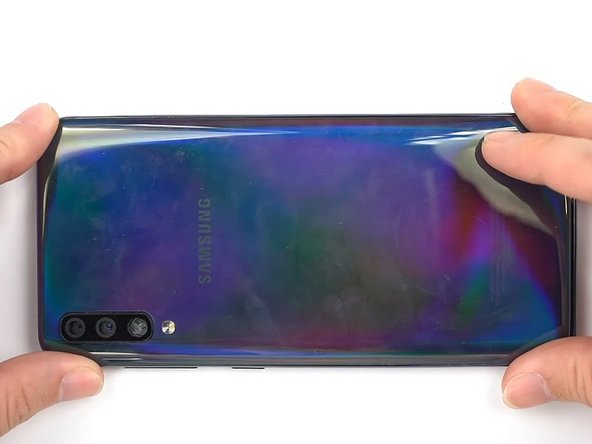
  2. Screen replacement for the Samsung Galaxy A50, Remove the back glass: step 2, image 1 of 2 Screen replacement for the Samsung Galaxy A50, Remove the back glass: step 2, image 2 of 2
    Tool used on this step:
    Suction Handle
    $2.95
    Buy
    • Heat the back of the phone for 5 minutes at 65°C

    • Slowly lift the back glass off the phone using a suction cup

    • Insert a pick into the gap created.

    • Slide the pick around the edge, using more picks to keep the gap open.

    • You can heat the back multiple times during this process to aid in removal of the back glass

    Ask FixBot
    Add Comment

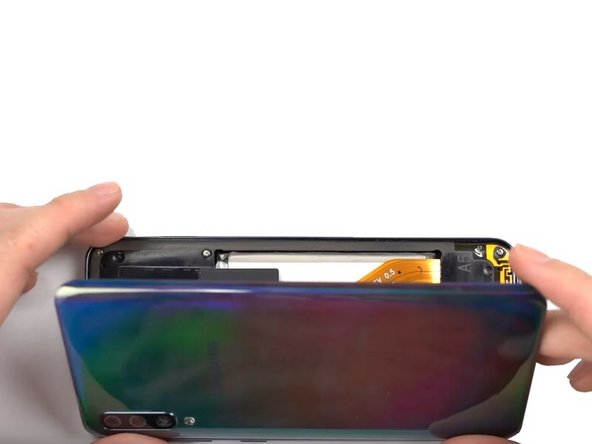
  3. Screen replacement for the Samsung Galaxy A50, Open the phone: step 3, image 1 of 1
    • Carefully remove the rear glass and set it aside.

    Ask FixBot

    Add Comment

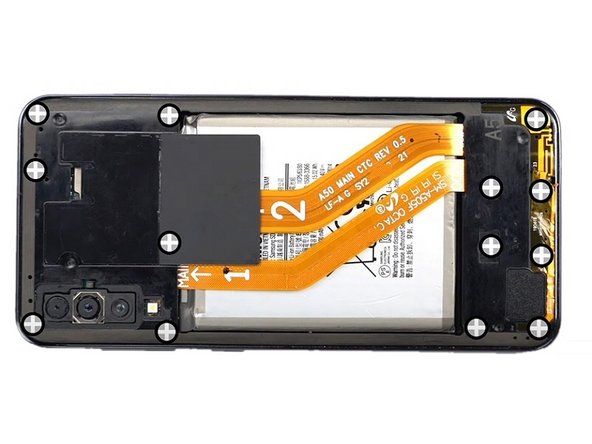
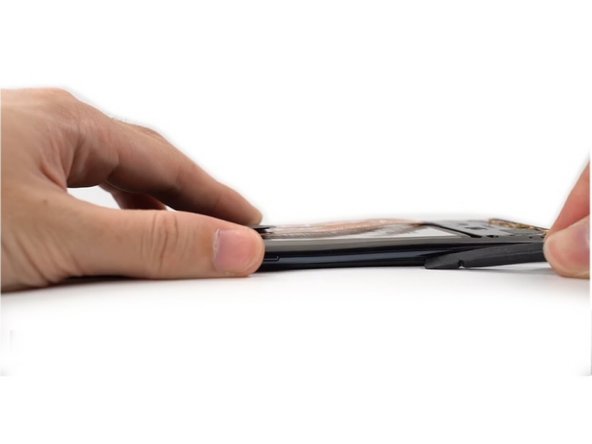
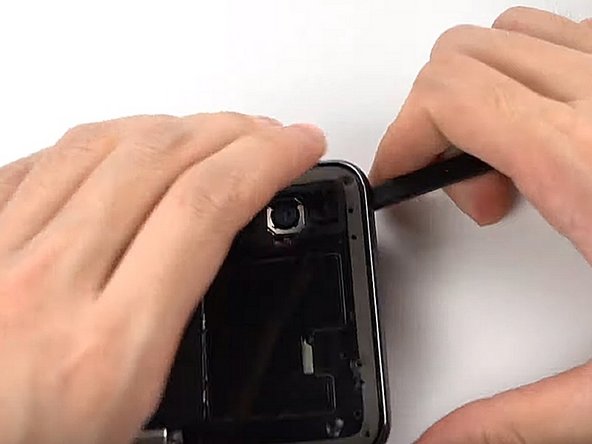
  4. Screen replacement for the Samsung Galaxy A50, Remove all the screws: step 4, image 1 of 3 Screen replacement for the Samsung Galaxy A50, Remove all the screws: step 4, image 2 of 3 Screen replacement for the Samsung Galaxy A50, Remove all the screws: step 4, image 3 of 3
    Tool used on this step:
    Spudger
    $3.99
    Buy
    • Remove all the screws using a 4mm Philips #00 screwdriver

    • Slide a spudger in between the screen and the frame

    • Slide the spudger around the entire perimeter of the phone to unclip the screen and separate it from the midframe

    Ask FixBot

    Add Comment

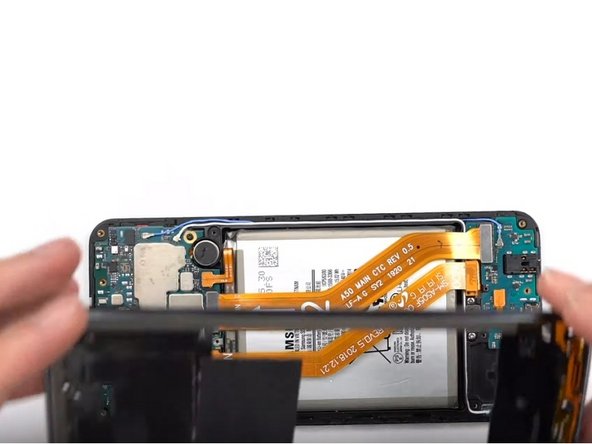
  5. Screen replacement for the Samsung Galaxy A50, Remove the midframe: step 5, image 1 of 2 Screen replacement for the Samsung Galaxy A50, Remove the midframe: step 5, image 2 of 2
    • Separate and remove the midframe

    Ask FixBot

    Add Comment

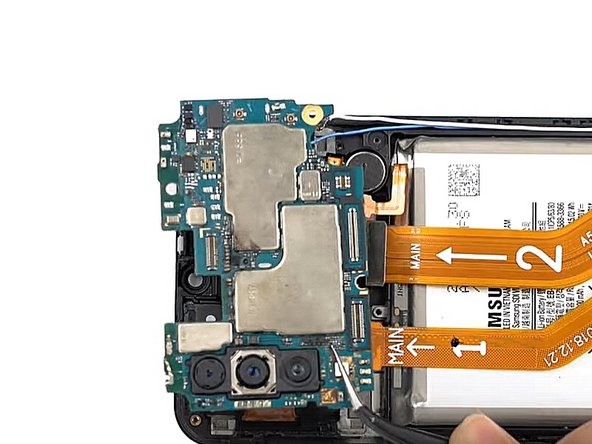
  6. Screen replacement for the Samsung Galaxy A50, Disconnect the battery: step 6, image 1 of 2 Screen replacement for the Samsung Galaxy A50, Disconnect the battery: step 6, image 2 of 2
    • Disconnect the battery

    • Unscrew the Phillips screw holding the motherboard

    Ask FixBot
    Add Comment

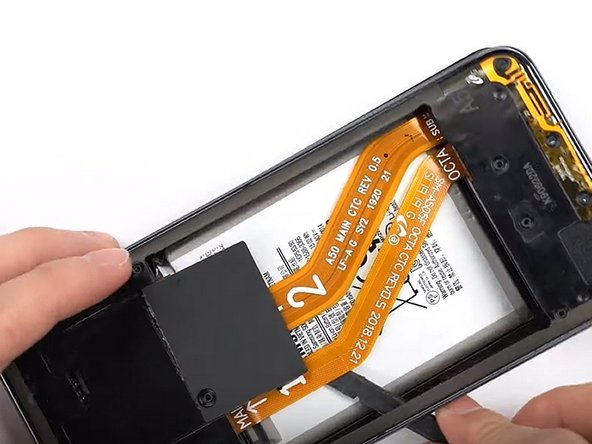
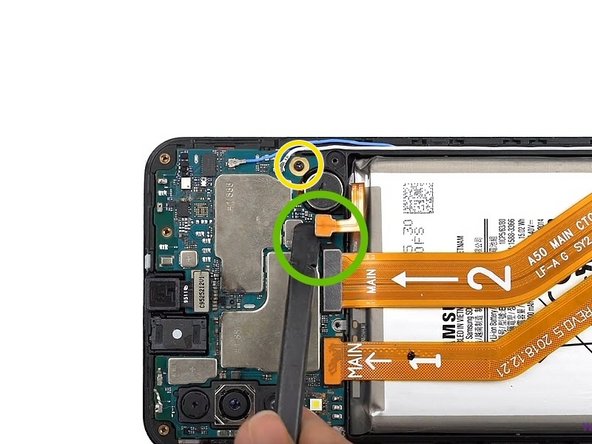
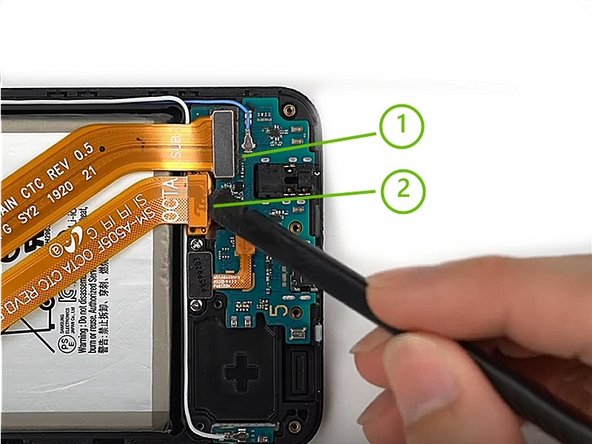
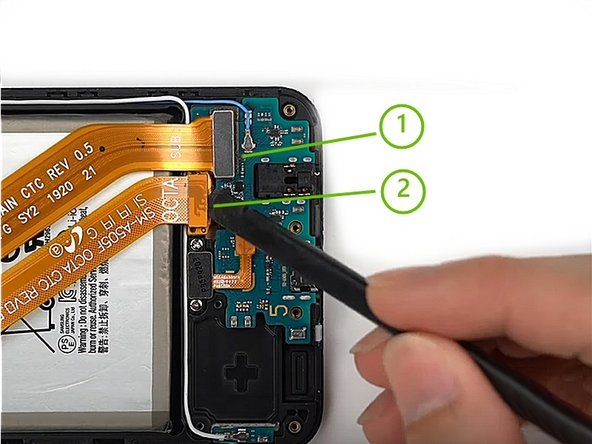
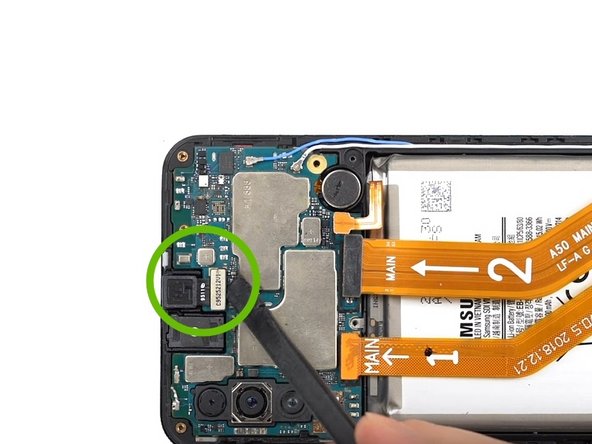
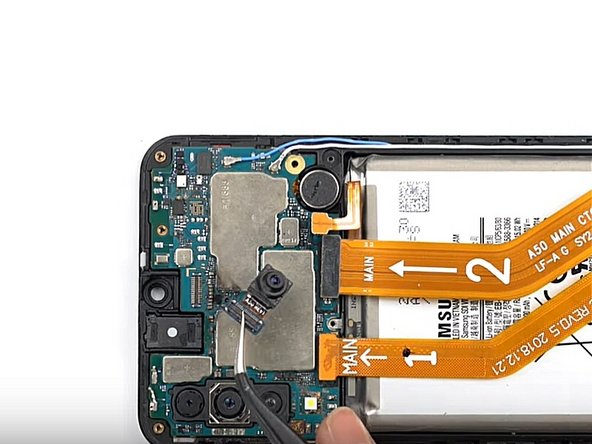
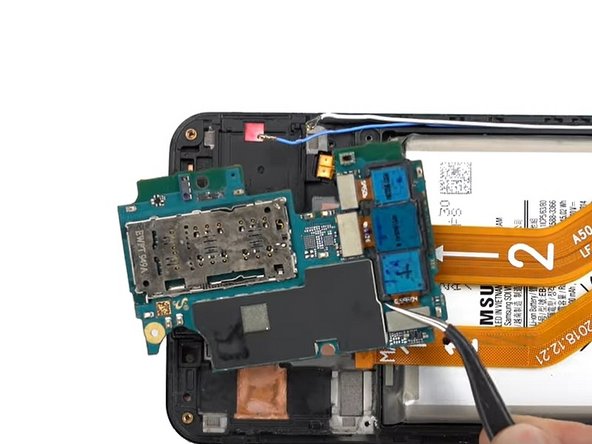
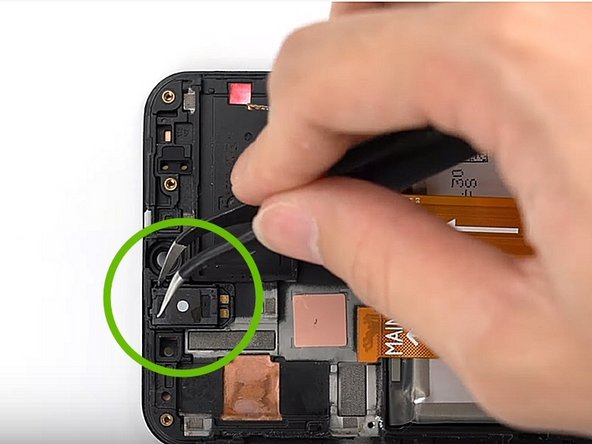
  7. Screen replacement for the Samsung Galaxy A50, Disconnect the cables: step 7, image 1 of 3 Screen replacement for the Samsung Galaxy A50, Disconnect the cables: step 7, image 2 of 3 Screen replacement for the Samsung Galaxy A50, Disconnect the cables: step 7, image 3 of 3
    • Disconnect cables 1 and 2

    • Unplug and remove the front camera (FaceTime)

    Ask FixBot
    Add Comment

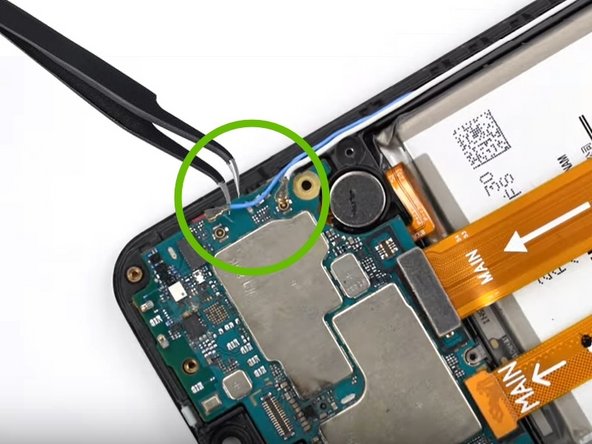
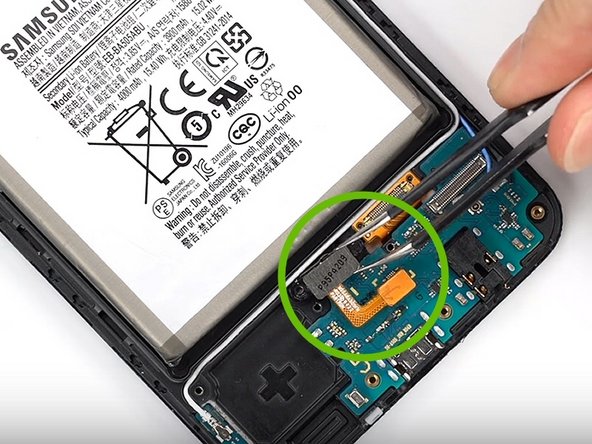
  8. Screen replacement for the Samsung Galaxy A50, Unplug the coaxial cables: step 8, image 1 of 3 Screen replacement for the Samsung Galaxy A50, Unplug the coaxial cables: step 8, image 2 of 3 Screen replacement for the Samsung Galaxy A50, Unplug the coaxial cables: step 8, image 3 of 3
    • Disconnect the blue and white coaxial cables

    • Gently remove the motherboard by lifting it up.

    Ask FixBot
    Add Comment

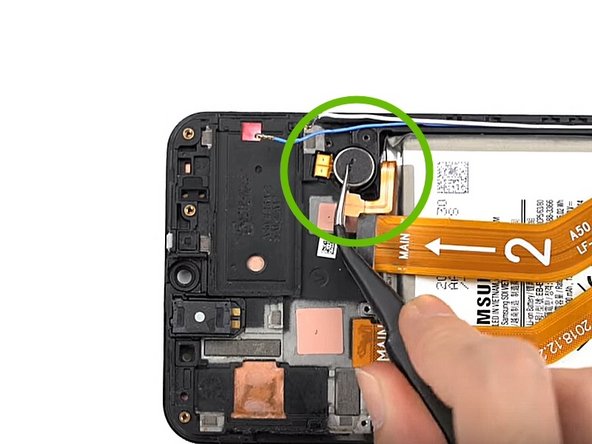
  9. Screen replacement for the Samsung Galaxy A50, Remove components: step 9, image 1 of 3 Screen replacement for the Samsung Galaxy A50, Remove components: step 9, image 2 of 3 Screen replacement for the Samsung Galaxy A50, Remove components: step 9, image 3 of 3
    Tool used on this step:
    Tweezers
    $3.99
    Buy
    • Using Tweezers, remove the vibrator

    • Remove the speaker that way as well

    • Remove the two Phillips screws, unplug and remove the fingerprint sensor.

    Ask FixBot

    Add Comment

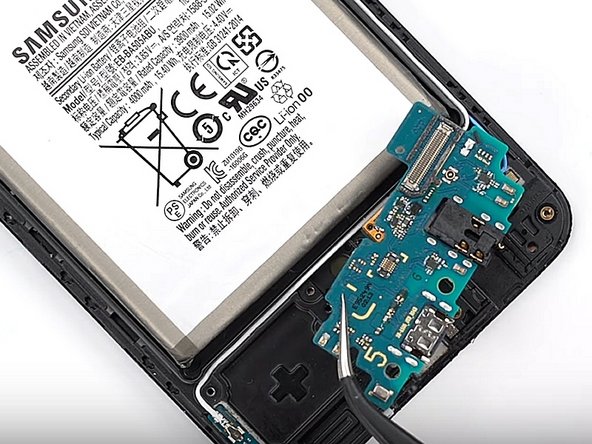
  10. Screen replacement for the Samsung Galaxy A50, Remove the charging board: step 10, image 1 of 2 Screen replacement for the Samsung Galaxy A50, Remove the charging board: step 10, image 2 of 2
    Tool used on this step:
    Spudger
    $3.99
    Buy
    • Remove the charging board

    • Pull out the coaxial cables

    • Carefully remove the battery with a Spudger

    • Wear [linked product missing or disabled: IF145-125-3] to protect your eyes and be careful not to puncture the battery.

    Ask FixBot

    Add Comment

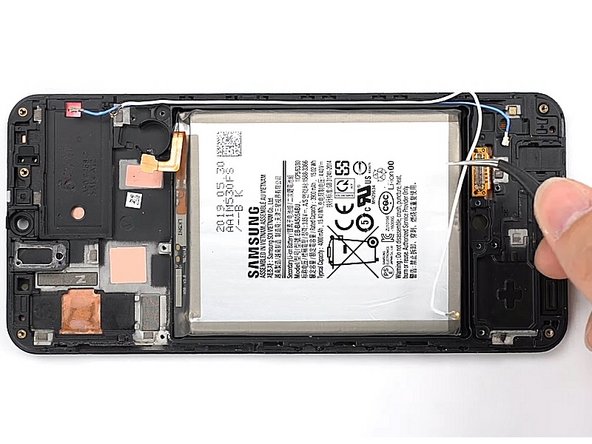
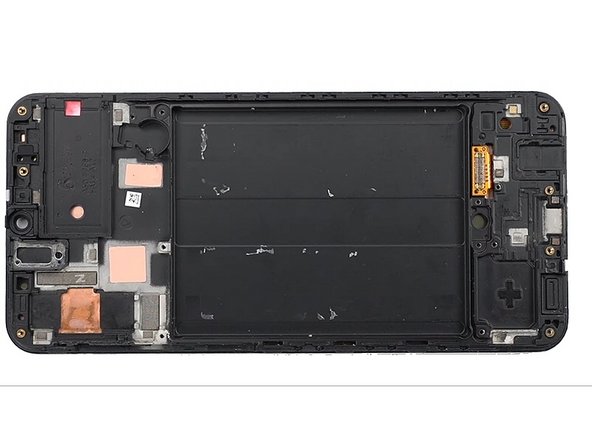
  11. Screen replacement for the Samsung Galaxy A50, All components are removed: step 11, image 1 of 1
    • Now you should have removed all the components in the phone (see picture)

    Ask FixBot

    Add Comment

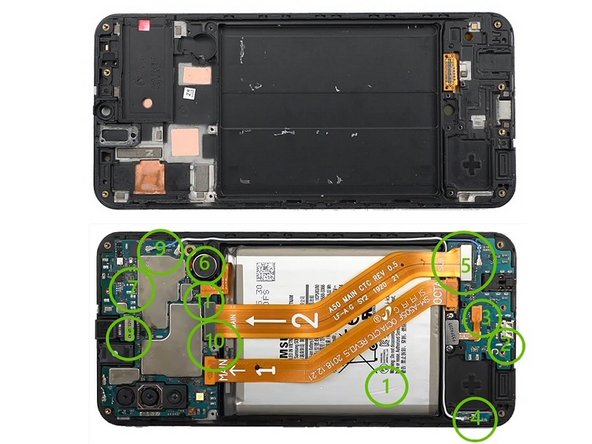
  12. Screen replacement for the Samsung Galaxy A50, Reassemble the phone: step 12, image 1 of 1
    • Replace all the components in the new display frame according to the diagram to the right (bottom is fully assembled)

    Ask FixBot

    Add Comment

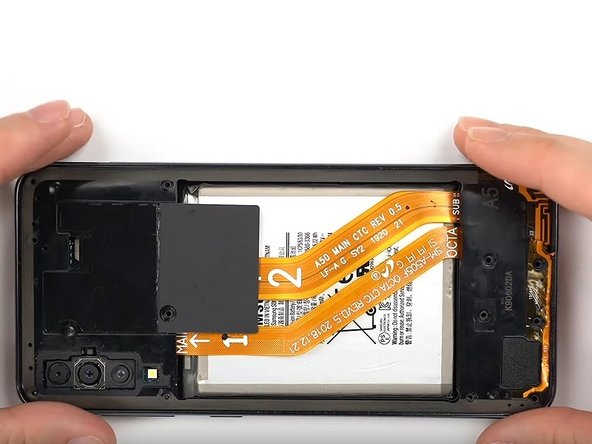
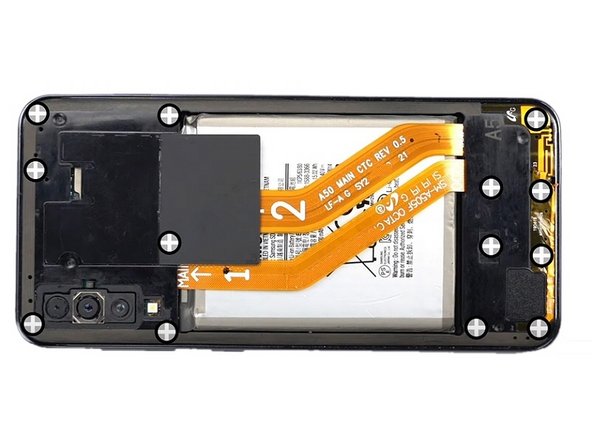
  13. Screen replacement for the Samsung Galaxy A50, Re-attach frame: step 13, image 1 of 2 Screen replacement for the Samsung Galaxy A50, Re-attach frame: step 13, image 2 of 2
    • Clip the frame back onto the screen

    • Tighten all the screws

    Ask FixBot

    Add Comment

  14. Screen replacement for the Samsung Galaxy A50, Re-attach the back glass: step 14, image 1 of 1
    • Using a new piece of tape, stick the glass back on

    Ask FixBot

    Add Comment

Conclusion

After receiving your new screen, you will need to remove the protective film from it before installing it.

To reassemble your device, follow the steps above in reverse.

Turn on your phone and test your repair before applying the new adhesive and closing the phone.

Cancel: I did not complete this guide.

16 other people completed this guide.

Special thanks to these translators:

fr en

100%

These translators are helping us fix the world! Want to contribute?
Start translating ›

cPix

Member since: 06/14/16

4,196 Reputation

8 Guides authored

6 Guide Comments

Merci, c’est réparé !

Chris Fer - Reply Share

il me semble que le backcover du a50 est en plastique, le chauffer trop fort risque de le deformer

Getha Cruz - Reply Share

Effectivement une température de 65°C environ pendant 5 minutes suffira pour ramollir le sticker située sous la plaque arrière.

cPix - Reply Share

Does anyone know if the A505 screen and frame are the same for all variants?

Kemar K - Reply Share

Done, finger print sensor won’t work any more, everything else is.

Teemu Laulajainen - Reply Share

Add Comment

View Statistics:

Past 24 Hours: 1

Past 7 Days: 9

Past 30 Days: 40

All Time: 10,441