This guide has more recent changes. Switch to the latest unverified version.
Introduction
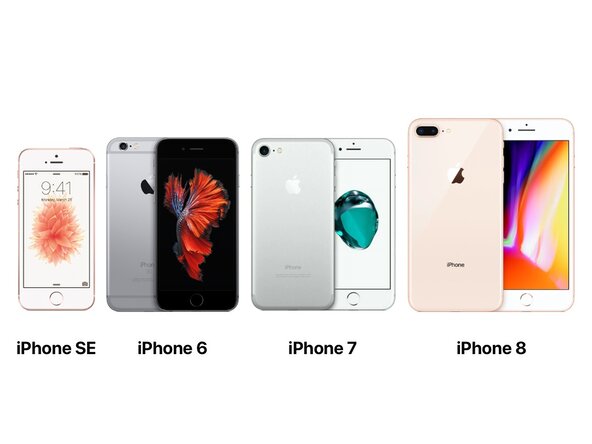
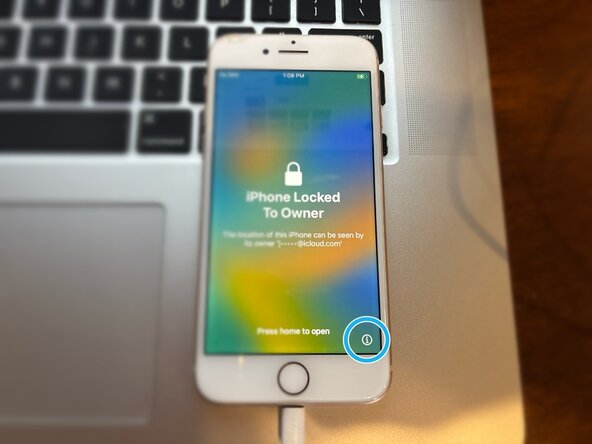
This guide will show you how to remove the Activation Lock on select iPhone models. This tool is free of charge, however currently does not offer support to all Apple Devices.
-
-
-
iPhone 6s & iPhone 6s Plus
-
iPhone SE (1st generation)
-
iPhone 7 & iPhone 7 Plus
-
iPhone 8 & iPhone 8 Plus
-
iPhone X (Still in active development, expect bugs)
 Ask FixBot
-
-
-
Before attempting to bypass the Activation Lock, it is a good idea to restore your iPhone to make sure it is updated to the latest version.
-
-
-
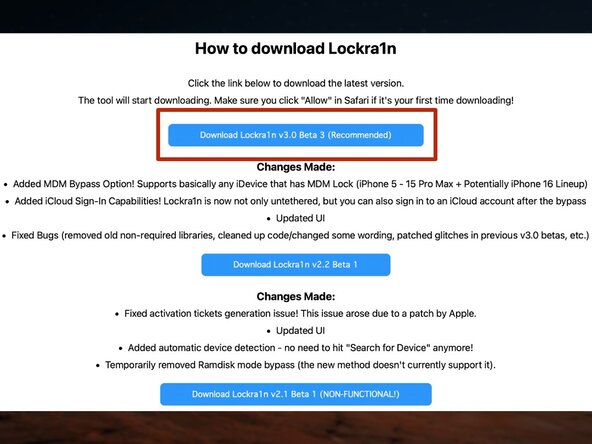
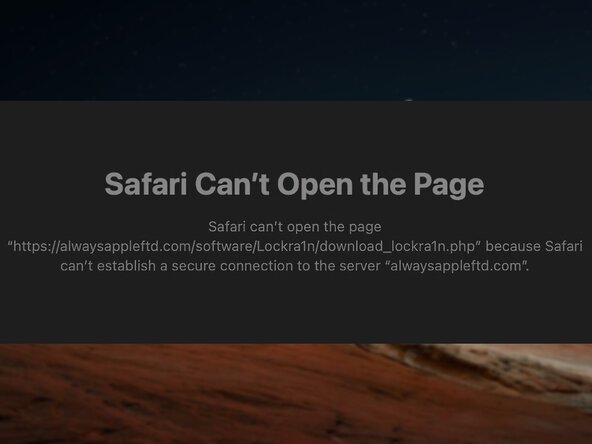
Download a copy of the tool from the official website: Lockra1n
-
Choose Download Lockra1n v3.0 Beta 3
-
-
-
Once downloaded, unzip the package.
-
You can then open the app in the folder
-
-
-
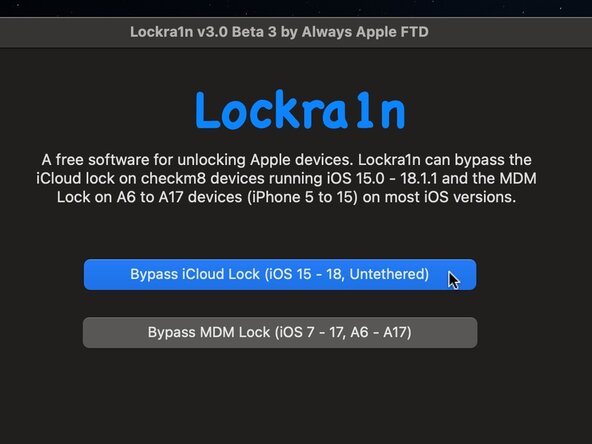
At this point, connect the iPhone to your Mac and choose Bypass iCloud Lock (iOS 15 - 18, Untethered)
-
-
-
-
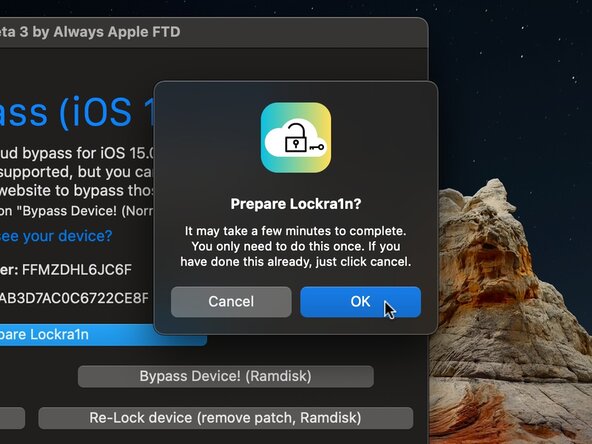
Then choose Prepare Lockr1n
-
Then choose OK
-
Click OK when finished
-
xcode-select --install
-
brew install libxml2
-
-
-
Once competed, you will need to register your iPhone in order to create the Activation Records.
-
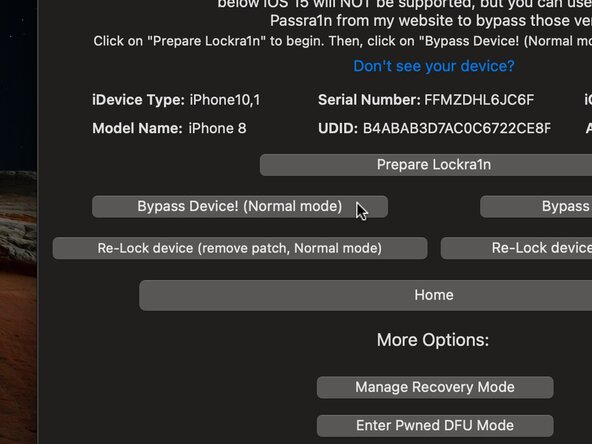
Choose Bypass Device! (Normal Mode)
-
Choose Continue in order for the app to verify if your iPhone has been registered
-
Then choose Visit Registration Page in order to register your iPhone. This will open your web browser.
-
-
-
Scroll to the bottom of the page. There you will see Enter your Apple Device Serial Number:
-
Type this number into the box on the site
-
-
-
Once you have entered in your iPhone serial number, choose Register Device!
-
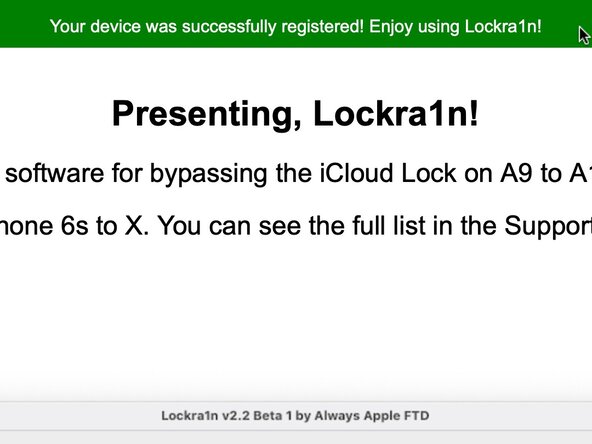
The page will refresh and you will see at the top a message that says Your device was successfully registered! Enjoy using Lockra1n!
-
You can now close this window and go back to the app.
-
-
-
Due to a weird bug in the app, the option to bypass may be greyed out and unavailable.
-
To fix this, simply quit the app and reopen it. Then choose Bypass iCloud Lock (iOS 15 - 18, Untethered) like before, and the option will be available again.
-
Like before, choose Bypass Device! (Normal Mode), and then choose Continue
-
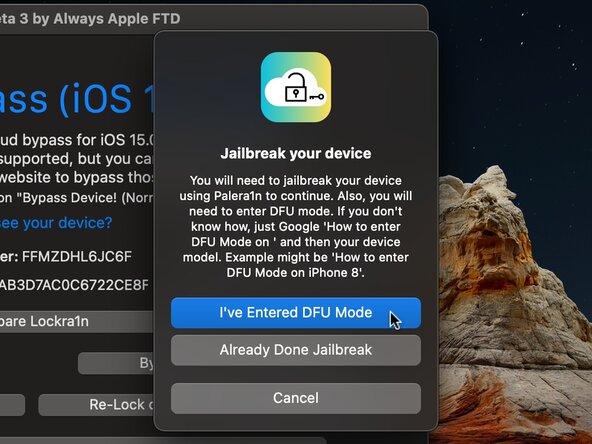
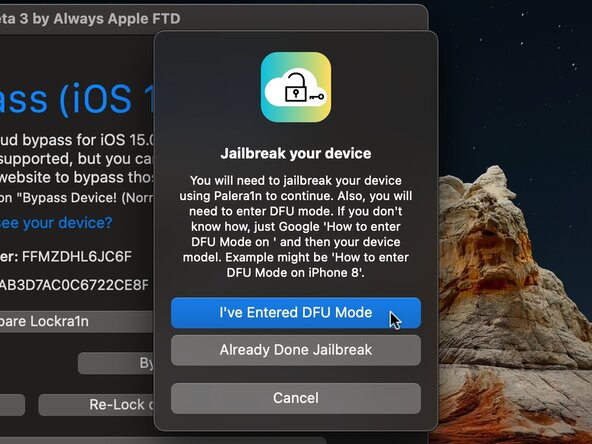
Once verification is complete, you will need to Jailbreak the iPhone. To do this, you must enter DFU mode. Do not choose I've Entered DFU Mode until you compete this step.
-
-
-
Entering DFU mode on an iPhone can be quite tricky and require many attempts. Be patient, and read all the steps before attempting.
-
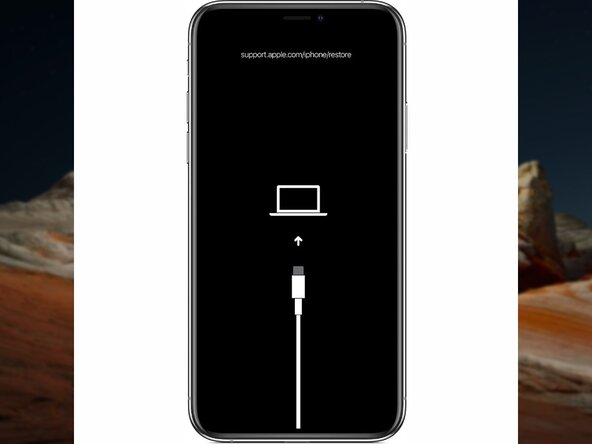
To begin, you must put your iPhone in Recovery Mode
-
For iPhone 6s, 6s Plus, SE models, disconnect the iPhone from your Mac and power it off. Then, reconnect it to your Mac and immediately press and hold the Home Button until the iPhone enters Recovery Mode.
-
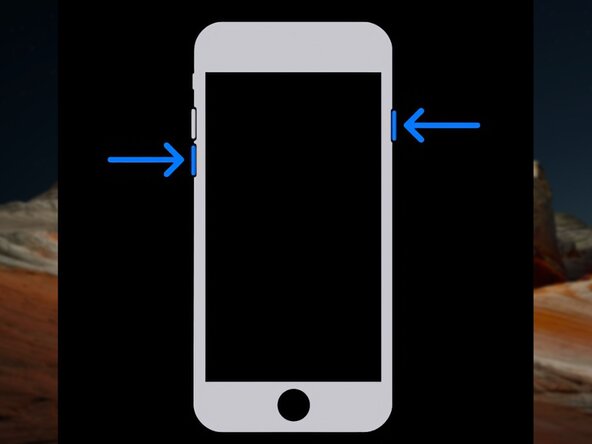
For iPhone 7, 7 Plus models, keep your iPhone connected to the Mac and press the Side button and Volume Down button until the device enters Recovery Mode.
-
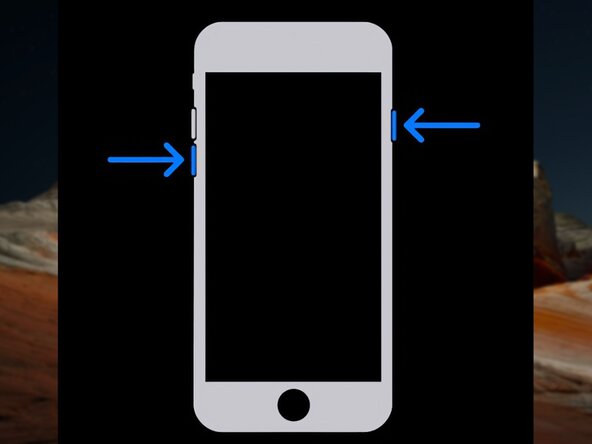
For iPhone 8, 8 Plus, X models, keep your iPhone connected to the Mac and quick press the Volume Up button, quick press the Volume Down button, then press and hold the Side button until the device enters Recovery Mode.
-
-
-
Once in Recovery Mode, follow these steps to enter DFU mode:
-
For iPhone 6s, 6s Plus, SE models, press and hold both the Home button and the Lock button for 8 seconds. Then release the Lock button but continue to hold the Home button until the device enters DFU.
-
For iPhone 7, 7 Plus models, press and hold both the Side button and the Volume Down button for 8 seconds. Then release the Side button but continue to hold the Volume Down button until the device enters DFU.
-
For iPhone 8, 8 Plus, X models, quick press the Volume Up button, quick press the Volume Down button, press and hold the Side button for 10 seconds. Then press and hold the Volume Down button for five seconds. Then release the Side button and continue to hold the Volume Down button until the device enters DFU.
-
-
-
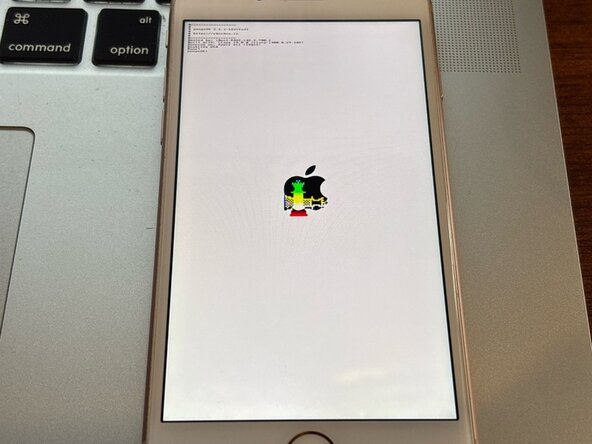
Once you have entered DFU mode, you can then apply the jailbreak.
-
Choose I've Entered DFU Mode in the app.
-
The iPhone will boot and show some text.
-
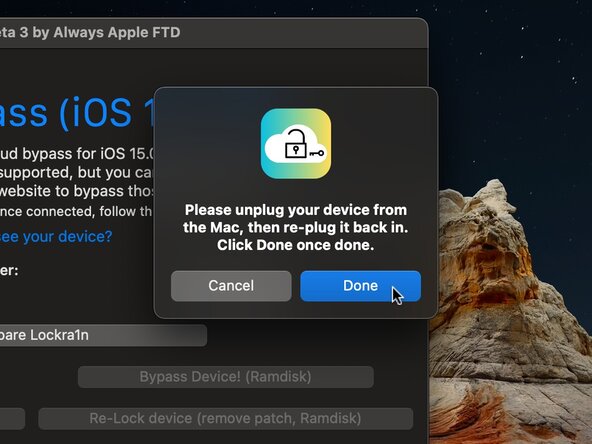
When the message appears in the app to unplug your device, disconnect the cable that plugs into your Mac (not your iPhone), and then plug it back in. Choose Done when you finish.
-
-
-
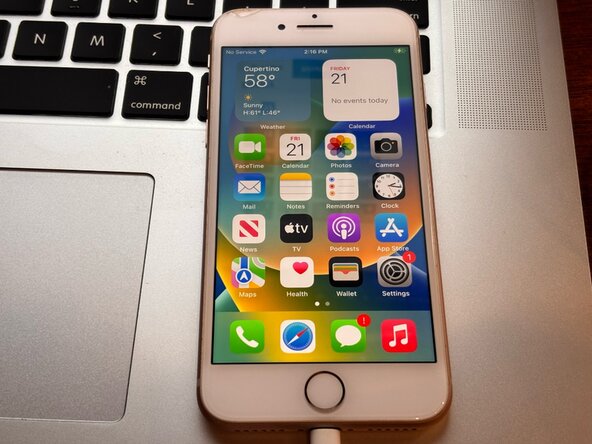
Once finished, the iPhone will boot back normally.
-
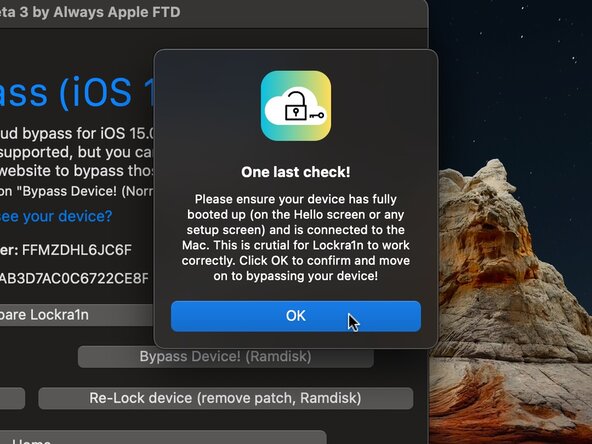
Wait until the hello screen comes back on your iPhone and then choose OK in the app.
-
Verify once more that the iPhone has fully booted, and choose OK in the app.
-
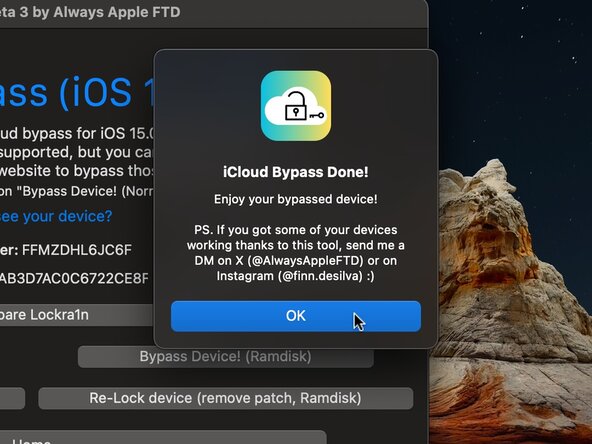
The app will bypass the Activation Lock and the iPhone will reboot.
-
-
-
Will not be able to activate cellular network
-
This includes all data streaming, SMS messaging, and voice calling will not function on a bypassed iPhone
-
Not all iCloud features will be available.
-
You may experience issues with FaceTime, iMessage, making purchases, etc.
-
You cannot set a passcode on A11 iPhones (iPhone 8, 8 Plus, X)
-
These must require a disabled BaseBand in order to jailbreak, and the passcode reenables the BaseBand.
-
Other tools such as iRemove and Checkm8.info have better functionality; however they are expensive. And they still will not be able to provide 100% functionality. This tool is completely free and offers, in my opinion, the best way to bypass the Activation Lock.
-
-




















If you have any questions or issues, please let me know in the comments!
Cancel: I did not complete this guide.
148 other people completed this guide.

44 Guide Comments
sur mon Macbook air 2017 (macOS 12.7.6) quand j'ouvre l'app ce message apparait : « Lockra1n » est endommagé et ne peut pas être ouvert. Vous devriez placer cet élément dans la Corbeille.
close the notification, open system pref/security and permissions, scroll down to the bottom and click open anyway
Ouvrez une nouvelle fenêtre de terminal et saisissez la commande suivante :
xattr -cr
Faites ensuite glisser l’application dans la fenêtre du terminal et appuyez sur la touche Entrée. Réessayez.
iPhone 8 plus
iPhone 8 Plus running iOS 16 is supported with Lockra1n.
