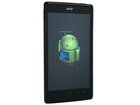
Hard / Factory Reset

Last updated on Mar 13, 2018
Views: 58K
View statistics:
- Past 24 Hours:
- 21
- Past 7 Days:
- 102
- Past 30 Days:
- 471
- All Time:
- 57,753
Comments: 36
14 comments on steps, 22 guide comments.
Go to guide commentsCompleted: 31 32
31 people have marked this guide "completed." Will you be next?
32 people have marked this guide "completed." Including you — great job!
Favorites: 3 4
3 people have favorited (and subscribed to) this guide. Will you be next?
4 people have favorited (and subscribed to) this guide — including you!
Community-Contributed Guide
An awesome member of our community made this guide. It was not created by iFixit staff.
Introduction
Go to step 1 ↓If you forgot your screen PIN, pattern, password lock you can enter the phone menu with your Google account installed on this phone before. If you can't do this, the only way to bypass the security is Factory reset.
!!! Warning !!!
This will erase all your information (address book, apps, pictures, downloads, etc.)!
There are two ways to do a factory reset with hardware buttons.
________________________ Video tutorial: ________________________
Video Overview
-
-
-
Switch off the phone.
-
Pres the Power button and when you feel a vibration release it and press and hold the Volume Up button.
-
From Boot mode menu select [Recovery mode] (use Volume Up for navigation and volume doun for OK).
-
Now you are in the known Android System recovery menu. Use again the Volume Up for navigation and the Volume Down for OK and select one by one: wipe data/factory reset - Yes -- delete all user data - reboot system now.
-
Tis will reboot the device and will restore to its default settings.
 Ask FixBot
-
-
-
-
Switch off the phone.
-
Press the Power button and wen you fill the vibration, release the Power button and press and hold the Volume Down button.
-
Now the device is in Factory mode. Use the Volume Up/Down buttons for movement and the Power button for OK and select Clear eMMC.
-
That's all. The phone will reboot and will be restored to a factory settings.
-
.
-
.
-
Did you do it successfully?
-
-


To reassemble your device, follow these instructions in reverse order.
Cancel: I did not complete this guide.
31 other people completed this guide.

Team

22 Guide Comments
“eMMC is busy can't format, please retry”
What do we do?
Today I also met this message. How did you solve this problem? Thanks, Zoltan (HUN)
HI!, I did the “clear eMMc” method but still my MePop_V03 phone still stock on logo screen.
what should I do?
Please help me .thanks in advance God bless
