15% Off Selected iFixit Tools — Limited Time
Free Shipping on Domestic Orders $75+

HTC Wizard 200 Front Buttons Replacement

What you need

  1. HTC Wizard 200 Front Buttons Replacement, Battery: step 1, image 1 of 2 HTC Wizard 200 Front Buttons Replacement, Battery: step 1, image 2 of 2
    • To expose the battery, remove the outer case with your fingernail.

    • Remove the battery by pulling the black tab.

    Ask FixBot

    Add Comment

  2. HTC Wizard 200 Front Buttons Replacement, Back Panel: step 2, image 1 of 1
    Tool used on this step:
    Spudger
    $3.99
    Buy
    • Insert the flat end of the spudger into the two notches on the back of the camera cover and pry them up.

    Ask FixBot

    Add Comment

  3. HTC Wizard 200 Front Buttons Replacement: step 3, image 1 of 2 HTC Wizard 200 Front Buttons Replacement: step 3, image 2 of 2
    Tool used on this step:
    Spudger
    $3.99
    Buy
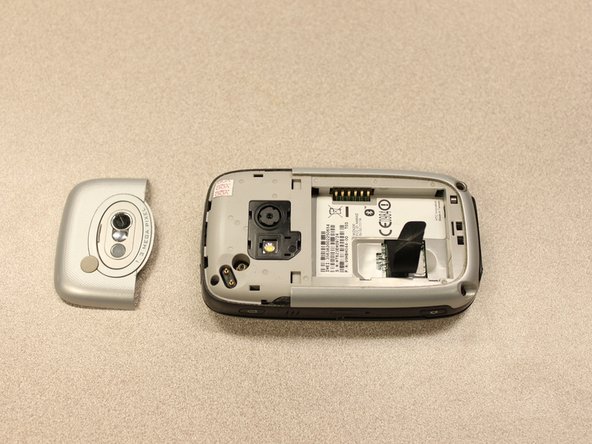
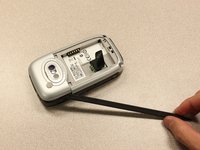
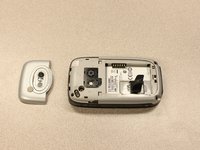
    • Work the spudger around the edges of the camera cover until it comes off.

    Ask FixBot

    Add Comment

  4. HTC Wizard 200 Front Buttons Replacement: step 4, image 1 of 2 HTC Wizard 200 Front Buttons Replacement: step 4, image 2 of 2
    Tool used on this step:
    T5 Torx Screwdriver
    $5.49
    Buy
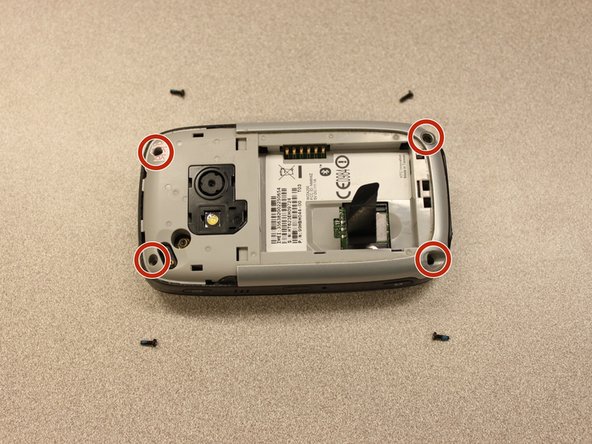
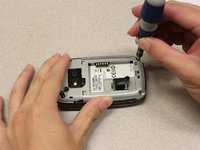
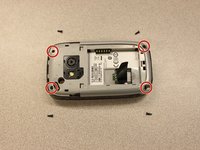
    • Remove the four 6 mm screws with the T5 Torx screwdriver.

    • One of the screws is under the "void" sticker.

    Ask FixBot

    Add Comment

  5. HTC Wizard 200 Front Buttons Replacement: step 5, image 1 of 3 HTC Wizard 200 Front Buttons Replacement: step 5, image 2 of 3 HTC Wizard 200 Front Buttons Replacement: step 5, image 3 of 3
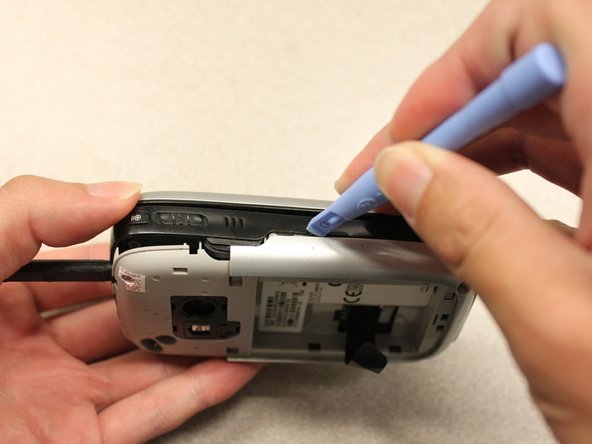
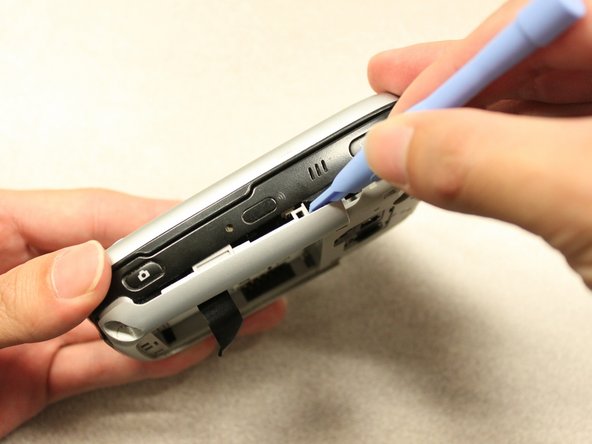
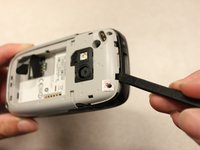
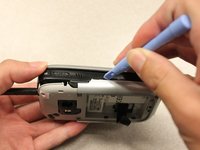
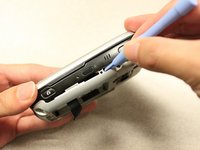
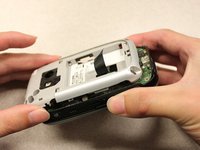
    • Insert the flat end of an iFixit opening tool between the side and inner covers to create a gap.

    • Work the tool around the edges until all the clips release.

    Ask FixBot

    Add Comment

  6. HTC Wizard 200 Front Buttons Replacement: step 6, image 1 of 2 HTC Wizard 200 Front Buttons Replacement: step 6, image 2 of 2
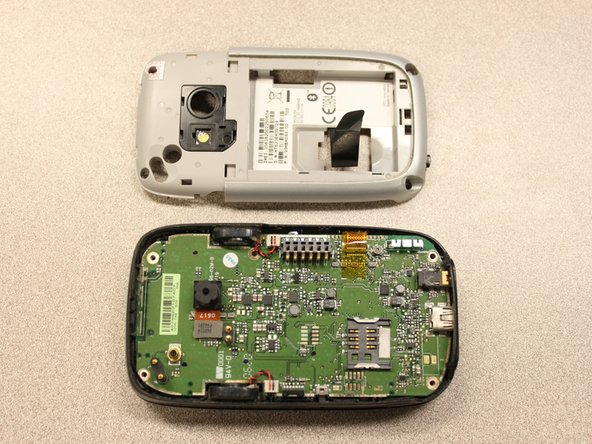
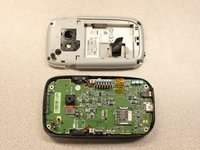
    • Once all the clips are open, remove the inner panel from the phone.

    Ask FixBot

    Add Comment

  7. HTC Wizard 200 Front Buttons Replacement, Motherboard: step 7, image 1 of 1
    Tool used on this step:
    Spudger
    $3.99
    Buy
    • Use the spudger to pry the camera off.

    Ask FixBot

    Add Comment

  8. HTC Wizard 200 Front Buttons Replacement: step 8, image 1 of 2 HTC Wizard 200 Front Buttons Replacement: step 8, image 2 of 2
    Tool used on this step:
    Tweezers
    $4.99
    Buy
    • Using tweezers, flip the connector latch away from the motherboard.

    • Detach the flexible connection from under the connector latch.

    Ask FixBot

    Add Comment

  9. HTC Wizard 200 Front Buttons Replacement: step 9, image 1 of 1
    • Slide the keyboard into the open position.

    Ask FixBot

    Add Comment

  10. HTC Wizard 200 Front Buttons Replacement: step 10, image 1 of 2 HTC Wizard 200 Front Buttons Replacement: step 10, image 2 of 2
    Tool used on this step:
    Spudger
    $3.99
    Buy
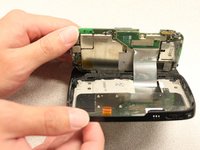
    • Lift the motherboard out of the case using the spudger.

    • Expose the underside of the motherboard using your hands.

    Ask FixBot

    Add Comment

  11. HTC Wizard 200 Front Buttons Replacement: step 11, image 1 of 2 HTC Wizard 200 Front Buttons Replacement: step 11, image 2 of 2
    • Remove the flexible connection from the motherboard.

    • Caution: Removing the connection too fast may cause damage to the connection and cables.

    Ask FixBot

    Add Comment

  12. HTC Wizard 200 Front Buttons Replacement, Keyboard Slider: step 12, image 1 of 3 HTC Wizard 200 Front Buttons Replacement, Keyboard Slider: step 12, image 2 of 3 HTC Wizard 200 Front Buttons Replacement, Keyboard Slider: step 12, image 3 of 3
    Tool used on this step:
    T5 Torx Screwdriver
    $5.49
    Buy
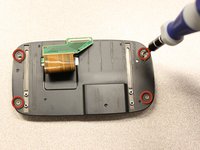
    • Remove the four 5mm screws with the T5 Torx screwdriver.

    • Remove the keyboard slider from the main body.

    Ask FixBot

    Add Comment

  13. HTC Wizard 200 Front Buttons Replacement, Screen Cover: step 13, image 1 of 2 HTC Wizard 200 Front Buttons Replacement, Screen Cover: step 13, image 2 of 2
    • Use the T5 Torx screwdriver to remove four 5mm screws that secure the back of the screen casing.

    Ask FixBot

    Add Comment

  14. HTC Wizard 200 Front Buttons Replacement: step 14, image 1 of 2 HTC Wizard 200 Front Buttons Replacement: step 14, image 2 of 2
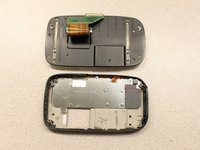
    • Insert the plastic opening tool between the front panel and the rear panel and pry open to reach the screen.

    Ask FixBot

    Add Comment

  15. HTC Wizard 200 Front Buttons Replacement: step 15, image 1 of 2 HTC Wizard 200 Front Buttons Replacement: step 15, image 2 of 2
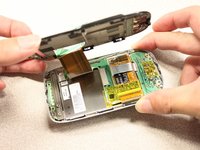
    • Once the rear panel is loose, lift it off of the front panel.

    • The flexible connection will pop loose.

    Ask FixBot

    Add Comment

  16. HTC Wizard 200 Front Buttons Replacement: step 16, image 1 of 1
    • Device rotated 90 degrees CCW.

    • Remove the yellow anti-static tape.

    Ask FixBot

    Add Comment

  17. HTC Wizard 200 Front Buttons Replacement: step 17, image 1 of 2 HTC Wizard 200 Front Buttons Replacement: step 17, image 2 of 2
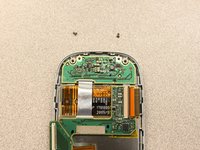
    • Unscrew the two 3mm phillips #0 screws from the bottom of the device that secure the rigid flex board to the screen panel.

    Ask FixBot

    Add Comment

  18. HTC Wizard 200 Front Buttons Replacement: step 18, image 1 of 1
    • Device rotated 180 degrees CW.

    • Unscrew the two 3mm Phillips #0 screws from the top of the device that secure the rigid flex board to the screen panel.

    Ask FixBot

    Add Comment

  19. HTC Wizard 200 Front Buttons Replacement: step 19, image 1 of 1
    • Device rotated 90 degrees CCW.

    • Unhinge the flexible connection and use the tweezers to disconnect.

    Ask FixBot

    Add Comment

  20. HTC Wizard 200 Front Buttons Replacement: step 20, image 1 of 1
    • Now that the rigid flex board is loose, remove it from the screen.

    Ask FixBot

    Add Comment

  21. HTC Wizard 200 Front Buttons Replacement, LCD Screen: step 21, image 1 of 2 HTC Wizard 200 Front Buttons Replacement, LCD Screen: step 21, image 2 of 2
    • Simply pull out the loose screen.

    Ask FixBot

    Add Comment

  22. HTC Wizard 200 Front Buttons Replacement, Front Buttons: step 22, image 1 of 2 HTC Wizard 200 Front Buttons Replacement, Front Buttons: step 22, image 2 of 2
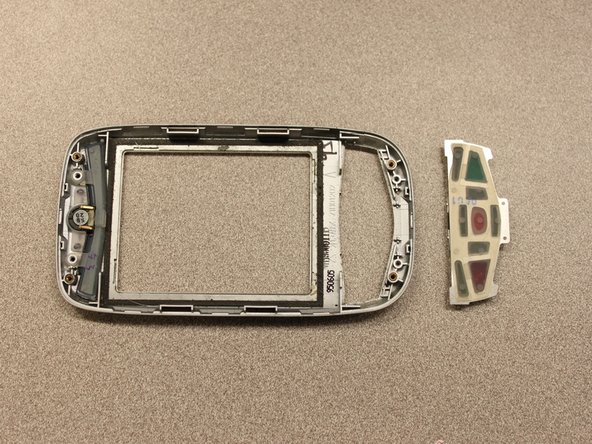
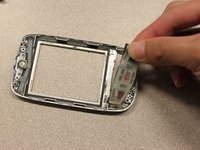
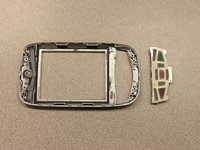
    • Pull out the front button panel.

    Ask FixBot

    Add Comment

Conclusion

To reassemble your device, follow these instructions in reverse order.

Cancel: I did not complete this guide.

Kyle Champ

Member since: 10/03/11

225 Reputation

12 Guides authored

Team

Cal Poly, Team 20-27, Maness Fall 2011 Member of Cal Poly, Team 20-27, Maness Fall 2011

CPSU-MANESS-F11S20G27

4 Members

24 Guides authored

0 Guide Comments

Add Comment

View Statistics:

Past 24 Hours: 0

Past 7 Days: 5

Past 30 Days: 31

All Time: 854