Shop the Holiday Gift Guide
Free Shipping on Domestic Orders $75+

HTC Rhyme Volume Button Replacement

Views: 764

View statistics:

Past 24 Hours:
5
Past 7 Days:
22
Past 30 Days:
76
All Time:
764
Comments: 0

No one has left comments on this guide. Will you be first?

Go to guide comments
Completed: 0

No one has marked this guide "completed." Will you be the first?

Favorites: 0

No one has favorited (and subscribed to) this guide. Will you be the first?

Time Required: 15 - 20 minutes
Difficulty: Moderate
Better Introduction

Improve this guide by completing or revising its introduction.

HTC Rhyme Volume Button  Replacement

What you need

Parts

Tools

    1. HTC Rhyme Volume Button  Replacement, Removing Back Cover: step 1, image 1 of 1
      • Slide the bottom back cover off of the phone.

      Ask FixBot

      Add Comment

    2. HTC Rhyme Volume Button  Replacement: step 2, image 1 of 1
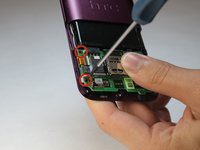
      • Locate the four screws on the plastic cover and unscrew them.

      Ask FixBot

      Add Comment

    3. HTC Rhyme Volume Button  Replacement: step 3, image 1 of 1
      • Pry the sticker off from the sides.

      • You can use a metal spudger to do this.

      • Peel the sticker off with your hands.

      Ask FixBot

      Add Comment

    4. HTC Rhyme Volume Button  Replacement, Remove the plastic cover: step 4, image 1 of 1
      • Remove the plastic cover using your hands.

      Ask FixBot

      Add Comment

    5. HTC Rhyme Volume Button  Replacement: step 5, image 1 of 1
      • Remove the yellow ribbon.

      Ask FixBot

      Add Comment

    6. HTC Rhyme Volume Button  Replacement: step 6, image 1 of 3 HTC Rhyme Volume Button  Replacement: step 6, image 2 of 3 HTC Rhyme Volume Button  Replacement: step 6, image 3 of 3
      • Lift up the blue flaps underneath the battery.

      • Lift up the black flap at the top of the phone.

      • Lift up the black flap at the bottom of the phone.

      Ask FixBot

      Add Comment

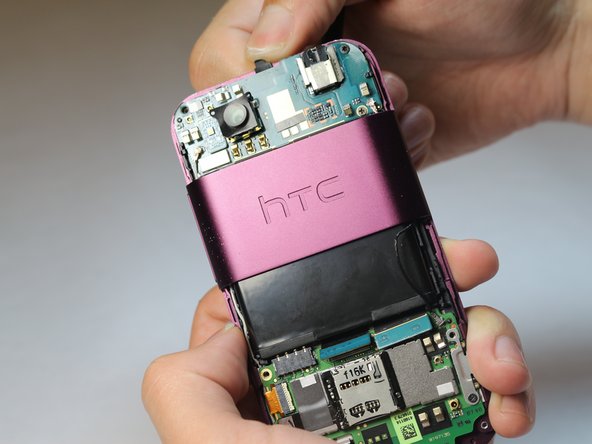
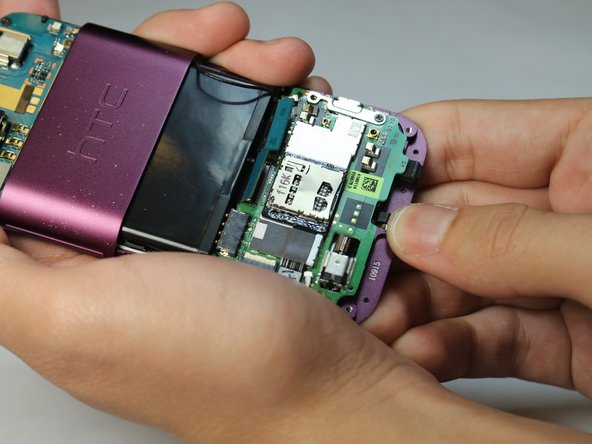
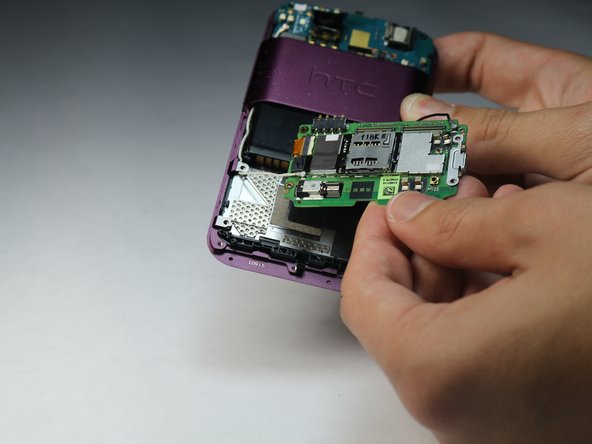
    7. HTC Rhyme Volume Button  Replacement, Remove the Motherboard: step 7, image 1 of 2 HTC Rhyme Volume Button  Replacement, Remove the Motherboard: step 7, image 2 of 2
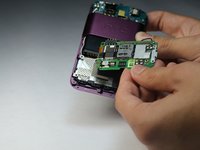
      • Remove all 4 screws.

      • Carefully remove the motherboard with your hands.

      Ask FixBot

      Add Comment

    8. HTC Rhyme Volume Button  Replacement, Removing the back plastic casing: step 8, image 1 of 3 HTC Rhyme Volume Button  Replacement, Removing the back plastic casing: step 8, image 2 of 3 HTC Rhyme Volume Button  Replacement, Removing the back plastic casing: step 8, image 3 of 3
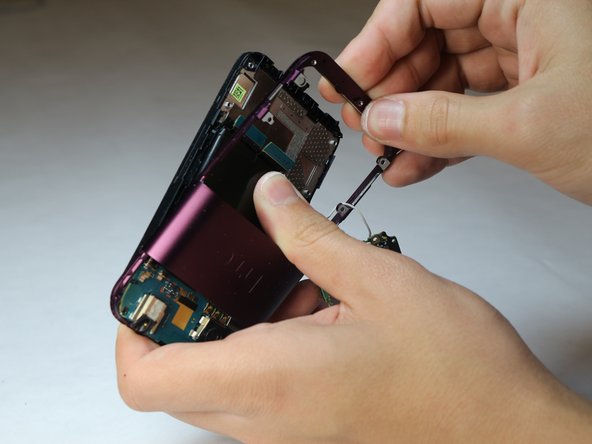
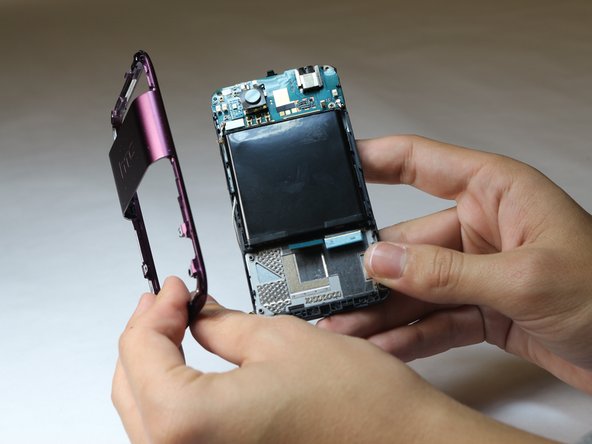
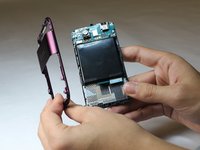
      • Pry the back plastic casing off with your hands.

      Ask FixBot

      Add Comment

    9. HTC Rhyme Volume Button  Replacement: step 9, image 1 of 2 HTC Rhyme Volume Button  Replacement: step 9, image 2 of 2
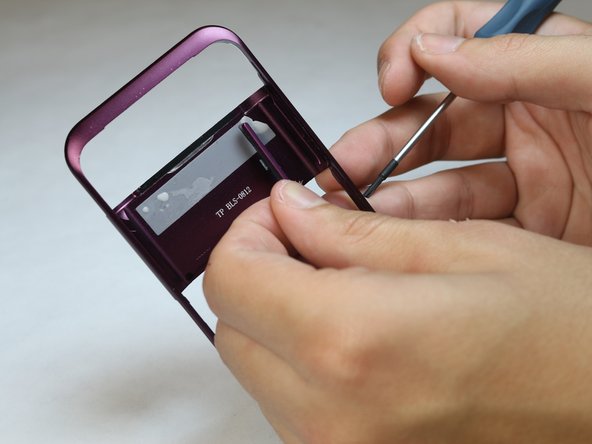
      • Use the tip of a screwdriver to push the button out of the panel.

      Ask FixBot

      Add Comment

Conclusion

To reassemble your device, follow these instructions in reverse order.

Cancel: I did not complete this guide.

Author

with

Frederick

Member since: 10/08/14

119 Reputation

1 Guide authored

Team

USF Tampa, Team 9-6, Leahy Fall 2014 Member of USF Tampa, Team 9-6, Leahy Fall 2014

USFT-LEAHY-F14S9G6

3 Members

60 Guides authored

0 Guide Comments

Add Comment

View Statistics:

Past 24 Hours: 5

Past 7 Days: 22

Past 30 Days: 76

All Time: 764