Free Shipping on Domestic Orders $75+

HTC Maple 100 Back Panel Replacement

What you need

  1. HTC Maple 100 Back Panel Replacement, Battery: step 1, image 1 of 1
    • First remove the back cover of your phone to expose the battery.

    Ask FixBot
  2. HTC Maple 100 Back Panel Replacement: step 2, image 1 of 1
    • Turn the phone over.

    • Push forward on the battery with your thumb.

    Ask FixBot
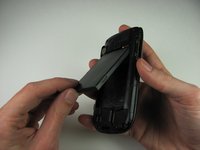
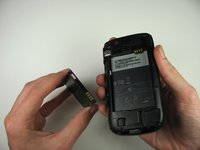
  3. HTC Maple 100 Back Panel Replacement: step 3, image 1 of 2 HTC Maple 100 Back Panel Replacement: step 3, image 2 of 2
    • Take the battery out by lifting it upwards.

    • When reassembling, make sure that the battery contacts match up.

    Ask FixBot
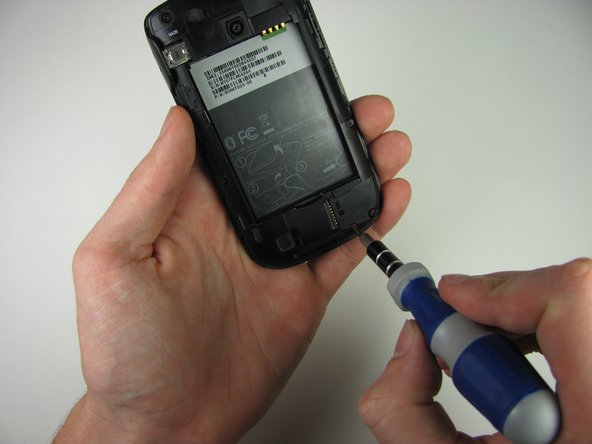
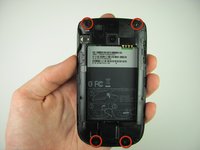
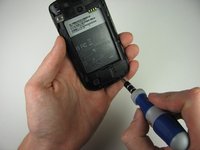
  4. HTC Maple 100 Back Panel Replacement, Back Panel: step 4, image 1 of 2 HTC Maple 100 Back Panel Replacement, Back Panel: step 4, image 2 of 2
    • Remove the four 4.9mm T6 Torx screws that secure the back panel to the rest of the phone.

    Ask FixBot
  5. HTC Maple 100 Back Panel Replacement: step 5, image 1 of 1
    • Remove the two 4.3mm Phillips #00 screws that secure the back panel to the rest of the phone.

    Ask FixBot
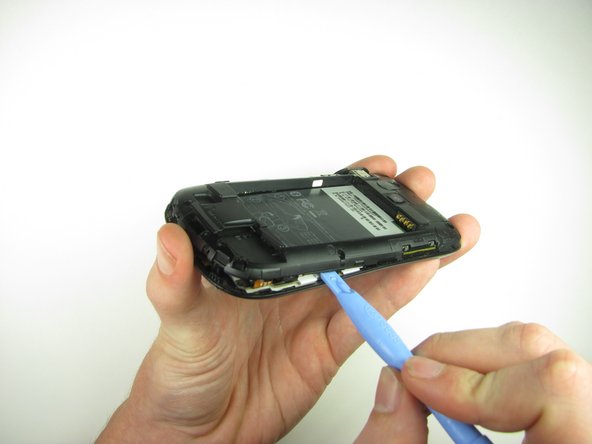
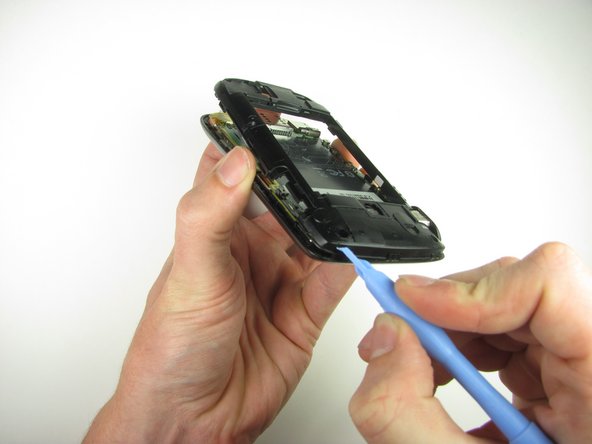
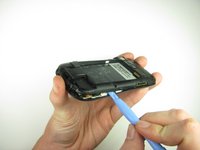
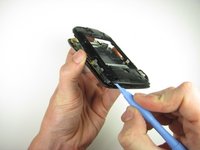
  6. HTC Maple 100 Back Panel Replacement: step 6, image 1 of 3 HTC Maple 100 Back Panel Replacement: step 6, image 2 of 3 HTC Maple 100 Back Panel Replacement: step 6, image 3 of 3
    • Insert the plastic opening tool along the seams at different points to it pry the clips off.

    • This may require a bit of force. The USB port cover may fall off in this step.

    Ask FixBot
Conclusion

To reassemble your device, follow these instructions in reverse order.

Andrew Van Meter

Member since: 10/06/11

24 Reputation

3 Guides authored

Team

Cal Poly, Team 20-29, Maness Fall 2011 Member of Cal Poly, Team 20-29, Maness Fall 2011

CPSU-MANESS-F11S20G29

4 Members

18 Guides authored

0 Guide Comments

Add Comment

View Statistics:

Past 24 Hours: 1

Past 7 Days: 7

Past 30 Days: 55

All Time: 1,025