Free Shipping on Domestic Orders $75+

HP Stream 13-c110nr Keyboard Assembly Replacement

What you need

    1. HP Stream 13-c110nr Keyboard Assembly Replacement, Keyboard Assembly: step 1, image 1 of 1
      • Close the device.

      • Remove AC adapter plug from electrical outlet.

      • Remove AC adapter from device.

      • Turn the device off.

      • Unplug all external devices from device.

      • If you are unsure whether the computer is off or in hibernation mode, start the computer and then shutdown the operating system.

      Ask FixBot

      Add Comment

    2. HP Stream 13-c110nr Keyboard Assembly Replacement: step 2, image 1 of 1
      • Turn the device upside down with the back facing towards you.

      Ask FixBot

      Add Comment

    3. HP Stream 13-c110nr Keyboard Assembly Replacement: step 3, image 1 of 3 HP Stream 13-c110nr Keyboard Assembly Replacement: step 3, image 2 of 3 HP Stream 13-c110nr Keyboard Assembly Replacement: step 3, image 3 of 3
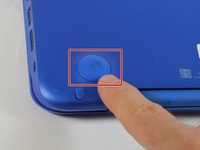
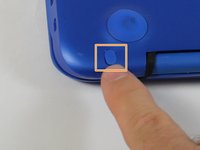
      • Use a pick to remove the two (2) large computer feet along the back edge of the device.

      • Use a pick to remove the two (2) small computer feet.

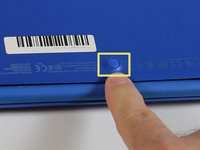
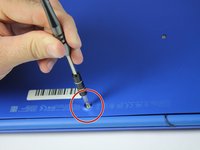
      • Use a pick to remove the one (1) screw cover.

      • Place rubber computer feet in safe place for reassembly.

      Ask FixBot

      Add Comment

    4. HP Stream 13-c110nr Keyboard Assembly Replacement: step 4, image 1 of 3 HP Stream 13-c110nr Keyboard Assembly Replacement: step 4, image 2 of 3 HP Stream 13-c110nr Keyboard Assembly Replacement: step 4, image 3 of 3
      Tool used on this step:
      Magnetic Project Mat
      $19.95
      Buy
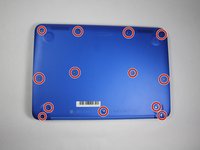
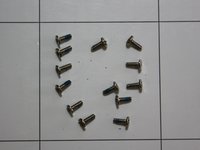
      • Remove the thirteen (13) Phillips P0 PM2.5x6.0 mm screws.

      • Place the thirteen (13) screws on magnetic mat for reassembly.

      Ask FixBot

      Add Comment

    5. HP Stream 13-c110nr Keyboard Assembly Replacement: step 5, image 1 of 1
      • Turn the device over with the front facing towards you.

      • Open the device as shown.

      Ask FixBot

      Add Comment

    6. HP Stream 13-c110nr Keyboard Assembly Replacement: step 6, image 1 of 3 HP Stream 13-c110nr Keyboard Assembly Replacement: step 6, image 2 of 3 HP Stream 13-c110nr Keyboard Assembly Replacement: step 6, image 3 of 3
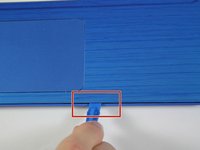
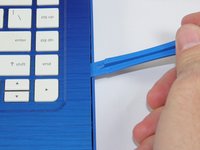
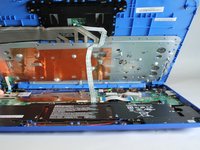
      • Insert the Spudger between the Top Cover and Bottom Cover to lift the front edge until it separates from the Bottom Cover.

      • Do not completely remove the Keyboard/Top cover from the Bottom cover yet.

      Ask FixBot

      Add Comment

    7. HP Stream 13-c110nr Keyboard Assembly Replacement: step 7, image 1 of 1
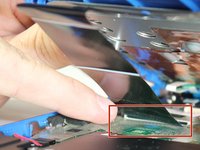
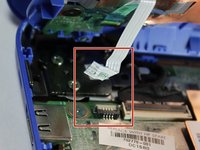
      • Disconnect the Touchpad cable.

      Ask FixBot

      Add Comment

    8. HP Stream 13-c110nr Keyboard Assembly Replacement: step 8, image 1 of 2 HP Stream 13-c110nr Keyboard Assembly Replacement: step 8, image 2 of 2
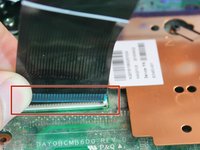
      • Disconnect the Keyboard Cable.

      Ask FixBot

      Add Comment

    9. HP Stream 13-c110nr Keyboard Assembly Replacement: step 9, image 1 of 2 HP Stream 13-c110nr Keyboard Assembly Replacement: step 9, image 2 of 2
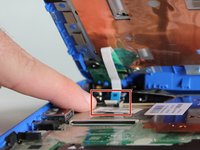
      • Disconnect the Power connector cable.

      Ask FixBot

      Add Comment

    10. HP Stream 13-c110nr Keyboard Assembly Replacement: step 10, image 1 of 1
      • Remove the Keyboard/Top Cover from the device.

      Ask FixBot

      Add Comment

Conclusion

To reassemble your device, follow these instructions in reverse order.

Cancel: I did not complete this guide.

One other person completed this guide.

0 Guide Comments

Add Comment

View Statistics:

Past 24 Hours: 0

Past 7 Days: 4

Past 30 Days: 21

All Time: 569