
HP ProBook 640 G5 WLAN Module Replacement

Eric Olivarez and 2 other contributors
Last updated on May 20, 2026
Views: 242
View statistics:
- Past 24 Hours:
- 1
- Past 7 Days:
- 10
- Past 30 Days:
- 56
- All Time:
- 242
Comments: 0
No one has left comments on this guide. Will you be first?
Go to guide commentsCompleted: 0 1
No one has marked this guide "completed." Will you be the first?
1 person has marked this guide "completed." It's you — great job!
Favorites: 0 1
No one has favorited (and subscribed to) this guide. Will you be the first?
1 person has favorited (and subscribed to) this guide — and that's you!
Introduction
Go to step 1 ↓A laptop’s WLAN module (also called the Wi-Fi card, wireless module, or M.2 2230 wireless adapter) controls all wireless connectivity, including Wi-Fi and sometimes Bluetooth. Over time, these modules can fail, become unstable, or may need upgrading for better performance. This guide will walk you through safely removing and replacing the WLAN module in the HP ProBook 640 G5. Before beginning this repair, power off the laptop and disconnect all power sources.
What you need
Tools


-
-
-
Shut down the HP ProBook 640 G5 completely.
-
Disconnect the power adapter and all connected peripherals.
-
Press and hold the power button for 5 seconds to discharge remaining electricity.
 Ask FixBot
-
-
-
Flip the laptop over so the bottom is facing up.
-
Loosen eight silver 6mm screws using a Phillips #0 screwdriver.
-
Remove two black 6mm screws using a TR7 Torx screwdriver.
-
Insert a plastic opening tool into the seam and gently pry around the edges.
-
Lift the bottom cover away from the laptop.
-
-
-
-
-
Locate the WLAN module.
-
Remove the single screw holding the WLAN card down.
-
-
-
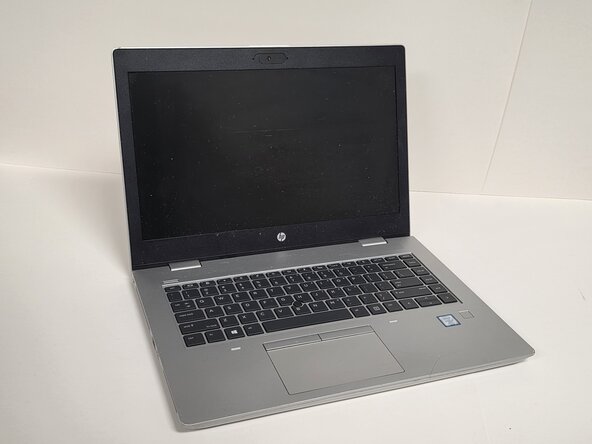


To reassemble your device, follow these instructions in reverse order.

Team

Austin Community College, Team 1-2, Anderson Spring 2026 Member of Austin Community College, Team 1-2, Anderson Spring 2026
AUSTINCC-ANDERSON-S26S1G2
3 Members
72 Guides authored
