Free Shipping on Domestic Orders $75+

HP ProBook 450 G2

What you need

    1. HP ProBook 450 G2, Detaching the Bottom Cover and Battery: step 1, image 1 of 2 HP ProBook 450 G2, Detaching the Bottom Cover and Battery: step 1, image 2 of 2
      • Carefully remove the main battery.

      • Locate the screw on the bottom side.

      • Unscrew and remove it.

      • Carefully take off the two plastic covers.

      Ask FixBot

      Add Comment

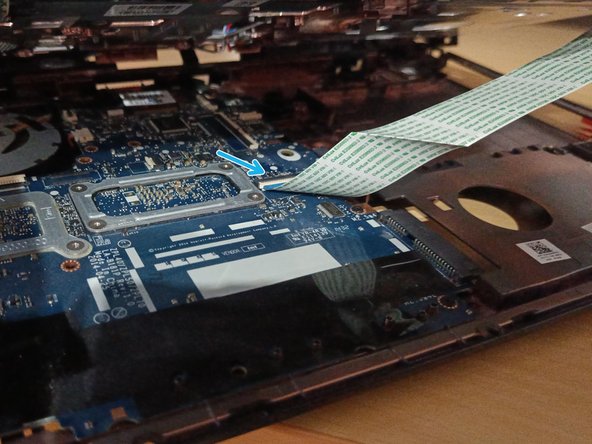
    2. HP ProBook 450 G2, Disassembling the Keyboard: step 2, image 1 of 3 HP ProBook 450 G2, Disassembling the Keyboard: step 2, image 2 of 3 HP ProBook 450 G2, Disassembling the Keyboard: step 2, image 3 of 3
      • Locate the three screws marked with a keyboard icon next to them.

      • Carefully unscrew and remove each of them.

      • Take a thin, flat tool, such as a guitar pick.

      • Gently insert it at the top edge of the keyboard.

      • Carefully slide it along the edge until the keyboard starts to lift or "pop" out.

      • Do not immediately pull out the keyboard.

      • Carefully locate and detach the keyboard cable connecting it to the motherboard.

      Ask FixBot

      Add Comment

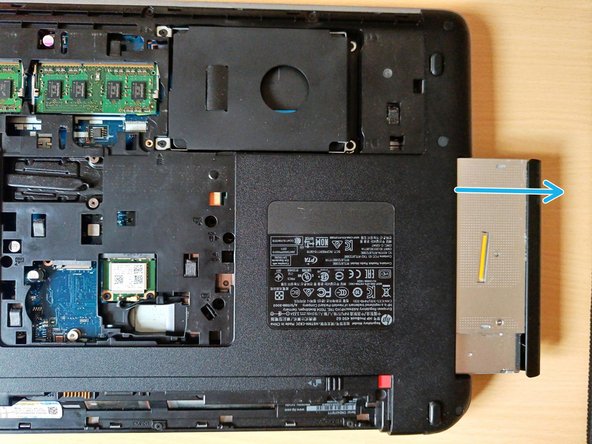
    3. HP ProBook 450 G2, Detaching the CD/DVD Drive Unit: step 3, image 1 of 2 HP ProBook 450 G2, Detaching the CD/DVD Drive Unit: step 3, image 2 of 2
      • Locate the screw marked with a CD icon next to it.

      • Carefully unscrew and remove it.

      • Carefully pull out the CD-DVD unit.

      Ask FixBot

      Add Comment

    4. HP ProBook 450 G2, Extracting the Hard Drive: step 4, image 1 of 2 HP ProBook 450 G2, Extracting the Hard Drive: step 4, image 2 of 2
      • Locate the four screws marked.

      • Carefully unscrew and remove each of them.

      • Slide the disk to the right and then carefully pull it out.

      Ask FixBot

      Add Comment

    5. HP ProBook 450 G2, Disassembling the Casing (1/2): step 5, image 1 of 3 HP ProBook 450 G2, Disassembling the Casing (1/2): step 5, image 2 of 3 HP ProBook 450 G2, Disassembling the Casing (1/2): step 5, image 3 of 3
      • On the bottom locate the 11 (M2.5x3) screws marked and 2 (M2.5x6) - picture 1.

      • Carefully unscrew and remove each of them.

      • On the bottom locate the 6 (M2.5x6) screws hidden under the rubbers - picture 2.

      • Under the keyboard locate the 3 (M2.5x6) screws.

      • Carefully unscrew and remove each of them.

      • Detach all cables connected to the motherboard.

      Ask FixBot

      Add Comment

    6. HP ProBook 450 G2, Disassembling the Casing (2/2): step 6, image 1 of 2 HP ProBook 450 G2, Disassembling the Casing (2/2): step 6, image 2 of 2
      • Carefully separate the covers.

      • Be aware that there is an additional cable underneath. Detach this cable with caution.

      Ask FixBot

      Add Comment

    7. HP ProBook 450 G2, Extracting the Motherboard: step 7, image 1 of 1
      • Locate the five screws marked.

      • Carefully unscrew and remove each of them.

      • Detach all cables connected to the motherboard.

      • To more easily access and detach the cables, gently pull out the motherboard a bit.

      Ask FixBot

      Add Comment

    8. HP ProBook 450 G2, Dismantle cpu cooling pipe: step 8, image 1 of 2 HP ProBook 450 G2, Dismantle cpu cooling pipe: step 8, image 2 of 2
      • Locate the six screws marked.

      • Carefully unscrew and remove each of them.

      • Now you can take off cooling pipe and clean it.

      Ask FixBot

      Add Comment

Conclusion

To reassemble your device, follow these instructions in reverse order.

Cancel: I did not complete this guide.

5 other people completed this guide.

Klemen Hodžić

Member since: 11/01/20

764 Reputation

4 Guides authored

2 Guide Comments

thanks for computer education

kagizo - Reply Share

شكرا ليكم على الشرح

Abdo elmasry - Reply Share

Add Comment

View Statistics:

Past 24 Hours: 6

Past 7 Days: 53

Past 30 Days: 184

All Time: 4,636