15% Off Selected iFixit Tools — Limited Time
Free Shipping on Domestic Orders $75+

HP Pavilion zd8000 USB Module Replacement

What you need

  1. HP Pavilion zd8000 USB Module Replacement, Battery: step 1, image 1 of 1
    • Slide the battery release latch towards you.

    Ask FixBot

    Add Comment

  2. HP Pavilion zd8000 USB Module Replacement: step 2, image 1 of 2 HP Pavilion zd8000 USB Module Replacement: step 2, image 2 of 2
    • Pull up on the battery to remove it.

    Ask FixBot
    Add Comment

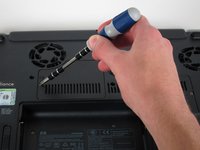
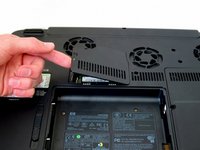
  3. HP Pavilion zd8000 USB Module Replacement, RAM: step 3, image 1 of 2 HP Pavilion zd8000 USB Module Replacement, RAM: step 3, image 2 of 2
    • Loosen the Phillips screw labeled ‘ram’ and lift the cover.

    Ask FixBot
    Add Comment

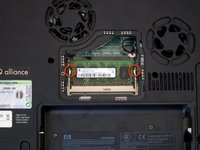
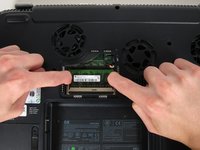
  4. HP Pavilion zd8000 USB Module Replacement: step 4, image 1 of 2 HP Pavilion zd8000 USB Module Replacement: step 4, image 2 of 2
    • Locate the green RAM card and find the metal tabs securing the card.

    • Push outwards on the two tabs to release the card.

    Ask FixBot

    Add Comment

  5. HP Pavilion zd8000 USB Module Replacement: step 5, image 1 of 1
    • Carefully slide the card out at an upward angle away from the slot.

    Ask FixBot

    Add Comment

  6. HP Pavilion zd8000 USB Module Replacement, WiFi Card Cables: step 6, image 1 of 2 HP Pavilion zd8000 USB Module Replacement, WiFi Card Cables: step 6, image 2 of 2
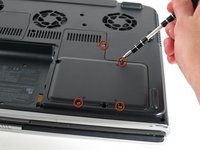
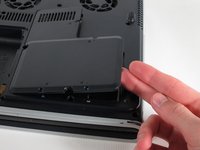
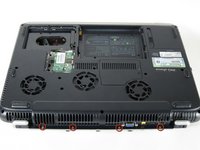
    • Unscrew the four 8mm Philips screws marked with an icon resembling a stacks of discs.

    • Lift the cover from the right to remove it.

    Ask FixBot

    Add Comment

  7. HP Pavilion zd8000 USB Module Replacement: step 7, image 1 of 2 HP Pavilion zd8000 USB Module Replacement: step 7, image 2 of 2
    Tool used on this step:
    Tweezers
    $4.99
    Buy
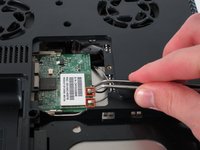
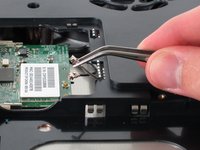
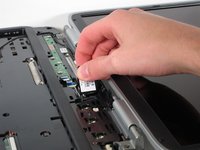
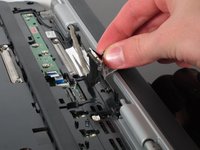
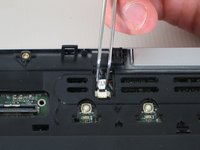
    • Use tweezers to detach the grey and black cables connected to the green WiFi card.

    Ask FixBot
    Add Comment

  8. HP Pavilion zd8000 USB Module Replacement, CD/Optical Drive: step 8, image 1 of 1
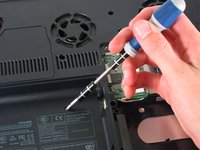
    • Remove the 8mm Philips screw located between the hard drive and the WiFi card.

    Ask FixBot
    Add Comment

  9. HP Pavilion zd8000 USB Module Replacement: step 9, image 1 of 2 HP Pavilion zd8000 USB Module Replacement: step 9, image 2 of 2
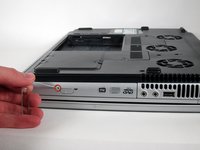
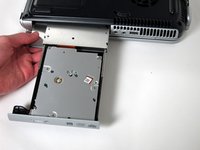
    • Turn the laptop 90 degrees clockwise so you are facing the CD drive.

    • Unbend a paperclip and insert the end into the small hole by the eject button to cause the tray to pop out towards you.

    Ask FixBot

    Add Comment

  10. HP Pavilion zd8000 USB Module Replacement: step 10, image 1 of 2 HP Pavilion zd8000 USB Module Replacement: step 10, image 2 of 2
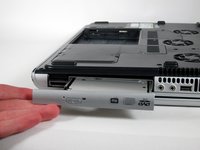
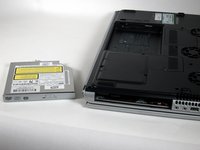
    • Gently pull the tray away from the laptop and the rest of the optical drive will follow.

    Ask FixBot

    Add Comment
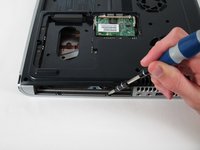
  11. HP Pavilion zd8000 USB Module Replacement, Keyboard: step 11, image 1 of 1
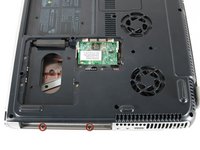
    • Remove the two 8mm Philips screws marked “K” on the bottom of the laptop.

    Ask FixBot
    Add Comment

  12. HP Pavilion zd8000 USB Module Replacement: step 12, image 1 of 2 HP Pavilion zd8000 USB Module Replacement: step 12, image 2 of 2
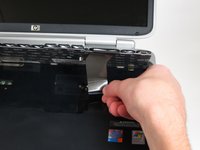
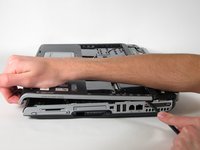
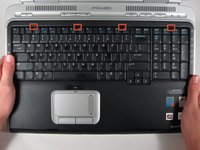
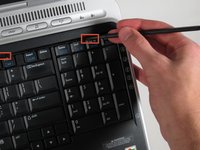
    • Flip the laptop over and open the screen.

    • Push up on the four latches located at the top of the keyboard with the spudger to release them.

    Ask FixBot

    Add Comment

  13. HP Pavilion zd8000 USB Module Replacement: step 13, image 1 of 2 HP Pavilion zd8000 USB Module Replacement: step 13, image 2 of 2
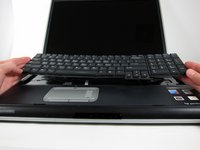
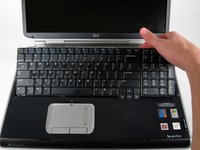
    • Lift the keyboard carefully because it is attached to the motherboard by a ribbon cable.

    • Lift the top of the keyboard towards you. Then, while keeping the keyboard at an angle, lift it towards the display.

    Ask FixBot

    Add Comment

  14. HP Pavilion zd8000 USB Module Replacement: step 14, image 1 of 2 HP Pavilion zd8000 USB Module Replacement: step 14, image 2 of 2
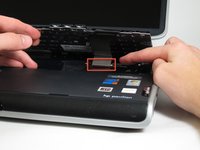
    • Rotate the keyboard so that the bottom is visible.

    • With the keyboard lifted, locate the blue-striped tab on the underside of the black ribbon cable.

    • Pull the tab towards you to release the keyboard from the laptop.

    Ask FixBot

    Add Comment

  15. HP Pavilion zd8000 USB Module Replacement, Switch Cover: step 15, image 1 of 2 HP Pavilion zd8000 USB Module Replacement, Switch Cover: step 15, image 2 of 2
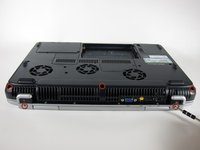
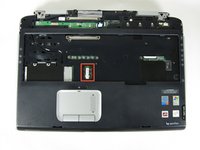
    • Place the laptop face-down and rotate it 180 degrees so the vents are facing you.

    • Remove the five 8mm Philips screws. Three are on the black base and two are near the hinges.

    Ask FixBot
    Add Comment

  16. HP Pavilion zd8000 USB Module Replacement: step 16, image 1 of 1
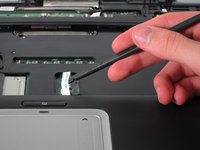
    • Flip the laptop over.

    • Fully open the laptop.

    Ask FixBot
    Add Comment

  17. HP Pavilion zd8000 USB Module Replacement: step 17, image 1 of 3 HP Pavilion zd8000 USB Module Replacement: step 17, image 2 of 3 HP Pavilion zd8000 USB Module Replacement: step 17, image 3 of 3
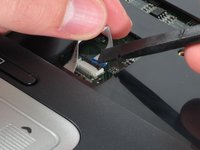
    • Rotate it so the display is on your right and the keyboard is on your left.

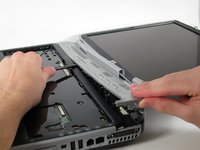
    • Lift the switch cover firmly but slowly so you do not snap it.

    • Lift the switch cover carefully from one end while sliding the spudger between the switch cover and the laptop to separate them.

    • The switch cover should easily separate from the laptop as you run the spudger through.

    Ask FixBot
    Add Comment

  18. HP Pavilion zd8000 USB Module Replacement, Screen: step 18, image 1 of 2 HP Pavilion zd8000 USB Module Replacement, Screen: step 18, image 2 of 2
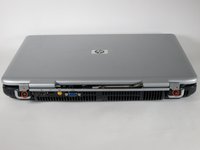
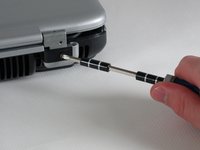
    • Close the lid and rotate the laptop so that the vents are facing you.

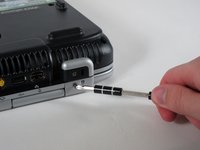
    • Unscrew the two 8mm Philips screws below the hinges.

    Ask FixBot

    Add Comment

  19. HP Pavilion zd8000 USB Module Replacement: step 19, image 1 of 2 HP Pavilion zd8000 USB Module Replacement: step 19, image 2 of 2
    • Carefully rotate the laptop 90 degrees counter-clockwise and open the screen.

    • Pull on the black tab with the HP service sticker to unplug the display from the motherboard.

    Ask FixBot

    Add Comment

  20. HP Pavilion zd8000 USB Module Replacement: step 20, image 1 of 2 HP Pavilion zd8000 USB Module Replacement: step 20, image 2 of 2
    Tool used on this step:
    Tweezers
    $4.99
    Buy
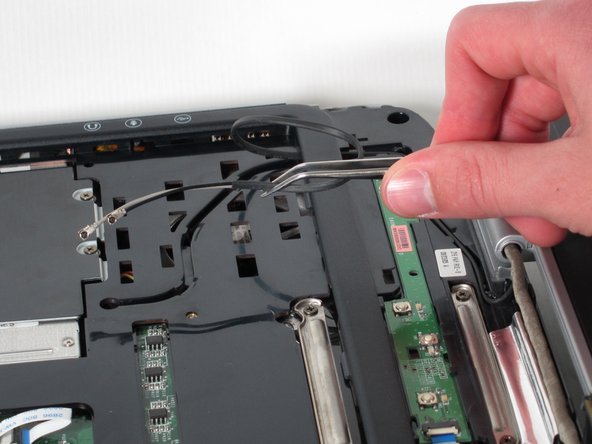
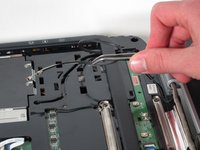
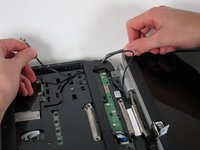
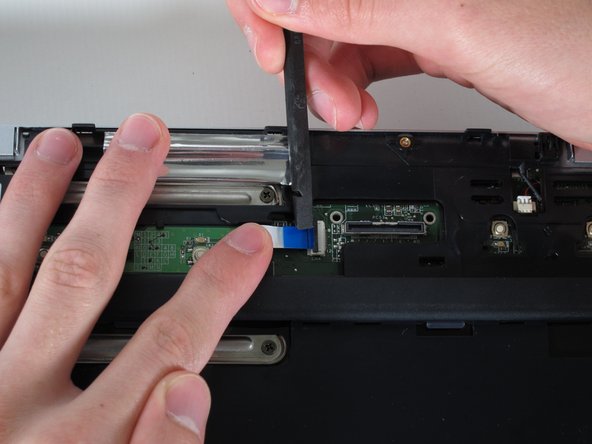
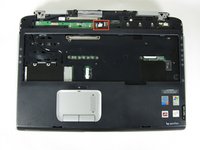
    • Using tweezers, remove the black cable from the hole leading to the WiFi enclosure.

    • Pull gently to remove the black and grey cables from the case.

    • Check the surface beneath the laptop to ensure the cables do not catch on anything when you flip the laptop over.
    Ask FixBot
    Add Comment

  21. HP Pavilion zd8000 USB Module Replacement: step 21, image 1 of 2 HP Pavilion zd8000 USB Module Replacement: step 21, image 2 of 2
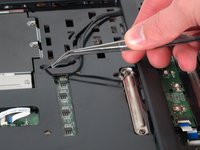
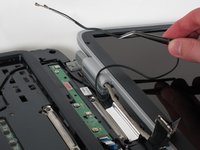
    • Using tweezers, pull the black cable towards the display and through the hole in the casing.

    Ask FixBot

    Add Comment

  22. HP Pavilion zd8000 USB Module Replacement: step 22, image 1 of 3 HP Pavilion zd8000 USB Module Replacement: step 22, image 2 of 3 HP Pavilion zd8000 USB Module Replacement: step 22, image 3 of 3
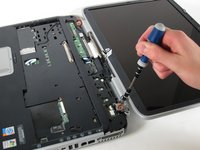
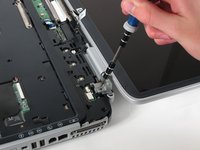
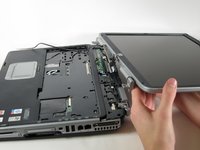
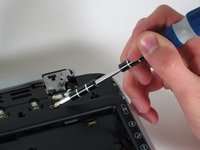
    • Unscrew the two 8mm Philips screws that attach the hinge to the laptop's display.

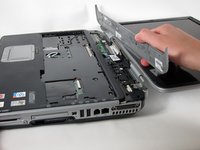
    • Lift the screen upwards to detach it from the laptop.

    Ask FixBot

    Add Comment

  23. HP Pavilion zd8000 USB Module Replacement, Top Cover: step 23, image 1 of 2 HP Pavilion zd8000 USB Module Replacement, Top Cover: step 23, image 2 of 2
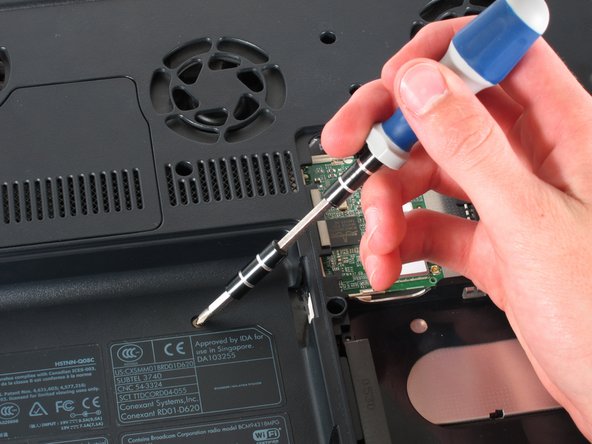
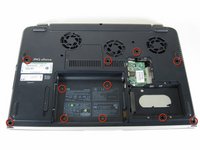
    • With the laptop face-down, remove the eleven 8mm Philips screws.

    Ask FixBot

    Add Comment

  24. HP Pavilion zd8000 USB Module Replacement: step 24, image 1 of 2 HP Pavilion zd8000 USB Module Replacement: step 24, image 2 of 2
    • Rotate the laptop 180 degrees so the vents are facing you.

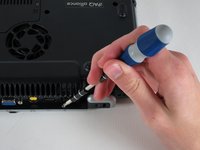
    • Unscrew the four 3mm Philips screws below the vents.

    Ask FixBot

    Add Comment

  25. HP Pavilion zd8000 USB Module Replacement: step 25, image 1 of 2 HP Pavilion zd8000 USB Module Replacement: step 25, image 2 of 2
    • Rotate the laptop 90 degrees counter-clockwise.

    • Unscrew the two 3mm Philips screws from the optical drive bay.

    Ask FixBot

    Add Comment

  26. HP Pavilion zd8000 USB Module Replacement: step 26, image 1 of 3 HP Pavilion zd8000 USB Module Replacement: step 26, image 2 of 3 HP Pavilion zd8000 USB Module Replacement: step 26, image 3 of 3
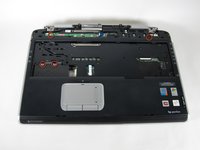
    • Flip the laptop over so it is face-up with the trackpad closest to you.

    • Locate the ribbon cable directly above the track pad.

    • Find the black latch at the end of the ribbon cable and unlatch it with a spudger to release it.

    Ask FixBot

    Add Comment

  27. HP Pavilion zd8000 USB Module Replacement: step 27, image 1 of 3 HP Pavilion zd8000 USB Module Replacement: step 27, image 2 of 3 HP Pavilion zd8000 USB Module Replacement: step 27, image 3 of 3
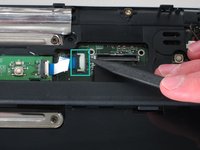
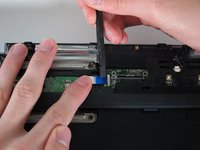
    • Find the ribbon cable on the LED board located at the top of the laptop.

    • You will notice that the ribbon cable is connected to two levels - you will be dealing with the one on the lower level.

    • Find the black latch at the end of the ribbon cable and unlatch it with a spudger to release it.

    Ask FixBot

    Add Comment

  28. HP Pavilion zd8000 USB Module Replacement: step 28, image 1 of 2 HP Pavilion zd8000 USB Module Replacement: step 28, image 2 of 2
    Tool used on this step:
    Tweezers
    $4.99
    Buy
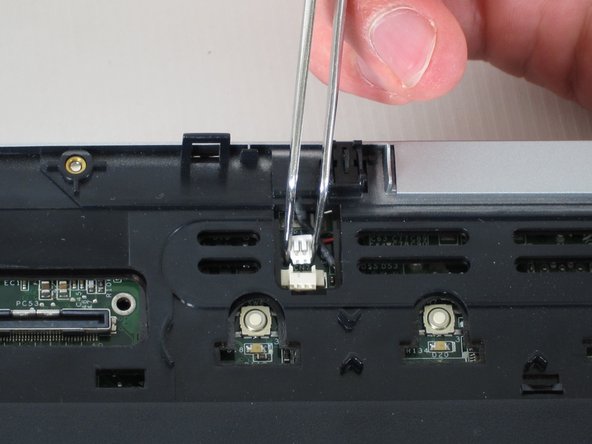
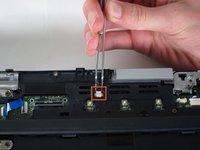
    • Locate the white connector attached to a red and black cable to the right of the LED board.

    • Using tweezers, pull the white connector away from you.

    Ask FixBot

    Add Comment

  29. HP Pavilion zd8000 USB Module Replacement: step 29, image 1 of 2 HP Pavilion zd8000 USB Module Replacement: step 29, image 2 of 2
    • Unscrew the four 8mm Philips screws from the top cover.

    Ask FixBot

    Add Comment

  30. HP Pavilion zd8000 USB Module Replacement: step 30, image 1 of 2 HP Pavilion zd8000 USB Module Replacement: step 30, image 2 of 2
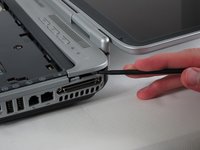
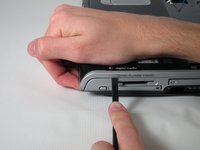
    • Rotate the computer 90 degrees clockwise and insert the spudger at the seam above the card reader.

    • While lifting the front end of the top cover, slide the spudger across the seam.

    • When you have reached the firewire port, it should click open.

    Ask FixBot

    Add Comment

  31. HP Pavilion zd8000 USB Module Replacement: step 31, image 1 of 1
    • Lift the top cover from the left side to remove it completely.

    Ask FixBot

    Add Comment

  32. HP Pavilion zd8000 USB Module Replacement, USB Module: step 32, image 1 of 2 HP Pavilion zd8000 USB Module Replacement, USB Module: step 32, image 2 of 2
    • Rotate the laptop 90 degrees counter-clockwise

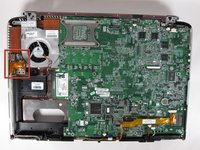
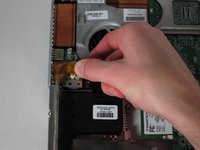
    • Locate the USB Module

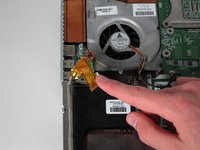
    • Grip the yellow cable cover and pull it to the right to release it.

    Ask FixBot

    Add Comment

  33. HP Pavilion zd8000 USB Module Replacement: step 33, image 1 of 2 HP Pavilion zd8000 USB Module Replacement: step 33, image 2 of 2
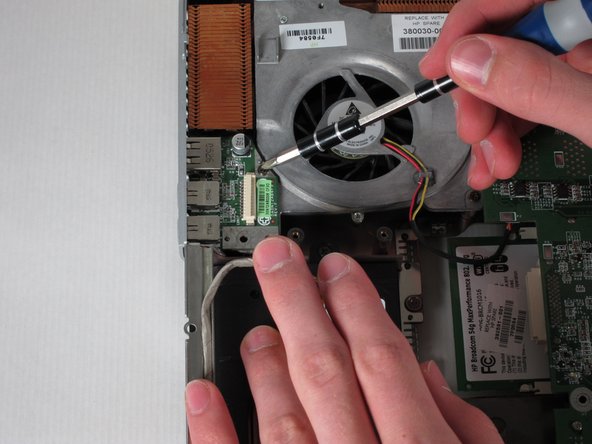
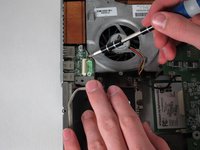
    • Unscrew the 6mm Philips screw connecting the USB module to the fan.

    Ask FixBot

    Add Comment

  34. HP Pavilion zd8000 USB Module Replacement: step 34, image 1 of 1
    • Pull the module to the right and lift it out to release it.

    Ask FixBot

    Add Comment

Conclusion

To reassemble your device, follow these instructions in reverse order.

Cancel: I did not complete this guide.

2 other people completed this guide.

Allie Menard

Member since: 04/12/11

820 Reputation

13 Guides authored

Team

Cal Poly, Team 24-56, Amido Spring 2011 Member of Cal Poly, Team 24-56, Amido Spring 2011

CPSU-AMIDO-S11S24G56

4 Members

13 Guides authored

0 Guide Comments

Add Comment

View Statistics:

Past 24 Hours: 1

Past 7 Days: 7

Past 30 Days: 63

All Time: 3,016