Free Shipping on Domestic Orders $75+

HP Pavilion dv4000 Keyboard Replacement

What you need

    1. HP Pavilion dv4000 Keyboard Replacement, Battery: step 1, image 1 of 1
      • Turn the laptop upside down with the battery compartment facing you.

      Ask FixBot

      Add Comment

    2. HP Pavilion dv4000 Keyboard Replacement: step 2, image 1 of 1
      • Slide the battery release latch to the right and hold in place.

      Ask FixBot

      Add Comment

    3. HP Pavilion dv4000 Keyboard Replacement: step 3, image 1 of 1
      • Lift the front edge of the battery up and remove it from the compartment.

      Ask FixBot

      Add Comment

    1. HP Pavilion dv4000 Keyboard Replacement, Keyboard: step 4, image 1 of 1
      • Have your device open in front of you for easy access to the keyboard.

      Ask FixBot

      Add Comment

    2. HP Pavilion dv4000 Keyboard Replacement: step 5, image 1 of 1
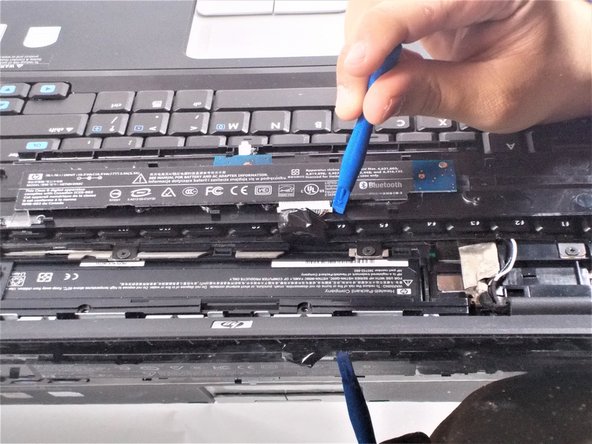
      • Using a metal spudger, pry up on the plastic piece above the keyboard containing the power button.

      • Be careful not to damage any components with the tool while prying.

      Ask FixBot

      Add Comment

    3. HP Pavilion dv4000 Keyboard Replacement: step 6, image 1 of 1
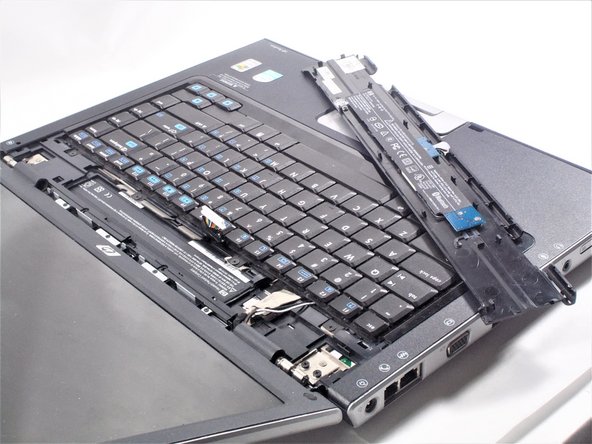
      • Lift the plastic piece up.

      • When lifting this piece, be careful not to damage the ribbon strip connected to it.

      Ask FixBot

      Add Comment

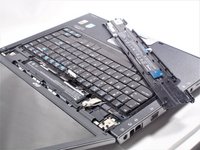
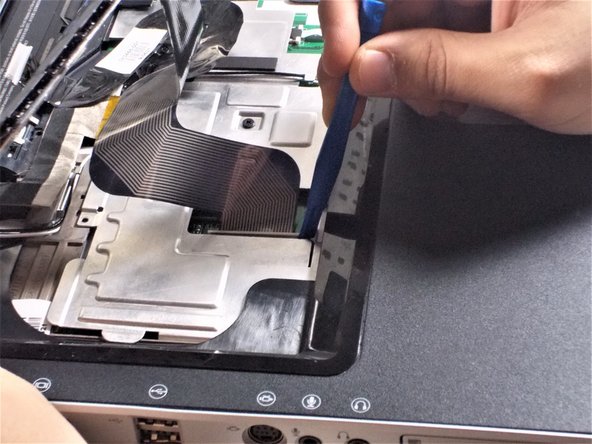
    4. HP Pavilion dv4000 Keyboard Replacement: step 7, image 1 of 3 HP Pavilion dv4000 Keyboard Replacement: step 7, image 2 of 3 HP Pavilion dv4000 Keyboard Replacement: step 7, image 3 of 3
      • Place the plastic piece on the keyboard so the ribbon strip is easily accessible.

      • Carefully disconnect the ribbon strip from the keyboard by pressing on the tabs at the edges.

      • Remove plastic piece and set aside.

      Ask FixBot

      Add Comment

    5. HP Pavilion dv4000 Keyboard Replacement: step 8, image 1 of 1
      • Locate the four 2x2 mm screws that hold the keyboard in place.

      Ask FixBot

      Add Comment

    6. HP Pavilion dv4000 Keyboard Replacement: step 9, image 1 of 1
      • Unscrew the four 2x2 mm screws with a #00 Phillips screwdriver.

      Ask FixBot

      Add Comment

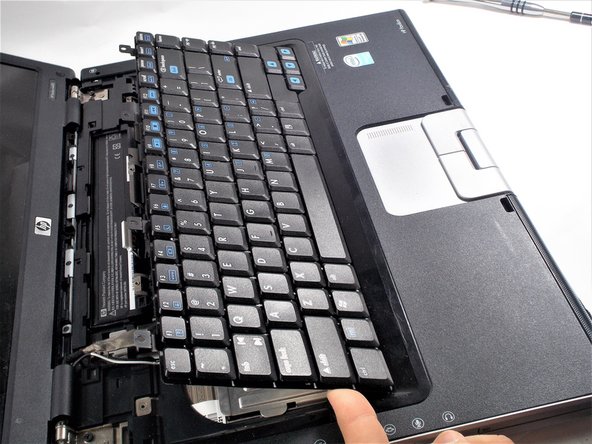
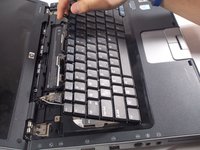
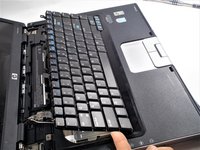
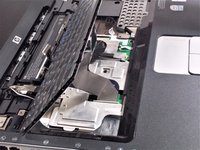
    7. HP Pavilion dv4000 Keyboard Replacement: step 10, image 1 of 2 HP Pavilion dv4000 Keyboard Replacement: step 10, image 2 of 2
      • Lift the keyboard up.

      • When lifting the keyboard, be sure not to damage the ribbon strip that is connected to it.

      Ask FixBot

      Add Comment

    8. HP Pavilion dv4000 Keyboard Replacement: step 11, image 1 of 1
      • Locate where the ribbon strip is connected to the motherboard.

      Ask FixBot

      Add Comment

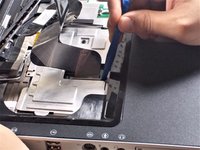
    9. HP Pavilion dv4000 Keyboard Replacement: step 12, image 1 of 2 HP Pavilion dv4000 Keyboard Replacement: step 12, image 2 of 2
      • Pry at the edges of the plastic clip holding the ribbon cable to the motherboard.

      • Be careful during this step as these clips are very easy to break.

      Ask FixBot

      Add Comment

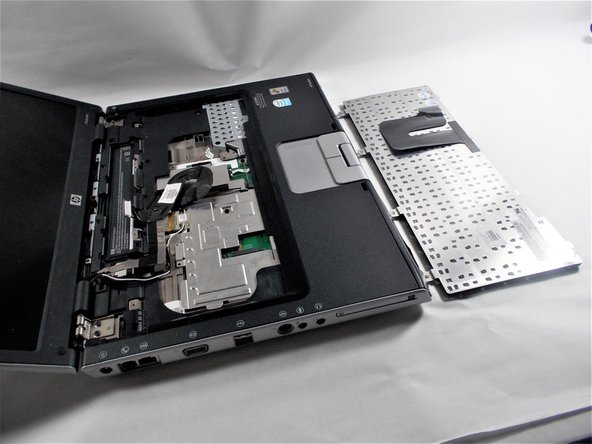
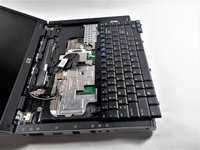
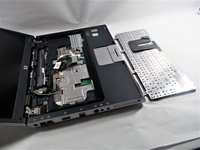
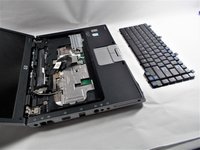
    10. HP Pavilion dv4000 Keyboard Replacement: step 13, image 1 of 3 HP Pavilion dv4000 Keyboard Replacement: step 13, image 2 of 3 HP Pavilion dv4000 Keyboard Replacement: step 13, image 3 of 3
      • Remove the keyboard.

      Ask FixBot

      Add Comment

Conclusion

To reassemble your device, follow these instructions in reverse order.

Cancel: I did not complete this guide.

One other person completed this guide.

Nick LaMarche

Member since: 10/18/16

373 Reputation

2 Guides authored

Team

UMass Dartmouth, Team 4-2, Catania Fall 2016 Member of UMass Dartmouth, Team 4-2, Catania Fall 2016

UMASSD-CATANIA-F16S4G2

3 Members

54 Guides authored

0 Guide Comments

Add Comment

View Statistics:

Past 24 Hours: 2

Past 7 Days: 14

Past 30 Days: 31

All Time: 1,283